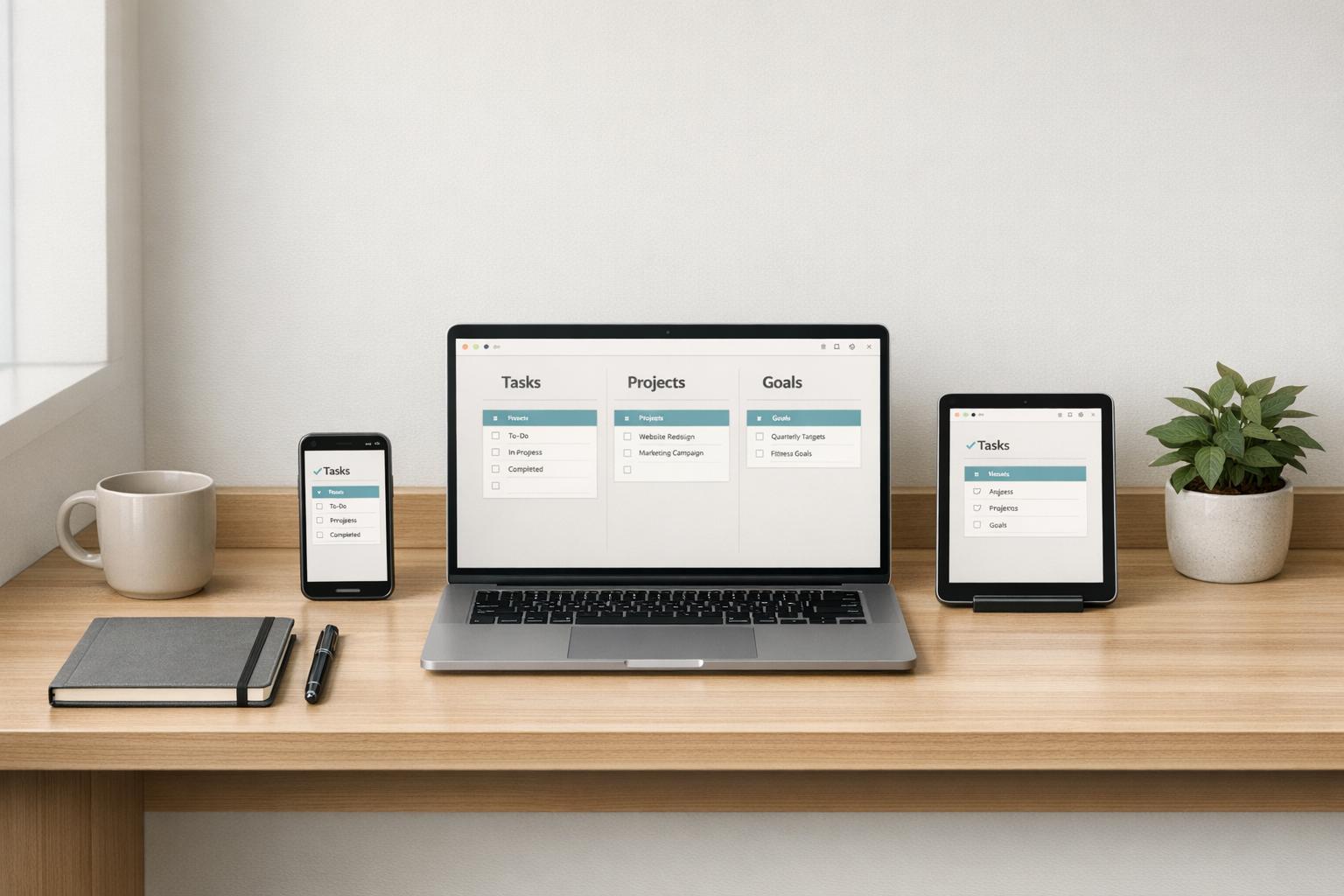
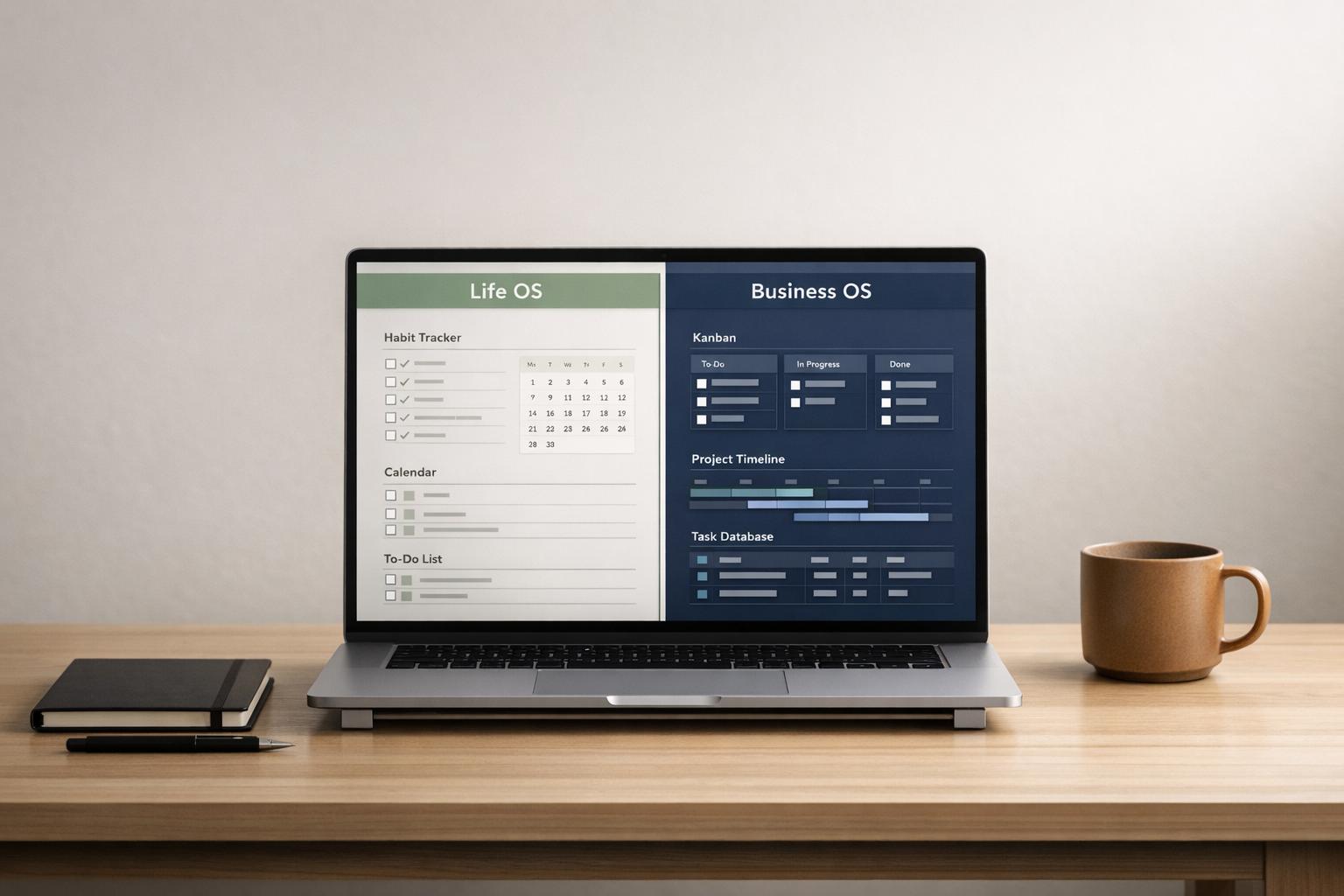
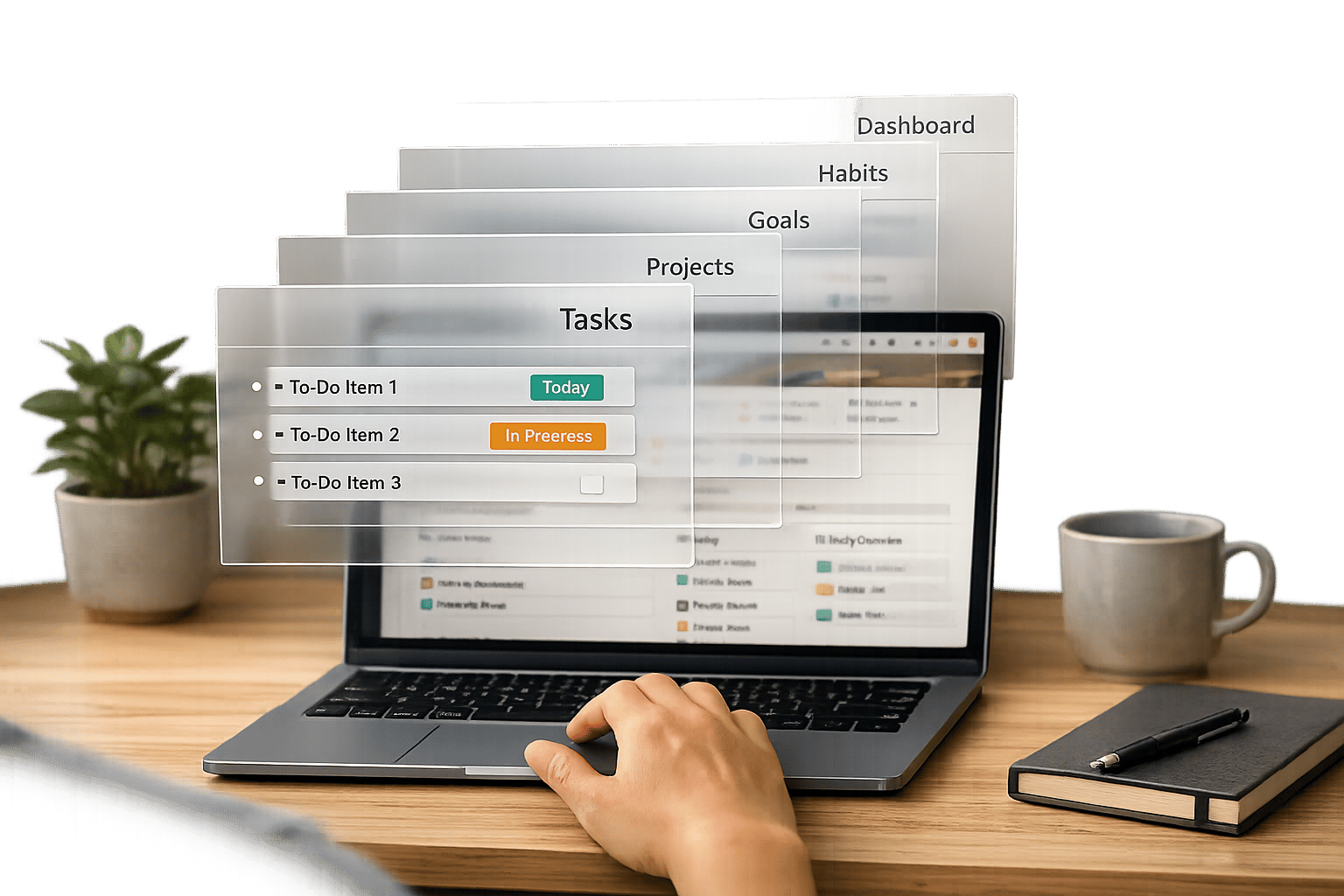
If you’ve been juggling client details across scattered tools, it’s time to rethink your setup. A Notion CRM gives you one organized space to manage leads, track deals, and log interactions - all without the high costs of traditional CRMs. For small businesses, it’s a cost-effective way to stay on top of relationships and close more sales.
This guide breaks down how to build a Notion CRM step by step, from creating databases for contacts, companies, and deals, to automating follow-ups and linking your CRM to project workflows. Plus, you’ll learn when it makes sense to upgrade to a pre-built CRM or Business OS dashboard to save time and streamline everything.
Quick overview:
- Who it’s for: Small business owners, freelancers, and teams managing client relationships.
- What it helps with: Organizing leads, tracking sales pipelines, and automating follow-ups.
- When to upgrade: If DIY becomes too time-consuming or you need an all-in-one system.
Let’s dive into how to build a Notion CRM that works for your business.
Notion CRM Masterclass: Build From Scratch
sbb-itb-ced67d6
What a Notion CRM Is (and Isn't)
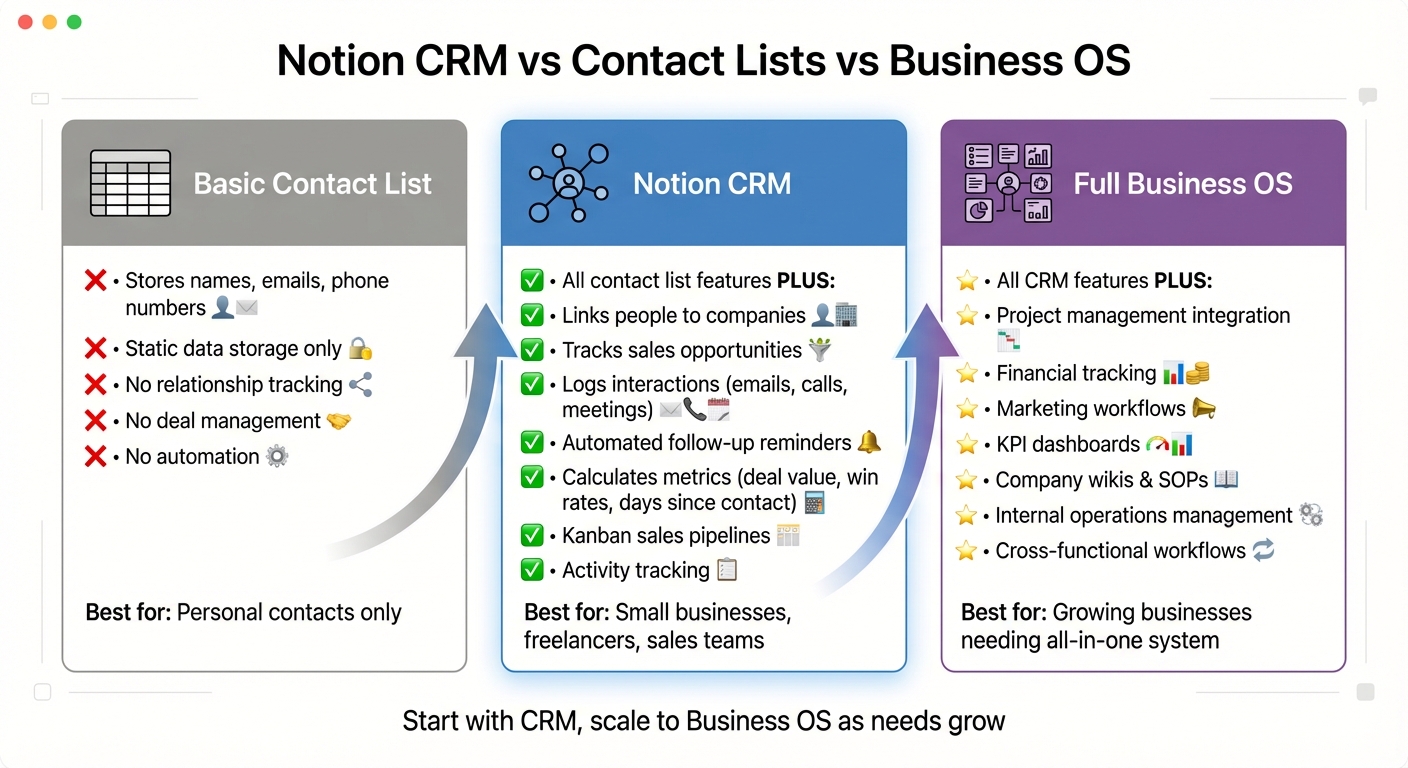
Notion CRM vs Contact Lists vs Business OS: Feature Comparison
A Notion CRM is more than just a database. It’s a connected system of tools - usually including Contacts, Companies, and Deals databases - designed to manage every phase of the client journey, from initial lead to final project delivery. Unlike a simple contact list that only stores basic details like names and phone numbers, a Notion CRM uses Relations to connect people to their companies, sales opportunities, and even meeting notes. This creates a comprehensive view of each client relationship. With features like Rollups and Formulas, it can automatically calculate useful metrics like total deal value per company, days since last contact, or win rates.
What sets a Notion CRM apart is how it turns raw data into actionable workflows. It combines sales pipelines (like Kanban boards), automated follow-up reminders, and activity tracking, consolidating everything you need to manage clients in one place. To see how it stands out, it’s helpful to compare it to basic contact lists and broader Business OS setups.
Notion CRM vs. Basic Contact Lists
A basic contact list is essentially a table or spreadsheet where you can store names, emails, and phone numbers. While it’s fine for keeping information, it doesn’t help you manage relationships or track progress on deals. A Notion CRM goes beyond storage by adding tools for logging interactions (like emails, calls, and meetings) and tracking opportunities (such as deal values, sales stages, and close dates).
For example, a contact list might only show that Jane Smith works at Acme Corp. A Notion CRM, however, links Jane to active deals, recent meeting notes, and even sets up automated reminders for follow-ups using simple formulas. It’s a deeper, more dynamic way to manage your client relationships.
Notion CRM vs. Full Business OS
A Notion CRM is laser-focused on sales and client management. It’s built to help you organize leads, manage deals, and close sales. A Notion Business OS, however, takes things further by integrating the CRM with other vital business functions - think project management, financial tracking, marketing workflows, and even internal operations.
While a CRM revolves around "People" and "Deals" databases, a Business OS expands to include tools like project delivery modules, KPI dashboards, company wikis, and SOPs. For smaller businesses, starting with a CRM offers the core tools needed to manage clients effectively. As your needs grow - like linking deals to project workflows or financial reporting - you can scale up to a full Business OS. If your current priority is organizing leads and closing sales, a CRM is the right starting point. But when you need an all-in-one system to handle everything from client management to internal operations, a Business OS becomes the smarter choice.
Core CRM Building Blocks in Notion
A functional CRM in Notion for small businesses revolves around four key databases: Contacts, Companies, Deals (or Opportunities), and Interactions (or Activities). Each serves a specific purpose, but the real magic happens when they’re linked using Relationship properties. For instance, connecting a Contact to a Company lets you see all the individuals tied to that organization. Similarly, linking a Deal to both a Contact and a Company provides a complete snapshot of the sales opportunity and the people involved. These connections form the backbone of a streamlined CRM, integrating client details, sales opportunities, and interactions into one cohesive system.
This setup emphasizes building meaningful relationships instead of just maintaining lists of names. The Contacts database acts as a modern rolodex, storing essential details like email, phone, and job title for each individual. The Companies database is your organizational anchor, consolidating all related contacts and deals in one place. The Deals database tracks your sales pipeline, including deal values, stages (e.g., Lead, Proposal, Negotiation), and expected close dates. Finally, the Interactions database logs every touchpoint - emails, calls, and meetings - creating a complete history of each relationship.
Main Databases: Deals, Contacts, Companies, and Activities
Start with a Contacts database to capture personal details. Key fields include Name (Title), Email, Phone, Job Title, Status (using a Select property with options like Lead, Active Client, or Past Client), and a relation to the Companies database. Keeping the Companies database separate allows you to link multiple contacts to one organization, which is especially useful for B2B relationships. Important properties for the Companies database include Company Name (Title), Website (URL), Industry (Select), and relations to both Contacts and Deals. This creates a solid framework for a CRM tailored to small business needs.
The Deals database is where your sales pipeline lives. Key properties include Deal Name (Title), Value (formatted as currency, such as $ for U.S. businesses), Stage (Select, with options like Qualification, Proposal Sent, Closed Won), Expected Close Date (Date), and Owner (Person). Using a Select property for stages enables a Kanban view, making it easy to drag and drop deals as they progress.
The Interactions database tracks all client touchpoints. Key fields include Interaction Title, Date, Type (Select, e.g., Email, Call, or Meeting), Notes (Text), and relations to both Contacts and Companies. By linking activities to both a Contact and a Company, you create a chronological history on their profile pages, giving you a complete picture of your client relationships.
Key Properties for Small Businesses
To take your CRM to the next level, advanced properties like Rollups and Formulas can add significant functionality. Rollup properties, for example, can calculate totals or pull data across linked databases. A "Total Deal Value" rollup in the Companies database can instantly show which accounts hold the most revenue potential. Similarly, formula properties can track metrics like "Days Open" (calculating the time since a lead was created) or "Commission" (calculating a percentage of a deal’s value).
For managing follow-ups, you can create a formula property to flag contacts who haven’t been reached in a set timeframe. For instance, a formula like dateBetween(now(), prop("Last Contacted"), "days") can help identify overdue follow-ups. Build a filtered view called "Follow Up Today" to display leads requiring immediate attention. Additionally, you can create templates, such as a "New Deal" template in the Deals database, to include a discovery call notes section and a sales checklist. These features turn your CRM into a proactive, action-oriented tool rather than a static database.
With these core elements in place, your next step is to design a sales pipeline that maximizes the potential of these interconnected relationships.
Step 1: Design Your Sales Pipeline Stages
Before diving into databases, take a moment to map out the journey your leads follow - from the first conversation to becoming paying clients. Your sales pipeline should reflect how you actually work, not a cookie-cutter template. For most small businesses, this usually means five to seven key stages that mirror your process. The goal here? Build a clear, visual system that ensures no deal gets overlooked and gives you a snapshot of where each opportunity stands.
Common Sales Stages to Use
A typical pipeline for small businesses might include stages like New Lead (initial contact or inquiry), Qualified (confirming the prospect is a good fit), Proposal Sent (formal offer delivered), Negotiation (terms or pricing discussed), Closed Won (deal finalized), and Closed Lost (deal didn’t work out). These stages form the foundation for service-based businesses, whether you’re a freelancer or running an agency.
Want to tailor it further? You can add stages like Discovery or In Conversation between Qualified and Proposal Sent, or even create a category like Pie-in-the-Sky for long-shot opportunities that might convert down the road. For instance, if you always schedule a discovery call before sending a proposal, include a Meeting Booked stage. If your process involves collecting a deposit before starting work, add a Deposit Paid stage between Closed Won and project kickoff. Each stage should represent a meaningful step in your workflow, not just a placeholder.
As Albert, a Notion creator and ambassador, explains:
Relationships must be systemized, in case you desire a real business.
In Notion, you’ll set up these stages using a Select property in your Deals database. Then, use a Kanban board view, where each column represents a stage, to track your deals visually. This setup allows you to drag and drop deals as they progress, turning your pipeline into an interactive tool that shows exactly where to focus your follow-ups. To make it even clearer, color-code your stages - green for Closed Won, red for Closed Lost, and yellow for Negotiation - so you can quickly see what needs attention.
Start simple. Many small businesses overcomplicate things by adding too many stages right away, leading to "new system fatigue." Stick to the basics, test your setup for a few weeks, and only add more layers as your process evolves.
Step 2: Build the Deals and Contacts Databases
Creating the Deals and Contacts Databases
With your pipeline stages outlined, it’s time to create the two main databases that will form the backbone of your Notion CRM: Deals and Contacts. Start by setting up a full-page Deals database. The default Title property will serve as your Deal Name - use clear and specific titles like "Website Redesign for Acme Corp" or "Q2 Consulting Package" to keep things organized.
Next, add key properties to your Deals database:
- Value: Use a currency format to track deal amounts.
- Stage: A Select property to reflect the deal’s current stage.
- Expected Close Date: A Date property to plan timelines.
- Relation to Contacts: This links deals to the relevant contacts, creating a two-way relationship. With this setup, you can easily see all deals tied to a specific contact and vice versa.
Now, create a full-page Contacts database. Use the following properties to make it functional:
- Name: The Title property for the contact’s name.
- Email: An Email property for quick communication.
- Phone: A Phone property to store numbers.
- Status: A Select property with options like Lead, Active Client, and Past Client.
For B2B workflows, link Contacts to a Companies database. This is especially helpful when multiple people from the same organization are involved in a deal. By connecting these databases through Relation properties, you’ll have a seamless system where updates in one area reflect everywhere they’re relevant, cutting down on manual updates and scattered data.
Once your databases are ready, the next step is to create custom views that simplify tracking and give you quick access to the information you need.
Setting Up Basic Views
With the databases in place, customize your views to make managing your CRM effortless. In the Deals database, create a Kanban board view by switching the layout to Board and grouping by the Stage property. This setup allows you to drag and drop deals between stages as they progress. Add some color-coding to your stages - green for Closed Won, red for Closed Lost, and yellow for Negotiation - to visually highlight where deals stand at a glance.
Set up additional views like:
- New Leads: Filter for deals in early stages such as "New Lead" or "Qualification."
- Active Deals: Exclude deals marked as "Closed Won" or "Closed Lost" to focus on what’s still in play.
- Closed Won: Track completed deals and revenue.
For the Contacts database, create a Follow Up Today view. Filter this view to show contacts with a "Next Follow-Up" date matching today or where the "Last Contacted" date is more than 14 days old. This view acts as your daily to-do list, helping you stay on top of relationships.
To round things out, add:
- All Contacts: A table view for easy data entry and a full overview.
- Contacts Needing Attention: Highlight high-priority contacts, such as major clients or partners you haven’t reached out to in a while.
These tailored views turn your raw databases into a functional CRM. Instead of sifting through endless rows of data, you can jump straight to the view that fits your current task - whether it’s managing today’s follow-ups, analyzing your pipeline, or reviewing past successes. Start with the basics, and you can always refine and expand as your needs grow.
Step 3: Track Activities and Follow-Ups in Notion
Adding an Activities or Notes Database
After setting up your Deals and Contacts databases, the next step is to keep track of every interaction with your clients. A CRM without a history of client communications is like trying to solve a puzzle with missing pieces. To make your Notion CRM a tool that actively supports closing deals and building relationships, you’ll need an Activities (or Interactions) database. Think of this as your central logbook for all client touchpoints - calls, emails, meetings, or even LinkedIn messages - organized chronologically for easy access.
Start by creating a full-page "Activities" database with these key properties:
- Interaction Title: Use the default title property to provide a quick summary (e.g., "Q2 Check-in Call" or "Proposal Follow-Up Email").
- Date: Record when the interaction took place.
- Type: Add a Select property to classify the touchpoint (e.g., Call, Email, Meeting, LinkedIn Message).
- Notes/Summary: Use a text field to jot down key points, decisions, or action items.
To make your CRM truly powerful, link the Activities database to both your Contacts and Deals databases. Add a "Participants" relation to connect with your Contacts database and a "Related Deal" relation to tie interactions to specific deals. This creates a complete timeline of client activity, all in one place.
For better follow-up management, include properties like Next Follow-Up Date and Follow-Up Frequency (e.g., 7, 14, or 30 days). Then, create a filtered view called "Follow Up Today" to highlight activities where the Next Follow-Up Date is today or overdue. To take it a step further, add a Rollup property in your Contacts database that pulls the latest interaction date from the linked Activities database. This will automatically display the "Last Contacted" date for each contact, giving you an instant overview of your communication history.
As NotionSender explains:
The real magic happens when your CRM isn't just a standalone tool but an integrated part of your entire digital workspace. It stops being a place you have to update and serves as the central hub for client interactions.
With this Activities database in place, you’ll never lose track of a lead. It keeps a detailed record of every conversation, so you’ll always know who needs a follow-up, what was discussed last, and any pending action items. All of this is easily accessible from related contact or deal pages, helping you maintain consistent follow-ups and a well-organized pipeline - exactly what your small business needs to thrive.
Step 4: Connect CRM to Projects and Delivery
Linking CRM to Projects
When a deal shifts to "Closed Won", it's essential for your CRM to connect directly to your delivery workflow. If this link is missing, crucial details might slip through the cracks, onboarding could become disorganized, and your team may waste valuable time re-entering client information. The fix? Use Notion's Relation property to seamlessly tie your Deals and Contacts databases to your Projects (or Tasks) database, ensuring a smooth handoff from sales to delivery.
Start by building a Projects database with key properties like Project Name, Status, Start Date, Delivery Lead, and Client Notes. Then, add a Relation property to your Projects database to link each project to its originating deal. This connection ensures all sales commitments are clearly visible throughout the delivery process. To save time and reduce errors, use a Rollup property in the Projects database to automatically pull in client details - such as email, company name, or deal value - from the linked CRM.
To standardize onboarding, create a "New Client Project" template in your Projects database. This template can include a pre-built checklist with tasks like "Send welcome email", "Schedule kickoff call", and "Request brand assets." You can even embed a Linked View of your Tasks database within the template, filtered to show tasks tagged "New Project." This ensures every client handoff follows a consistent structure. For instance, Maris from Jungle Soul Collective uses a similar setup. When a new client is confirmed, she transitions to delivery using Notion templates that automatically populate with the necessary layout and properties, allowing her to quickly input dates and client details to get started.
To keep your team focused, set up a "Delivery Dashboard" that filters the Projects database to show only projects where the deal status is "Closed Won" or the project status is "Not Started." Additionally, you can add a Rollup property in your CRM to pull in project completion percentages or the latest task updates from the Projects database. This gives sales and account managers real-time insights into delivery progress without needing to leave the CRM view.
Step 5: Dashboards for Owners and Teams
Once your Deals, Contacts, and Activities databases are connected, the next step is creating dashboards that clearly showcase priority tasks. A well-structured dashboard pulls filtered data from your databases, presenting an organized to-do list for you and your team. Here’s how you can set up dashboards to centralize your CRM workflow.
CRM Dashboards to Create
To build effective dashboards, use Linked Views from your existing databases. This approach lets you filter and display CRM data without duplicating it. For instance:
- "Today's Follow-Ups": Filter your Contacts or Activities database to show entries where the "Follow-Up Date" is on or before today and the status isn’t "Closed." Use a List or Table view to make it easy to check off tasks as you go.
- "This Week's Pipeline": Create a Kanban board view grouped by "Stage" to track deals. Filter for deals with an "Expected Close Date" within the current week, and use the Calculate feature to sum up the "Deal Value" column for an instant revenue forecast.
For more focused insights, add views like "Key Accounts" to spotlight your most important clients. Use a Gallery or Table layout filtered by a "Priority" property or "High Value" checkbox to keep these accounts top-of-mind. Personalize team dashboards with views like "My Open Deals" or "My Tasks This Week", filtered by the "Person" property, so each team member only sees their specific priorities.
Another useful addition is a "Getting Cold" filter, which sorts contacts by "Last Interaction Date" in ascending order. This helps you quickly identify leads that haven’t been contacted in over 30 days, ensuring no opportunities are overlooked.
To make your dashboard even more functional, use Notion’s column layout to organize these views side-by-side. For example, place "Today's Follow-Ups" in the left column, "Active Pipeline" in the center, and "Key Accounts" on the right. Add Quick-Add buttons to log new contacts or meeting notes directly from the dashboard. This setup not only integrates seamlessly with your CRM but also lays the groundwork for advanced features, like syncing with Finance & CRM OS dashboards, turning your CRM into a fully actionable workspace.
Recommended Dashboard Views
Here’s a summary of key dashboard views, their database sources, and their purposes:
| Dashboard View | Database Source | Recommended Filter/Layout | Purpose |
|---|---|---|---|
| Today's Follow-Ups | Contacts | Date is "Today" / List View | Daily list for outreach and relationship building |
| Active Pipeline | Deals | Grouped by "Stage" / Kanban Board | Visual tracking of sales progress |
| Hot Leads | Deals | Status is "Lead" or "New" / Gallery | Highlights new, high-priority opportunities |
| This Week's Meetings | Interactions | Date is "This Week" / Calendar | Schedule of upcoming client touchpoints |
| Key Accounts | Companies | Rollup: Value > $X / Table | High-level view of top business relationships |
For even more advanced setups that combine CRM with finance and operations, check out the Finance & CRM OS category or the Sales Pipeline CRM Dashboard on OS Dashboard HQ. These pre-built systems come with ready-to-use views and automations, saving you hours of manual work.
When to Use a Pre-Built Notion CRM or Business OS Instead
Creating a Notion CRM from scratch gives you complete control over how everything works. But there’s a point where managing your DIY system becomes more of a hassle than a help. Spotting that moment early can save you from losing deals or wasting hours tinkering with configurations.
Signs Your DIY CRM Is Becoming a Problem
One major warning sign is spending too much time on maintenance. If you’re constantly fixing broken links, adjusting formulas, or reorganizing views instead of managing leads, your system might be holding you back. Albert, a Notion Creator and video production company founder, learned this the hard way in late 2024. He nearly missed out on a $5,000 deal because his cluttered CRM didn’t remind him to follow up. That experience pushed him to adopt a more structured Notion Business CRM.
Another clue is system burnout. When your CRM demands so much manual effort that you end up using sticky notes, spreadsheets, or email instead, it’s no longer effective. If daily updates feel like a chore, you’re likely to stop using the system consistently, and your data becomes scattered across random notes. As Albert puts it:
Opposition to consistency is overwhelm.
You might also notice missed opportunities, like forgetting follow-ups because your CRM doesn’t highlight critical dates. Or perhaps your database is bogged down with irrelevant details, making it tough to find what really matters. Finally, scaling issues can arise if you’re sharing the system with a team. Problems like duplicate entries, unclear ownership of deals, or data entry mistakes often crop up as your business grows.
If any of this sounds familiar, it’s probably time to switch to a more efficient solution.
Why Pre-Built CRM and Business OS Dashboards Make Sense
Pre-built systems can solve these challenges by offering ready-made structure and simplicity. For example, solutions from OS Dashboard HQ provide a centralized dashboard that updates automatically. You’ll see tasks, pipeline value, and upcoming deals at a glance without needing to set up complex configurations. Instead of manually building workflows, these systems come with pre-set stages like Leads → Opportunities → Accounts → Clients, reducing duplicate entries and keeping everything organized.
These templates also minimize the effort needed to maintain your system. Features like "Products & Services Catalogs" simplify pricing, while automated rollups calculate total deal values - saving you hours of setup and troubleshooting. Traditional CRMs often fail because they’re too rigid or complicated for teams to adopt, with failure rates ranging from 20% to 70%. Pre-built Notion systems offer a balance: easy customization on top of a reliable foundation.
As your business expands, moving to a pre-built dashboard keeps your focus on clients rather than endless database tweaks. If you’re juggling tabs, losing track of deals, or missing follow-ups, explore options like the Finance & CRM OS category or the Sales Pipeline CRM Dashboard. For businesses needing a CRM integrated with project management, finances, and operations, check out the Business OS dashboards category. Solutions like the Small Business OS Template Kit or the Freelance Business OS System turn your CRM into a comprehensive hub, letting you focus on growing your business instead of managing your tools.
Next Steps: Explore CRM and Business OS Dashboards on OS Dashboard HQ
Now that you've built your Notion CRM, it's time to take things further with pre-built systems that save time and effort. At OS Dashboard HQ, you'll find a curated selection of premium Notion OS dashboards designed by top creators. These setups eliminate guesswork, helping you quickly find a system that fits your business needs.
Browse CRM and Pipeline Dashboards
If you're looking to strengthen your lead management and sales pipeline, start with specialized CRM dashboards. The Finance & CRM OS category offers systems built around the "four pillars" of relationship management: Contacts, Companies, Interactions, and Opportunities. Many of these templates include features like Kanban boards to visualize deal stages - think Qualification, Proposal, and Negotiation - and even automated follow-up reminders.
For an easy-to-implement option, check out the Sales Pipeline CRM Dashboard. It comes with preset stages to simplify deal tracking. As Flowtion explains:
A good Notion CRM template is more than just a contact list; it's a living, breathing system for managing your client data, tracking sales, and keeping all your interactions organized.
Explore Full Business OS Dashboards
If your CRM alone isn’t cutting it, a more comprehensive system might be the answer. As mentioned earlier, when a DIY CRM feels limiting, a full Business OS can help you manage clients, projects, and more in one place. These dashboards combine CRM tools with project tracking, financial planning, company wikis, and task management. The Business OS dashboards category has options tailored for small teams and agencies.
Some standout templates include the Small Business OS Template Kit and the Freelance Business OS System. These systems are designed to connect client data directly to project workflows and meeting notes, reducing the need to switch between apps. For agencies juggling multiple clients, the Agency OS dashboards category features templates with tools for tracking project milestones and client satisfaction. Options like the Productive CEO Operating System and the Headquarters Toolkit offer an all-encompassing view of your business, displaying active leads, upcoming meetings, and recent notes in one place.
With your needs in mind, explore the full directory at OS Dashboard HQ to find a template that aligns with your workflow. Whether you’re after a focused CRM or an all-in-one Business OS, you’ll find systems designed to let you spend more time growing your business and less time managing tools.
FAQs
What should I track in my Notion CRM first?
Start by keeping track of contacts or clients - this means recording their name, contact information, and their current status with you, such as whether they’re a lead, an active client, or a partner. Then, move on to logging deals or opportunities, making sure to include important details like the deal stage, potential value, expected close date, and the next follow-up step.
This basic structure lays the groundwork for a CRM that keeps your relationships organized and helps you stay on top of your sales pipeline as it expands.
How do I stop missing follow-ups in Notion?
To stay on top of follow-ups in Notion, include Last Contacted and Next Follow-Up date fields in your CRM database. Check filtered views that highlight upcoming or overdue follow-ups on a regular basis. For added assurance, set up reminders or create manual alerts to keep everything on schedule. This straightforward approach helps you manage contacts and deals effectively, ensuring nothing gets overlooked.
When should I switch to a pre-built Notion CRM or Business OS?
When your DIY Notion setup feels overwhelming, prone to errors, or simply eats up too much of your time, it might be time to consider a pre-built Notion CRM or Business OS. Common signs include difficulty keeping your pipeline organized, repeated mistakes, or the need for more advanced features like automation and integrations.
Pre-built systems, such as those curated by OS Dashboard HQ, are designed to handle these challenges. They provide scalable, dependable solutions tailored for small businesses, combining CRM with project management, finance tracking, and operations tools. The result? You save time, reduce errors, and streamline your workflow for better efficiency.