If you’re a student juggling assignments, exams, and notes across scattered Notion pages, it’s time to consider a Student OS dashboard. Unlike standalone templates, these dashboards connect courses, tasks, and study materials into one organized system, saving you time and reducing chaos.
This article breaks down what makes a great student dashboard, including core databases like Courses, Assignments, and Notes, and features like automated reminders, weekly views, and GPA tracking. Whether you need a simple study planner or an all-in-one Life OS for balancing school and personal goals, you’ll find actionable tips to choose the right setup.
Here’s what we’ll cover:
- Core databases every student dashboard should include
- Key features like due date tracking, habit trackers, and resource libraries
- The difference between Student OS dashboards and Life OS dashboards
- How to evaluate dashboards on OS Dashboard HQ
Let’s dive into what makes these dashboards a game-changer for students.
Notion for Students (Build Tutorial from Scratch)
If you'd rather skip the manual setup, you can jumpstart your workspace with a Notion starter templates bundle designed for beginners.
sbb-itb-ced67d6
What a Notion Student Dashboard Actually Does
A Notion student dashboard brings everything - courses, assignments, exams, and notes - into one organized workspace. Instead of being just a simple to-do list, it uses interconnected databases to link tasks directly to the relevant course, resource, or semester. For example, when you open your Biology 101 page, you’ll immediately see its related notes, assignments, and upcoming exams, all in one place.
It also provides flexible views of your data. You can switch easily between a calendar for tracking deadlines and a gallery for browsing lecture notes, without duplicating any entries. Many dashboards even include built-in tools like GPA calculators and progress trackers, turning your Notion workspace into a fully functional academic system using a pre-built OS bundle.
Why a Student Dashboard is More Than a To-Do List
A to-do list is just that - a list. Writing "Write Essay" doesn’t tell you what course it’s for or where to find your research. A student dashboard, on the other hand, automatically connects that task to your History course, relevant notes, and your calendar. This saves you from constantly searching through apps or files. Instead, you can open a "Today's Tasks" view that shows everything due soon, sorted by course. In fact, research shows that students using structured digital dashboards complete their assignments 25% faster.
This ability to add context and interconnect information is what sets a dashboard apart. Let’s explore how these interconnected databases work together to simplify your academic life.
How Databases Work Together in a Student Dashboard
The magic of a Notion student dashboard lies in how its databases interact. An Assignments database links to a Courses database, so tasks automatically show which class they belong to. Meanwhile, a Notes database connects to both assignments and courses, letting you access lecture notes directly while working on a project. This creates a seamless system where everything is connected.
Each course becomes its own hub. When you click on a specific course, you’ll see only the notes, assignments, and exams tied to it. The dashboard’s homepage keeps things focused by highlighting key details like "This Week's Deadlines" or "Upcoming Exams", ensuring you’re not swamped by every single task at once. Automation also plays a big role, delivering timely reminders when you need them most.
As Sophia Martínez, a student at UCLA, puts it: "Automated reminders pop up exactly when I need them - homework, exams, even overdue tasks. It's like having a personal academic assistant!"
Now that we’ve covered how dashboards work, let’s break down the essential databases every student dashboard should include.
Core Databases Every Student Dashboard Must Have
When it comes to building a student dashboard that works, there are a few databases you simply can't skip. These are the backbone of keeping your academic life in order. Each one has a specific job, and together they create a system that automatically connects your courses, tasks, and study materials - saving you time and reducing chaos.
Courses/Subjects Database
The Courses database is where everything starts. Think of it as the command center for each of your classes. Each course entry holds key details like the syllabus, instructor info, and other essentials. What makes it powerful is how it links to assignments, exams, and notes. For example, open your Biology 101 page, and you’ll instantly see everything related to that class - homework, upcoming tests, and lecture notes - without having to dig through separate files or lists.
Using Notion's "Relation" property, you can create a setup where each course acts like a parent, automatically pulling in all the tasks and materials tied to it. This not only keeps things organized but also ensures you never lose track of what’s due or what needs reviewing.
Speaking of tracking, separating daily tasks from major assessments can add even more clarity.
Assignments and Exams Databases
To stay on top of everything, it’s smart to keep assignments and exams in their own databases. The Assignments database is perfect for managing daily tasks like homework, projects, or problem sets. You can include properties like due dates, status (e.g., "To Do", "Doing", "Done"), and priority to keep everything in check. On the other hand, the Exams database helps you focus on the bigger picture, offering views like timelines and countdowns to keep track of midterms and finals.
By keeping these databases separate, your dashboard stays clean and focused. For instance, your daily view might show this week’s homework, while a dedicated exam view highlights upcoming tests. Both databases link back to the Courses database, so if you’re prepping for a History midterm, you can easily pull up all related assignments and notes in one place.
To round things out, you’ll need a system for organizing your study materials.
Notes/Resources Database
The Notes database is where all your study materials come together. Whether it’s lecture notes, PDFs, or research files, this database keeps everything searchable and easy to find. Instead of juggling scattered files or risking misplaced handwritten notes, you can tag and link each note to its course. That way, everything you need for a class is just a click away.
For those who want to take it further, some dashboards include features like spaced repetition reminders. These can help you stay on top of reviewing key topics, turning your notes into an active part of your study routine rather than just a storage space.
Must-Have Features in a Student Dashboard
With your core databases in place, these features ensure your dashboard actively supports your academic workflow.
Due Dates and Status Tracking
Every assignment and exam entry should include key details like a due date and status (e.g., "Not Started", "In Progress", "Completed"). Adding optional fields, such as priority (High, Medium, Low) and estimated time, can further refine your approach, helping you decide what to tackle first when you have a free hour between classes.
Filtered views - such as "This Week's Deadlines" or "Overdue Items" - automatically highlight what needs attention. As you update due dates or mark tasks complete, these views adjust dynamically, ensuring you always focus on the most pressing tasks without constant manual updates.
Next, let’s look at how tailored views simplify both weekly planning and course-specific organization.
Weekly and Course-Specific Views
Weekly views streamline your focus by displaying tasks and deadlines relevant to the current week. Many premium Notion templates use a multi-column layout, placing a weekly calendar beside a task list. This side-by-side arrangement lets you see your schedule and deadlines without constant scrolling.
Course-specific views take a similar approach but filter tasks and notes by subject. For example, clicking into your Chemistry workspace shows only Chemistry-related assignments, exams, and notes. This focused organization is especially useful during exam prep when you need to concentrate on one subject at a time.
Emily Chen, a Harvard University student, shared: "The Central Dashboard is a lifesaver - my clock, courses in progress, and today's tasks are all in one elegant view. No more scattered notes!".
While weekly and course-specific layouts help with day-to-day planning, exam preparation requires its own dedicated tools.
Exam Timelines and Prep Views
Because midterms and finals demand a different kind of preparation, a good student dashboard includes a timeline or calendar view specifically for exams. This layout helps you spot clusters of test dates and plan your study sessions accordingly. Some advanced dashboards even integrate spaced repetition techniques to optimize review schedules.
Connecting your exam database to notes and resources adds another layer of efficiency. For instance, when prepping for a History midterm, your exam entry can link directly to lecture notes, assigned readings, and past assignments. This setup eliminates the need to hunt through separate pages, keeping your workflow smooth and ensuring no deadlines slip through the cracks, even during the busiest times of the semester.
Nice-to-Have Features That Help Over a Semester
Once your main setup is in place, adding a few extra features, like a digital sticky notes dashboard, can make your semester run even smoother. These tools can help you stay organized, reduce stress, and improve both your study habits and academic results.
Grade Tracking and GPA Calculators
Using a grade tracker lets you monitor your performance in real time instead of waiting for final grades to roll in. By setting up a Grade column with weighted formulas, you can calculate your current GPA based on each course’s grading structure. For instance, if your syllabus assigns 40% to finals and 20% to midterms, your tracker can reflect this breakdown accurately.
Studies suggest that when students centralize assignment weights and grades, they experience up to 50% less academic stress because they can clearly see what’s needed to hit their target GPA. As Parth Shah, a tech writer, puts it:
"The best dashboard is the one that works for you, so don't be afraid to get creative."
To make things even more efficient, connect your grade tracker to a Courses database. This way, performance data is organized by subject, and you can easily archive completed assignments at the end of the semester.
Once you’ve got grades under control, it’s time to focus on building consistent study habits.
Study Routines and Habit Trackers
Cramming might get you through a quiz, but consistency is what really makes a difference. Habit trackers can help you stick to routines for studying, exercising, or even sleeping better. Many dashboards include built-in Pomodoro timers, which are great for logging 25-minute focus sessions followed by breaks. Maria Rossi, a student at the University of Melbourne, shared her experience:
"The built-in Pomodoro timer is fantastic - one tap to start a 25-minute focus session and track my breaks. Productivity has never felt so structured."
Features like streak counters and progress bars can also keep you motivated to stick with your habits. If you’re managing multiple courses, linking your habit tracker to your Courses database can show how much time you’re dedicating to each subject. Some dashboards even include a “confidence gauge” to help you prioritize topics where you feel less prepared.
But good habits aren’t enough without quick access to study materials.
Resource Libraries and Reading Lists
A resource library can be a lifesaver when it comes to organizing textbooks, PDFs, lecture notes, and research articles. Keeping everything in one place saves time and effort. Using a Gallery view with tags and status indicators makes it easy to manage your materials. Properties like "Status" (To Read, In Progress, Completed) and "Priority" can help you track your progress and focus on what’s most urgent.
For those who like to connect ideas, linking resources to create a knowledge base can deepen your understanding. Ahmed Khan, a student at the University of Toronto, shared:
"Reviewing my semester progress with the Grades Overview and Reading Library helps me adjust my study plan on the fly."
At the end of the semester, you can archive completed readings and old lecture notes into a dedicated "Archive" database to keep your workspace clean and focused.
When exploring Student OS dashboards on OS Dashboard HQ, look for these extra features to enhance your study routine.
| Resource Type | Key Properties to Include | Best Notion View |
|---|---|---|
| Reading List | Status, Author, Course Link, Due Date, Type (PDF/Book) | Table or List |
| Lecture Notes | Date, Topic Tags, Summary, Review Status | Gallery or List |
| Research/PKM | Source Link, Related Notes, Key Insights, AI Clarifications | Board or Gallery |
| Reference Library | Citation Info, Publication Date, Relevance Score | Table |
Study Dashboards vs. Life OS Dashboards for Students
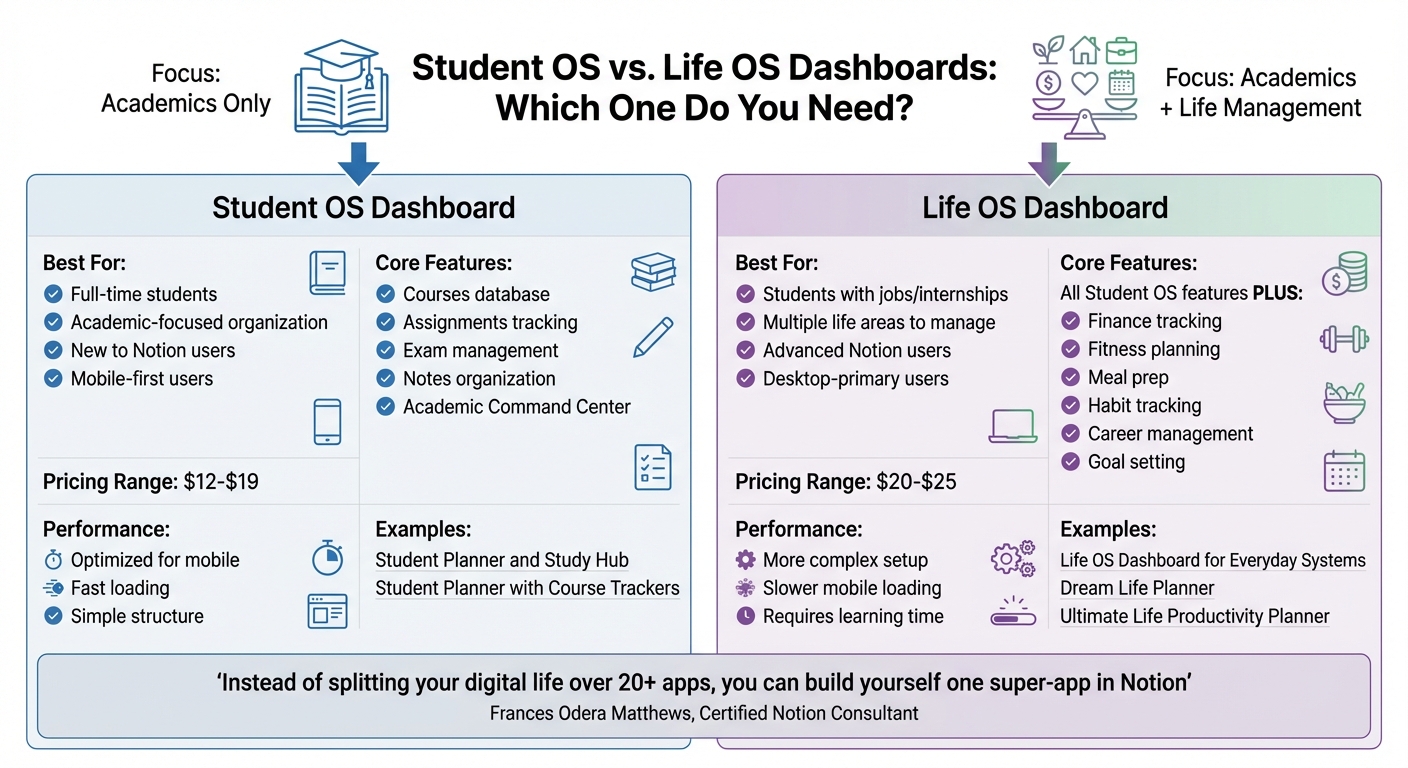
Student OS vs Life OS Dashboard Comparison Guide
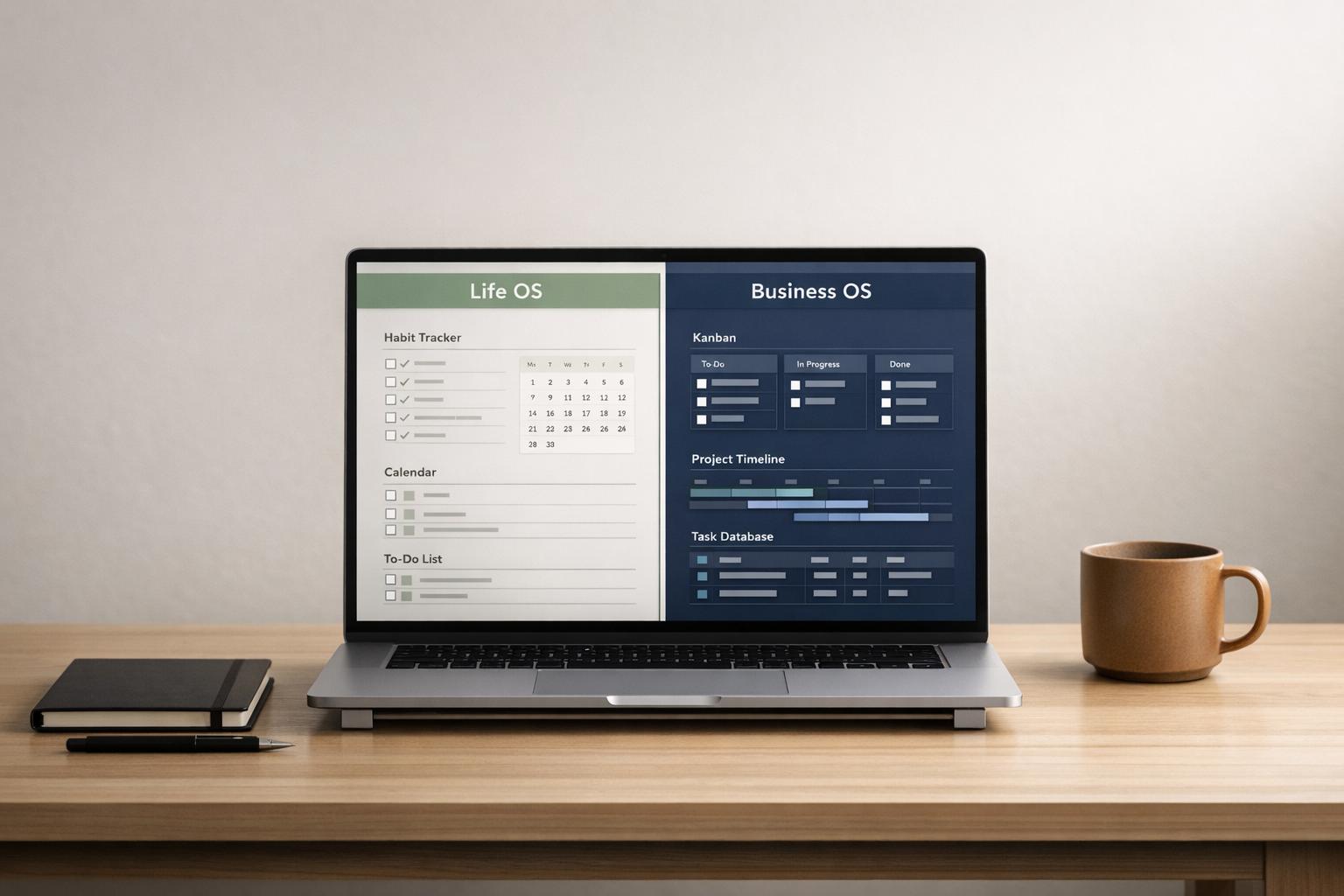
Not every student needs the same level of organization. If your primary focus is managing coursework and deadlines, a study dashboard might be all you need. But if you're juggling academics alongside work, internships, or personal projects, a more comprehensive Life OS dashboard can help you stay on top of everything in one place, simplifying your day-to-day workflow.
Here’s a closer look at which type of dashboard might suit your academic and personal needs.
When to Choose a Student OS Dashboard
A Student OS dashboard is ideal if your main challenge is staying organized with your classes. Think of it as your "Academic Command Center", designed specifically for managing coursework.
For those new to Notion, starting with a straightforward study dashboard is a smart first step. Dashboards like the Student Planner and Study Hub or Student Planner with Course Trackers focus entirely on academic tasks, keeping things simple and efficient. These systems are also optimized for mobile use, so you can quickly check your schedule or assignments between classes.
Full-time students who need to centralize their academic responsibilities often find this type of dashboard the perfect fit.
While these dashboards are great for coursework, they don’t address areas beyond academics. That’s where a Life OS dashboard comes in.
When to Choose a Life OS Dashboard
A Life OS dashboard is better suited for students who need to manage more than just school. These dashboards combine study tools with features like finance tracking, fitness planning, meal prep, habit tracking, and even career management - all in one system.
As Frances Odera Matthews, a Certified Notion Consultant, puts it: "Instead of splitting your digital life over 20+ apps, you can build yourself one super-app in Notion".
Dashboards such as the Life OS Dashboard for Everyday Systems, Dream Life Planner, or Ultimate Life Productivity Planner offer this all-encompassing approach.
However, keep in mind that Life OS dashboards are more complex. They often require time to learn due to their interconnected features and can load slower on mobile devices. Pricing is also higher, typically ranging from $20 to $25, compared to $12 to $19 for simpler study dashboards. For students relying on mobile access, creating streamlined views for quick access to schedules and tasks can make these systems more manageable.
Use these differences as a guide to find the dashboard that fits your needs when exploring options on OS Dashboard HQ.
How to Evaluate Student Dashboards Using This Checklist
This checklist is designed to help you quickly identify dashboards that go beyond aesthetics and deliver real functionality when exploring Student OS dashboards on OS Dashboard HQ. It’s your guide to finding a dashboard that works as efficiently as you do.
Start with Core Databases
A strong student dashboard should bring together key elements like courses, assignments, exams, and notes into a cohesive system. Before choosing a dashboard, ensure it includes these core databases: Courses, Assignments, Exams, and Notes. The best dashboards often rely on a single master "Assignments & Deliverables" database, which can be filtered into views such as "Today's Tasks" or "This Week." This approach is far more efficient than using separate, unlinked pages.
Pay attention to Relation properties that connect assignments and notes back to specific courses. This interconnected structure is a hallmark of a well-thought-out system. Dashboards like the Student Planner and Study Hub and Student Planner with Course Trackers are excellent examples of this design. If the connections between databases aren’t clear, the dashboard might not save you as much time as you’d hope.
Check Views and Tracking Features
Once you’ve confirmed the core databases are present, examine the dashboard’s various views and tracking tools. Multiple views tailored to different planning needs are essential. Look for options like:
- Overdue Items or a Calendar View for managing deadlines
- Today/Daily View for focusing on immediate tasks
- Weekly Overview to plan your workload
- Kanban or Board View to track assignment progress (e.g., To Do, In Progress, Submitted)
Additionally, check for Rollup properties that automate calculations, like total assignments due, to reduce manual effort. Research shows that students using organized digital dashboards can complete assignments 25% faster while staying on top of deadlines.
Once these features are in place, make sure the dashboard is intuitive and simple to set up.
Look for Ease of Use and Documentation
The best dashboards come with clear instructions to help you get started quickly. Look for step-by-step video tutorials or setup guides that make the onboarding process seamless. Ensure the template supports Notion's "duplicate" function for easy integration into your workspace. Features like "Quick Add" buttons or scratchpads can also be incredibly helpful for jotting down tasks or ideas without diving into complex menus.
As The Latwy Team puts it:
"A well-crafted Notion student dashboard transforms scattered academic tasks into a centralized command center".
Lastly, if you often check your schedule on the go, test the dashboard for mobile responsiveness. Dashboards with overly complex layouts can be tricky to navigate on smaller screens, so this is an important consideration.
Next Steps: Finding Your Student OS Dashboard
Your checklist is your guide to selecting a dashboard that simplifies your academic routine. OS Dashboard HQ offers a curated selection of high-quality Notion operating systems (OS) and dashboards, categorized by role and purpose. This makes it easy to discover templates that prioritize functionality for real academic needs - not just appearances.
Browse Student OS Dashboards by Features
With your checklist in hand, dive into the Student OS dashboards category on OS Dashboard HQ. These templates are tailored to help you manage courses, assignments, exams, and notes. Each listing provides a clear breakdown of its structure and included databases, so you can quickly spot which dashboards align with your checklist - no need to sift through vague descriptions.
For students juggling more than academics - like part-time jobs, internships, or personal goals - consider exploring the Life OS dashboards category. Options such as the Life OS Dashboard for Everyday Systems, Dream Life Planner, and Ultimate Life Productivity Planner combine study planning with tools for habit tracking, financial management, and long-term goal setting. These dashboards are particularly useful for students balancing multiple responsibilities, as they reduce the need to switch between different apps or pages throughout the day.
Use the Checklist to Match Dashboards to Your Needs
Compare each dashboard against your checklist to ensure it meets your requirements. Look for essential databases like Courses, Assignments, Exams, and Notes, all linked with Relation properties and offering multiple views (e.g., Today, Weekly, Kanban). Also, check for clear setup instructions or video guides to save time and avoid frustration during implementation. This method helps you quickly zero in on the dashboard that suits your academic needs.
If you’re new to Notion or prefer a simpler setup, focus on minimalist dashboards with fewer linked databases and a straightforward design. On the other hand, students with demanding course loads or research-heavy majors should seek out advanced features like GPA calculators, spaced repetition systems, or Cornell note templates. The Personal Productivity OS category is another resource for focused setups, offering tools like the GTD Productivity Dashboard, Bullet Journal Productivity System, and Ivy Lee Six Tasks System for students who need task management without a full academic OS.
FAQs
What’s the fastest way to set up a Student OS dashboard in Notion?
The easiest way to get a Student OS dashboard up and running in Notion is to start with a pre-made template. These templates come with built-in databases for everything you need - courses, assignments, exams, and more. Simply duplicate the template into your workspace, then tweak it to fit your schedule by adding your classes, deadlines, and notes. You can also adjust views and filters to highlight your most urgent tasks, letting you manage your studies right away without the hassle of creating a system from the ground up.
Should I keep assignments and exams in one database or separate ones?
Keeping assignments and exams in separate databases is often a smarter choice. This approach allows for better organization, making it easier to filter and monitor the status and deadlines for each category. By separating them, you reduce clutter and can focus more effectively on what matters most - whether that's preparing for an upcoming exam or catching up on overdue assignments - without distractions from unrelated tasks.
How do I choose between a Student OS dashboard and a Life OS dashboard?
A Student OS dashboard is tailored specifically for academics. It helps you keep track of courses, assignments, exams, and study materials, making it perfect for staying on top of schoolwork without unnecessary extras. On the other hand, a Life OS dashboard takes things a step further by blending academics with personal routines, habits, and goals. This makes it a great choice for students juggling school, work, and life, offering a more comprehensive system for managing everything in one place.