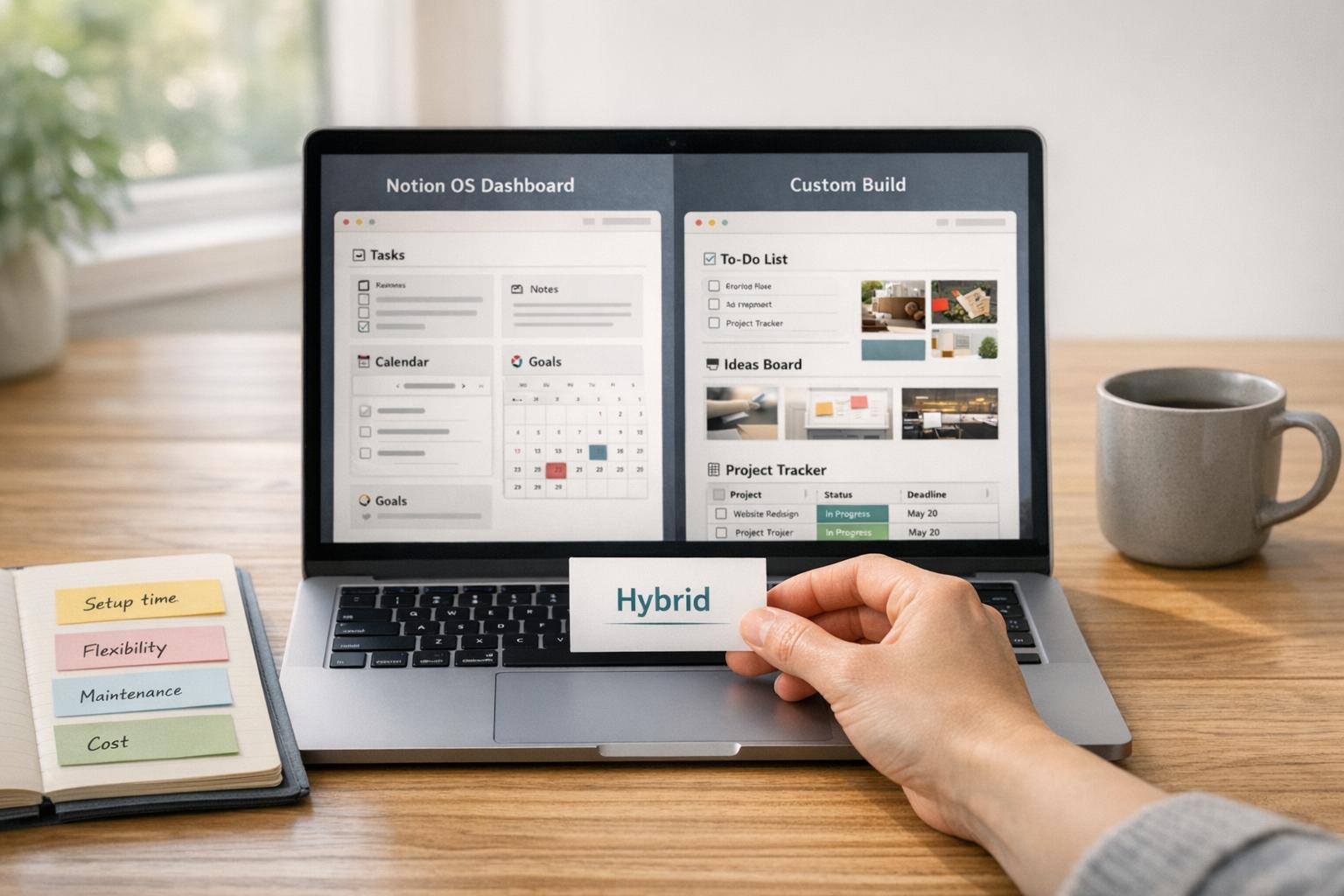
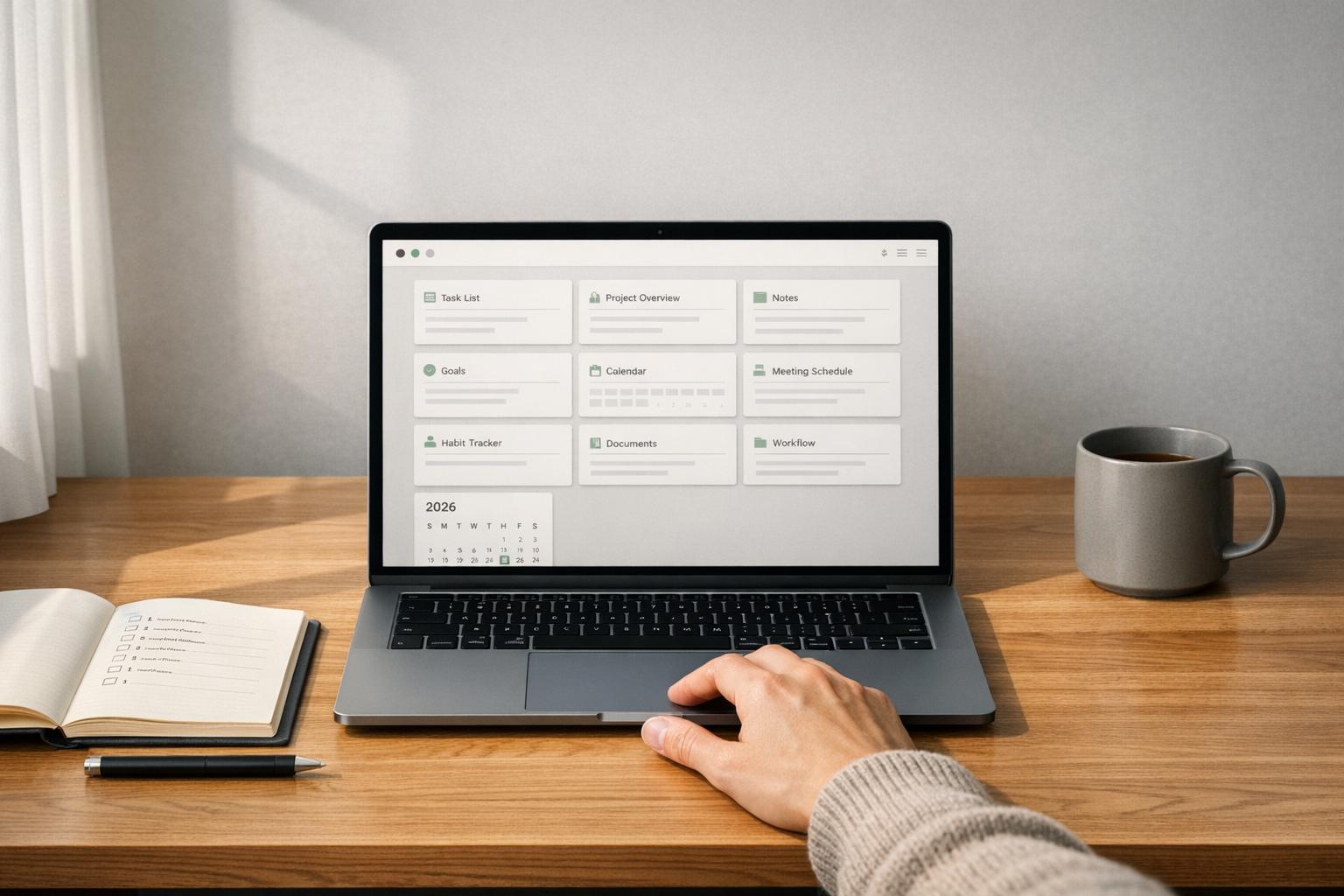
You don’t need another scattered Notion template. What you need is a Notion operating system (OS) - a connected workspace that organizes your tasks, projects, and goals in one place.
This guide breaks down why most templates fall short and how Notion OS dashboards can save you time by syncing everything into a single, functional system. Whether you’re managing a business, creating content, or organizing your personal life, these dashboards are designed to simplify your workflow.
Quick Overview:
- Life OS Dashboards: For habits, goals, and routines.
- Business OS Dashboards: For managing clients, finances, and projects.
- Creator OS Dashboards: For content planning and publishing.
- Student OS Dashboards: For coursework and assignments.
- Personal Productivity OS Dashboards: For tasks, planning, and reviews.
Let’s explore how to stop tinkering and start using a Notion OS dashboard that works for you.
Why Your Notion Setup Still Feels Wrong
Scattered Pages and Overlapping Templates
Does your Notion workspace feel more like a digital junk drawer than an organized system? Tasks might be on one page, goals on another, and that crucial note from last week - who knows where it ended up?
This isn’t on you - it’s what happens when your setup relies on standalone templates that don’t talk to each other. The result? You spend way too much time searching for information, jumping between pages, and trying to remember where you stashed that client update. Productivity experts call this "open loops" - unfinished tasks and uncaptured ideas that quietly drain your focus and energy.
The deeper issue is system entropy. Adding more templates without integration creates redundant databases that overlap and compete, instead of working together. Nothing flows into a single, unified view. Instead of one streamlined workspace, you’re left wrangling a patchwork of disconnected tools that demand constant upkeep.
And even if you’ve managed to create a visually appealing dashboard, it might not be solving the real challenges in your workflow.
Pretty Templates Don't Fix Workflow Problems
Let’s be honest: that beautifully designed dashboard with custom icons and matching colors might look great, but it’s probably not making you any more productive. As Khe Hy, founder of RadReads, points out:
Changing colors and adding icons... feels productive and is nice to look at, but doesn't make a difference.
Most free templates are built to impress at first glance, not to solve the actual problem of how your information flows. They’re optimized for screenshots, not for functionality. You might spend hours fine-tuning fonts and cover images - what Hy refers to as “insignificant tweaks” - while your tasks, projects, and goals remain scattered and untouched.
This leads to the "endless organizing" cycle, where you keep rearranging your workspace instead of focusing on meaningful work. Without a solid foundation rooted in productivity principles like GTD, PARA, or time-blocking, these templates often add more mental clutter than they remove. The system itself becomes another task to manage, leaving you frustrated and feeling like you’re falling short when, in reality, the template was never designed to handle a complete workflow.
This is exactly why integrated Notion OS dashboards stand out - they bring everything together into one cohesive system that works with you, not against you.
sbb-itb-ced67d6
How To Use Notion To Organize Your Entire Life (Life OS Tour)
What Notion OS Dashboards Do Differently
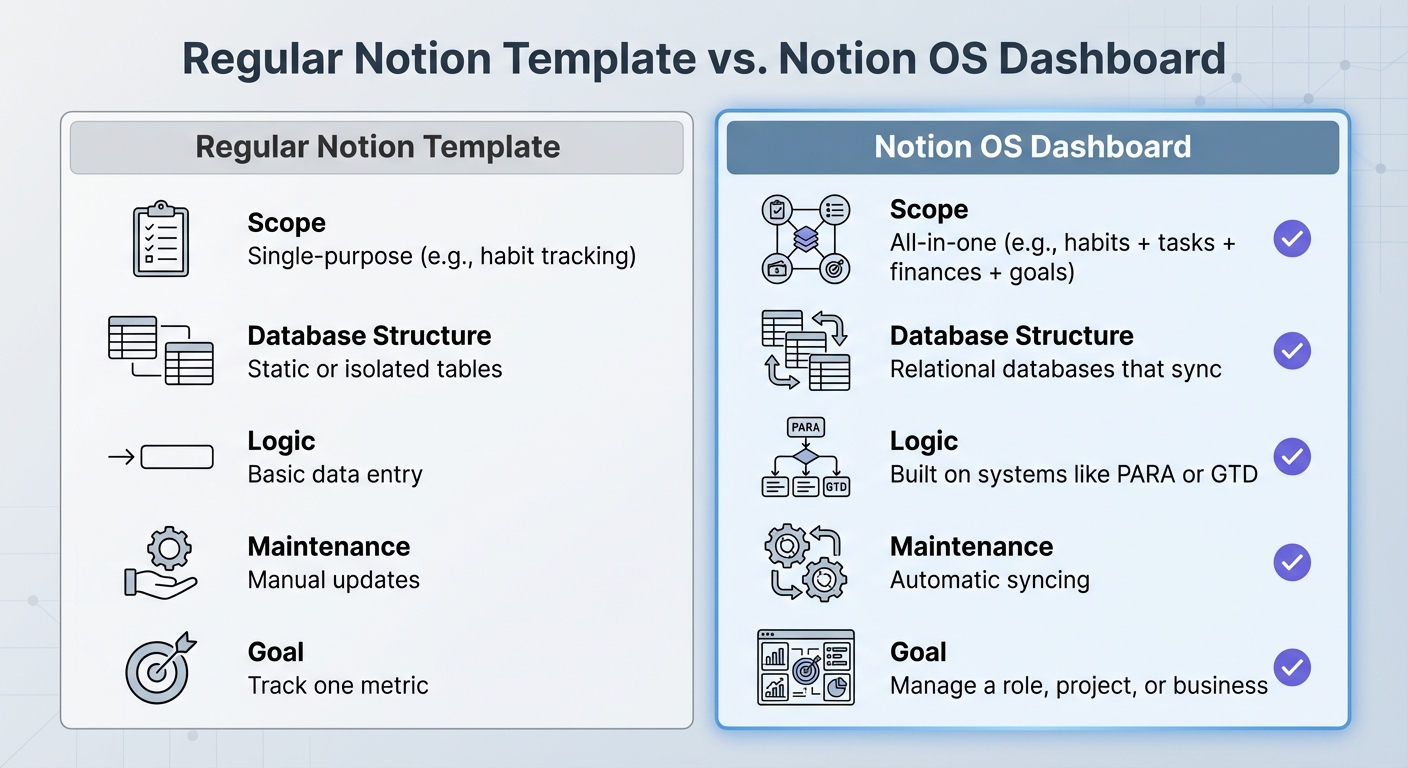
Regular Notion Template vs Notion OS Dashboard Comparison
What Is a Notion OS Dashboard?
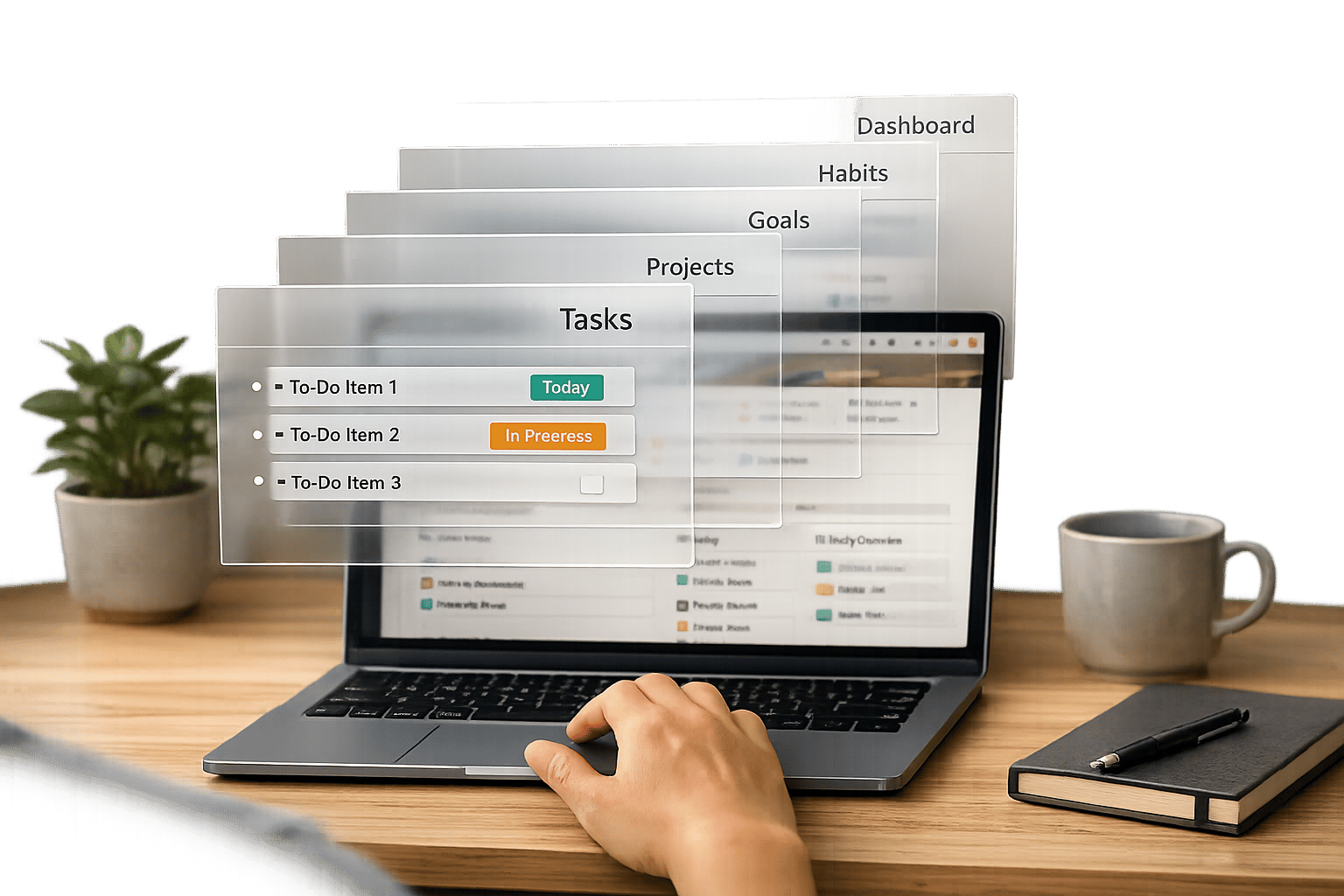
A Notion OS dashboard acts as a central hub that brings together your tasks, databases, and workflows. Instead of jumping between disconnected pages, you get a single, unified homepage where tasks, projects, and data are seamlessly linked.
Here’s the key difference: while regular templates often treat tasks as standalone entries, a Notion OS dashboard ties tasks to their respective projects and overarching goals. This interconnected setup means when you update something - like a project’s status - it automatically syncs across all related views. No more manual updates or overlooked details.
These dashboards often follow well-known productivity systems like PARA (Projects, Areas, Resources, Archives), GTD (Getting Things Done), or the "Second Brain" approach. They’re also designed to integrate daily activities with regular reviews (weekly, monthly, or yearly). The result? Less time spent on organizing and more time spent actually getting things done.
| Feature | Regular Notion Template | Notion OS Dashboard |
|---|---|---|
| Scope | Single-purpose (e.g., habit tracking) | All-in-one (e.g., habits + tasks + finances + goals) |
| Database Structure | Static or isolated tables | Relational databases that sync |
| Logic | Basic data entry | Built on systems like PARA or GTD |
| Maintenance | Manual updates | Automatic syncing |
| Goal | Track one metric | Manage a role, project, or business |
As NotionSender explains:
The true power of a Notion template is its role as a springboard... providing the structure, the database relationships, and the initial framework.
This is exactly what a Notion OS dashboard delivers - a ready-to-go structure that lets you focus on your work instead of endlessly tweaking your setup. OS Dashboard HQ selects systems that align with these principles, giving you a professional-grade workspace from day one.
How OS Dashboard HQ Curates High-End Notion OS Templates
OS Dashboard HQ steps in to solve the problem of scattered, mismatched templates. It offers a carefully curated directory of Notion operating systems and dashboards, tailored to specific needs - whether you’re a founder, freelancer, creator, student, or part of a team. These systems are categorized by purpose, like Life OS, Business OS, Creator OS, Student OS, or Personal Productivity OS, so you can quickly find what fits your workflow.
What sets these dashboards apart is their quality. Each one is vetted to ensure it’s not just visually appealing but also highly functional. They rely on relational databases, proven productivity methods, and clear workflows to keep your workspace organized and efficient. Through partnerships with platforms like Gumroad, OS Dashboard HQ connects you directly to these systems, acting as a discovery tool for complete, ready-to-use workspaces.
Whether you’re looking for a Life OS to streamline your routines and goals, a Business OS to manage clients and projects, or a Creator OS to track content and growth, OS Dashboard HQ makes it simple to find the right system. Instead of starting from scratch, you can dive straight into a workspace designed to help you stay productive and organized.
If Life Feels Chaotic, Start with a Life OS
Life OS Dashboards for Personal Organization
When your mornings feel unorganized, your goals are buried in a forgotten notebook, and your habits seem to reset every week, a Life OS dashboard can bring everything together. It acts as a central hub for tasks, habits, finances, and journaling, with automated updates to keep everything in sync.
Take the Life OS Dashboard for Everyday Systems ($149), for instance. It incorporates 47 productivity frameworks like Atomic Habits, Getting Things Done, and The 12 Week Year. Designed with an identity-first approach, this dashboard helps you build daily habits based on your core values. Startup founder Alex Chen shared:
The identity-first approach has completely changed how I think about productivity.
With a 4.9/5-star rating from over 3,000 users, this system includes nested feedback loops - from daily, weekly, and monthly reviews - ensuring your habits stay connected to your broader goals.
Another option is the Ultimate Life OS, priced between $59 and $79. It combines tasks, health tracking, finances, and vision planning into a single dashboard, complete with a Vision section and Habits Tracker to help you stay consistent. For a more playful approach, the Dream Life Planner gamifies routines by turning them into RPG-style quests with EXP and level-ups.
Studies show that knowledge workers lose nearly 60% of their day to "work about work" - things like searching for files, switching between apps, and reorganizing lists. A Life OS reduces that wasted time by centralizing everything and connecting your daily actions with your long-term aspirations.
Browse the full Life OS category to find the system that fits your lifestyle, or start with the All-in-One Life Planner for a simpler introduction.
If Your Business Is Disorganized, Start with a Business or Agency OS
Business OS Dashboards for Entrepreneurs
When client emails pile up, deadlines are missed, and invoices go astray, a Business OS dashboard can help bring clarity and structure. These systems consolidate your CRM, projects, and finances into one cohesive view.
Take the Small Business OS Template Kit ($144.50) from Landmark Labs, for example. Trusted by more than 20,000 businesses, this dashboard links projects, tasks, finances, and client data seamlessly through connected databases. A satisfied customer shared:
This workspace is amazing! It has everything I could possibly need for my business. Everything is linked so I have all the information I need, when I need it.
This system includes features like ICE scoring (Impact, Confidence, Ease) to help you prioritize tasks with the most impact and a DRIP Matrix to categorize tasks based on energy and cost. James Rodriguez, an agency owner, shared his experience:
The DRIP Matrix showed me I was spending 60% of my time on draining, low‐value tasks. Within a month, I'd automated half of them and doubled my revenue hours.
If you're looking for a Notion Creator Starter Kit or something more focused, the Productive CEO Operating System emphasizes strategic planning alongside daily execution. Meanwhile, the Freelance Business OS System ($39) combines tools for client CRM, time tracking, and invoice management into one streamlined interface. To explore more options, visit the full Business OS category and compare systems based on your needs.
For teams, however, a Business OS might not be enough. That’s where Agency OS dashboards come into play.
Agency OS Dashboards for Teams
While Business OS dashboards are great for individual entrepreneurs, Agency OS dashboards are built with team collaboration in mind. These systems cater to shared workflows and provide tools like client portals, team-specific task views, and centralized resources for SOPs and onboarding. With features like filtered task views, team members can focus on their responsibilities without wading through irrelevant shared boards.
The Ecommerce Business OS Workspace ($39) is ideal for teams juggling inventory, supplier management, order tracking, and revenue monitoring. For service-based agencies, some dashboards adapt features from the Freelance Business OS System, allowing for collaborative client onboarding and shared asset management. As Gerrard Lipscombe, founder of Landmark Labs, puts it:
Notion is this generation's go‐to toolkit for flexible, powerful business solutions.
Check out the Agency OS category or the Startup OS category to find the perfect system for your team’s workflow needs.
If You're a Creator, Try a Creator or Marketing OS
Creator Dashboards for Content Planning
When your content ideas are scattered across multiple apps and deadlines keep slipping through the cracks, a Creator OS dashboard can help bring order to the chaos. These systems pull everything - like brainstorming, scripting, SEO research, and brand deal management - into one streamlined workspace, so you can focus on what you do best: creating.
Did you know that nearly half (49%) of monetizing creators spend over 20 hours a week on content creation, with much of the remaining time eaten up by planning and admin work? By using a well-designed Notion system, creators can save an impressive 15–20 hours each week.
Take the Multi-Channel Content Planner as an example. It provides templates for managing up to 10 platforms, including LinkedIn, Instagram, and TikTok, helping you avoid the fatigue of constantly switching between apps. For bloggers, the Blogging OS with AI and SEO is a game-changer, featuring a 70+ point checklist for optimizing headings and technical SEO. Many of these dashboards also include workflows for repurposing content, turning a single piece - like a video - into multiple formats for different platforms.
Dashboards like CreatorOS even come with built-in validation tools to ensure your content resonates with your audience. While many planners can be found for free on the Notion Marketplace, professional-grade Notion bundles often range from $20 to $150+, depending on their complexity and extras like AI prompts or tutorial videos. Check out the full Creator OS category to compare dashboards tailored to your content type and workflow.
If your focus is on growing your audience, Marketing OS dashboards might be the better fit.
Marketing OS Dashboards for Growth
While Creator OS dashboards are all about production, Marketing OS dashboards zero in on growth and audience engagement. They address the same issue of scattered tools by consolidating everything - social media, YouTube, websites, email campaigns - into one cohesive roadmap, cutting down on app-switching and inefficiency. At OS Dashboard HQ, these systems are carefully curated to provide both structure and functionality.
For example, the Social Media Planning Kit helps you track follower growth, manage UTM campaign links, and measure the effectiveness of your strategies. If you’re focused on Twitter, the Twitter Growth Mastery System offers specialized tools for tracking engagement and growing your audience. Many dashboards also include Influencer CRMs to streamline brand outreach, track negotiations, and manage deadlines for sponsored collaborations.
Kanban-style planners make it easy to move tasks from "Idea" to "Published", while pre-built templates for YouTube, blogs, and social media ensure your tactics stay aligned with your overall brand strategy. To find the best fit for your growth goals, browse the Marketing Content OS category.
If You're a Student or Knowledge Worker, Try Student or Personal Productivity OS
Student Dashboards for Coursework
Juggling assignments, deadlines, and class schedules from various sources can get overwhelming. A Student OS dashboard simplifies this by consolidating everything into one organized hub. These systems integrate your courses, timetables, assignments, exams, grade calculators, and even course assessment trackers, so you don't have to jump between apps or tools to stay on top of your studies.
Dashboards like Student Planner and Study Hub and Student Planner with Course Trackers are designed to keep your academic life in check. They include features like Cornell note-taking templates, flashcards, and assignment timelines, helping you stay organized from the very start. Many also use popular productivity frameworks like the Eisenhower Matrix or GTD (Getting Things Done) to help you prioritize tasks based on urgency and importance. You can explore the full Student OS category to find a setup that matches your study habits and workload.
If your academic responsibilities overlap with daily tasks or work projects, a Personal Productivity OS might be the better fit for streamlining everything.
Personal Productivity Dashboards for Everyday Tasks
If you’re feeling buried under scattered notes, to-do lists, and tasks, a Personal Productivity OS can bring much-needed order to your workflow. These dashboards centralize all your tasks and notes, eliminating the hassle of switching between tools. Many use the PARA methodology - organizing everything into Projects, Areas, Resources, and Archives - to cut down on digital clutter. Features like "Quick Capture" inboxes allow you to jot down ideas or tasks instantly, so nothing gets forgotten.
Research shows that knowledge workers often lose up to 60% of their day on secondary tasks like searching for information or navigating between tools. Dashboards such as the GTD Productivity Dashboard and Clarity Focus and Time Management OS tackle this problem by introducing strategies like work-in-progress limits (e.g., focusing on a maximum of three active projects at a time) to reduce context switching and boost task completion rates. For those who prefer simpler systems, options like the Bullet Journal Productivity System and Ivy Lee Six Tasks System focus on habits and straightforward daily task management.
These dashboards also include built-in daily, weekly, and monthly review processes to help align your actions with long-term goals. To compare different productivity systems and find the one that fits your needs, check out the full Personal Productivity OS category.
How to Test Any OS Dashboard Without Overwhelm
Once you've picked a Notion OS dashboard that aligns with your needs, testing it effectively is key. The easiest way? Duplicate the dashboard into a separate section of your workspace and run it alongside your current setup for two weeks. Simply click "Duplicate" on the template, and it will appear in your Notion sidebar as a standalone page. This approach ensures your existing workflow stays untouched while you explore the new system. Many premium OS dashboards even come with a 14-day implementation guarantee, giving you a risk-free period to see how well the system fits your workflow.
For the first week, focus on functionality rather than appearance. Use the dashboard as it’s designed: log tasks in the inbox, jot down notes, and check your daily or weekly views regularly.
"I've tried every Notion template out there. This is the first one I've actually stuck with for more than a month."
This is what Alex Chen, a startup founder, said after testing the Life OS Dashboard. Resist the urge to dive into endless customization - tweaking colors or widgets won’t show you whether the system truly solves your workflow issues. The goal of this trial phase is to see how the dashboard performs in real-world use before making any changes.
To make the transition smoother, many high-end OS dashboards offer helpful resources like onboarding guides and video tutorials. These tools are designed to get you up and running quickly, so take full advantage of them. After the first week, once you’ve grasped how the system works, you can start tailoring it. Adjust database properties or rename views to better match your personal style, but only after understanding the system’s core design.
Not ready to invest? Start with a free version. Many Notion template creators provide $0 templates that let you test basic features before committing to a dashboard priced between $59 and $149. For example, the Life OS Dashboard boasts a 4.9/5 star rating from over 3,000 verified users, with many highlighting its "identity-first approach" as a reason they stick with it longer than traditional templates.
The key is to test one OS at a time. Pay attention to whether it reduces the mental load of managing your work. After giving it a fair trial, you can decide if it’s the right fit and begin making it your own.
Next Steps: Browse OS Dashboards by Role and Use Case
Take the time to explore OS dashboards tailored to your specific workflow. OS Dashboard HQ makes it easy by categorizing dashboards based on who they’re for - like Startup Founders, Content Creators, Students, HR Managers, Real Estate Agents, and Coaches - and what they’re for, such as CRM, Project Management, Finance/Budgeting, Second Brain systems, or Gamified Productivity setups. This way, you can skip the hassle of sifting through irrelevant templates and go straight to what fits your role and needs.
In addition to dashboards designed for individual roles, there are bundles available for those juggling multiple responsibilities. For instance, if you’re managing a startup while also tracking personal goals, a bundle might be the better option. Bundles like the Premium Notion OS Bundle or the Lifetime Notion Templates Library offer multiple dashboards at a significant discount - sometimes up to 70% off compared to buying them separately. An example is the Notion Ultimate Bundle, which includes eight premium templates (like Second Brain OS, Ultimate Business OS, and Ultimate Life OS) for $119 instead of the usual $299.
This structured, curated approach saves you from endless scrolling through generic templates, helping you zero in on solutions that are designed for your role. To get started, browse the category that aligns with your primary focus. Founders can check out the Business OS category or Startup OS category, while students can head to the Student OS category. Each listing clearly outlines the databases, dashboards, and workflows included, so you know exactly what you’re getting.
Many high-end OS dashboards also incorporate productivity frameworks like GTD, Atomic Habits, or the PARA method into their designs, creating a seamless system that reduces the mental effort of juggling multiple tools. If you value systems grounded in productivity science over purely aesthetic designs, keep an eye out for these integrations.
Still unsure? Start with a free version to test the layout and functionality before making a commitment. Premium dashboards typically range from $59 to $149, and you can always upgrade or expand with additional modules once you’ve found a system that works for you.
FAQs
What makes a Notion OS dashboard different from a template?
A Notion OS dashboard goes far beyond the limits of a simple template. While templates are often static and tailored to single tasks, an OS dashboard functions as a fully integrated system. It combines multiple templates, databases, and workflows into a flexible and centralized hub. This setup creates a customizable "home base" that provides a unified, big-picture view of your life or work, simplifying processes and keeping everything organized in one place.
Which OS dashboard should I start with for my role?
The ideal OS dashboard varies based on what you need it for. If you're looking to organize your personal life, a Life OS dashboard can help you stay on top of goals, habits, and finances. For work or business purposes, a Business or Agency OS is great for managing clients and projects. Creators and marketers will find a Creator or Marketing OS useful for content and campaigns, while students and knowledge workers may prefer a Student or Personal Productivity OS to track assignments, tasks, and learning.
How do I test an OS dashboard without breaking my current setup?
To see how an OS dashboard fits into your workflow without disrupting your current setup, try using just one OS at a time for a week or two. This method gives you the chance to assess its features and compatibility without feeling overwhelmed. It’s a low-pressure way to explore how the dashboard works and whether it suits your needs, all while keeping your existing workspace intact.