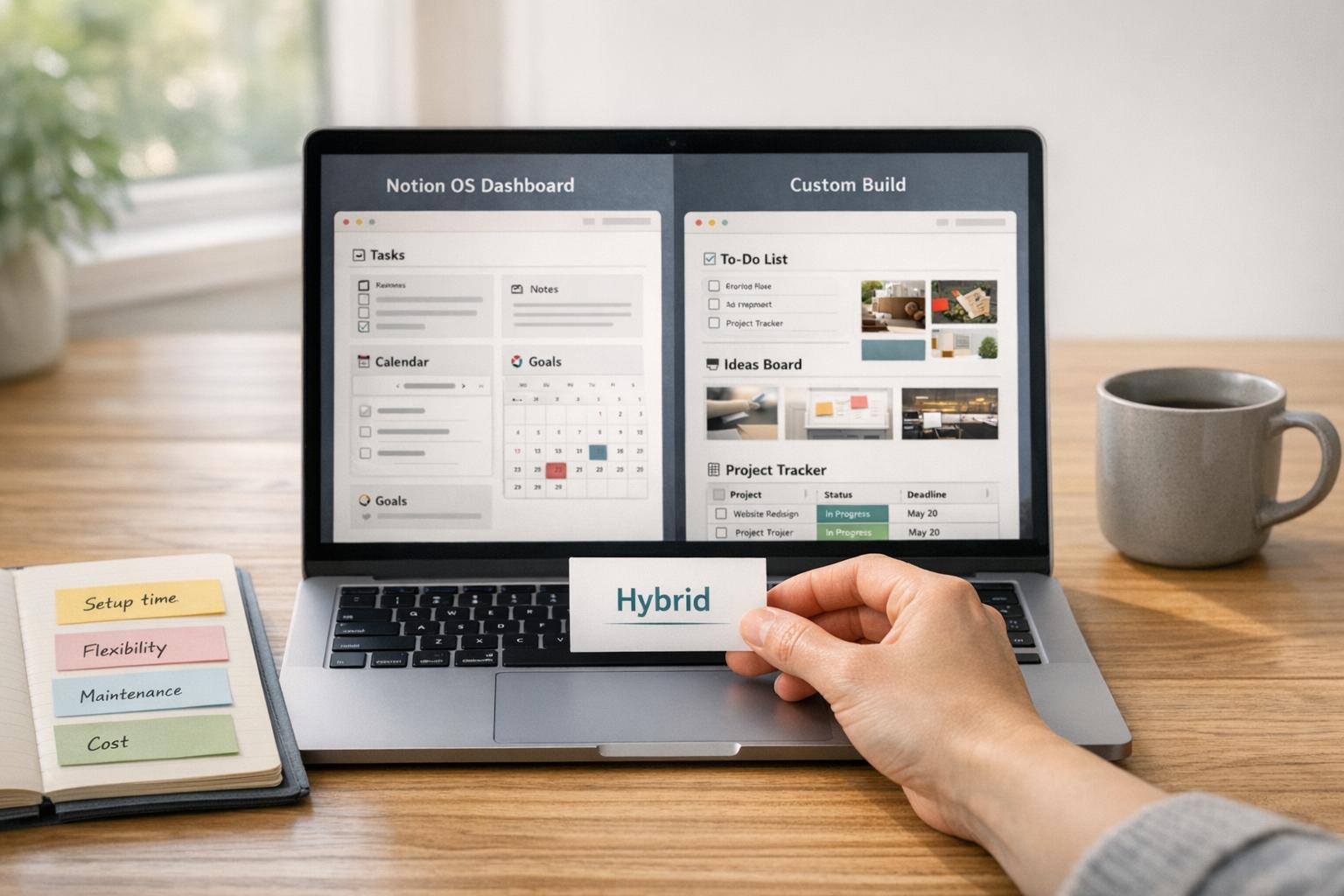
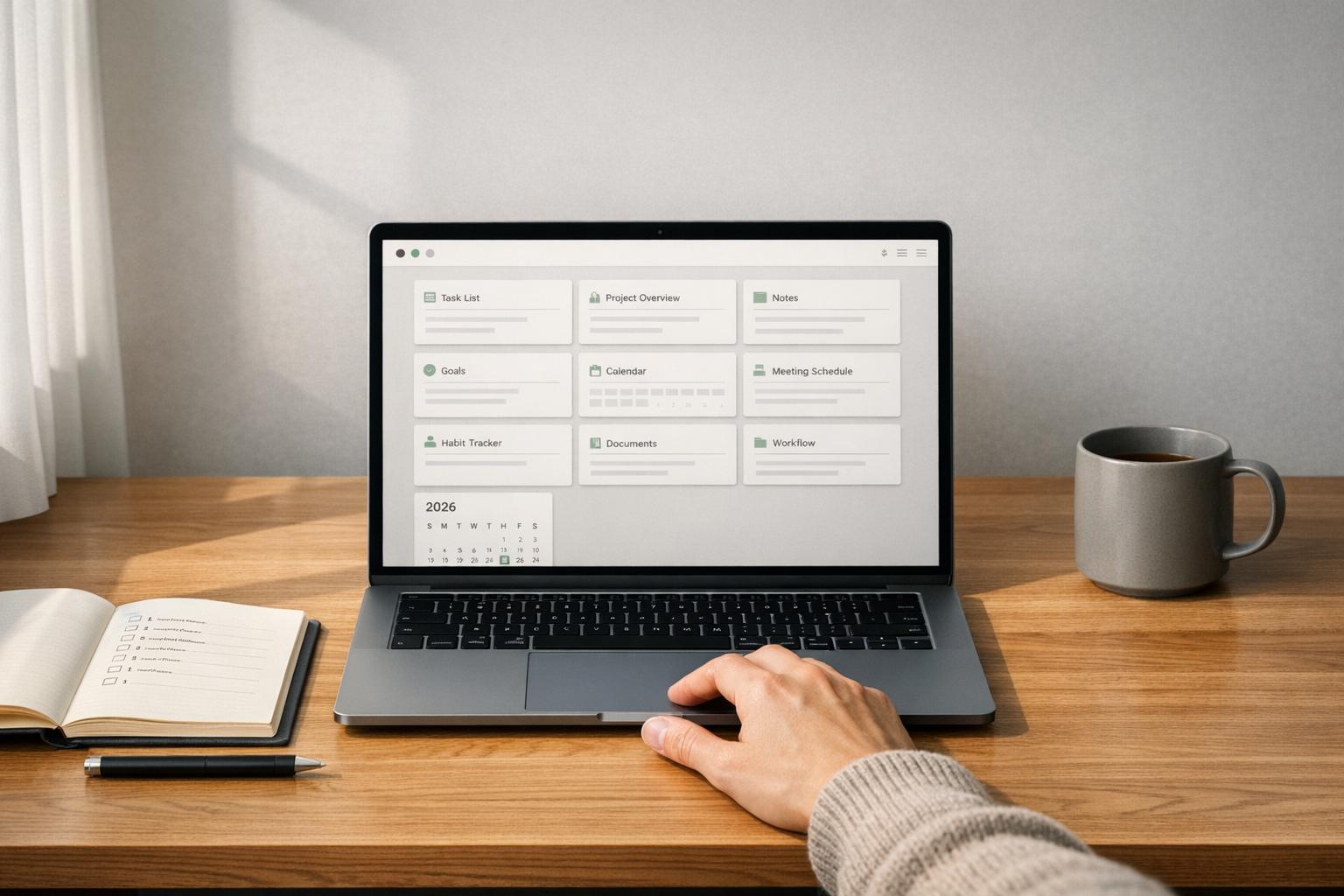
If you’re juggling expenses across spreadsheets or switching between apps to log business transactions, it’s time to simplify. Notion finance templates turn your workspace into a single hub for tracking expenses, income, and cash flow - without the complexity of traditional accounting software.
From freelancers to small business owners, these templates help you stay on top of spending by combining relational databases and dashboards. With features like linked categories, automatic rollups, and receipt uploads, you get clear financial insights in one place. Whether you need a standalone expense tracker or a system integrated with projects and client management, OS Dashboard HQ offers curated templates to fit your needs.
Here’s what you’ll learn in this article:
- How Notion finance templates work and why they’re better than spreadsheets
- Key databases to build or look for: Expenses, Income, Categories, and Vendors
- Steps to set up a Notion-based expense tracker
- When to choose a standalone finance template vs. a Business OS dashboard
Let’s dive into how you can streamline your financial tracking in Notion.
Notion Masterclass: Build an Expense Tracker from Scratch
sbb-itb-ced67d6
Why Track Business Expenses in Notion Instead of a Spreadsheet
If you're already using Notion for managing tasks or notes, it makes sense to track expenses there too. Keeping your financial data within Notion means everything - like project pages, client contracts, and team goals - stays in one place. No need to juggle between Notion and a separate spreadsheet every time you log a purchase.
One of Notion’s standout features is its relational databases, which let you do things spreadsheets can’t. For instance, you can link your Transactions database to a Categories or Monthly Summary database, allowing totals to update automatically - no manual formulas required. Tag expenses with categories like "Software" or "Travel", and Notion will instantly calculate how much you’ve spent in each area. Plus, you can switch between different views: use a table for data entry, a calendar to track subscription renewals, or a Kanban board to organize spending by category. This flexibility is a game-changer for business owners who need quick and accurate financial insights.
However, Notion does have its limits. It doesn’t sync with bank accounts or generate audit-ready statements. As Spencer Lanoue points out, "While Notion is fantastic for tracking and organizing transactions, presenting that financial data often requires a different set of tools". Even so, for most small business owners and freelancers, Notion strikes the perfect balance - powerful enough to grow with your needs but straightforward enough to set up with a Notion starter templates bundle and no specialized accounting knowledge.
The real edge lies in its customization. You can easily add fields for project codes, client names, payment statuses, or even attach receipt PDFs directly to transactions - tasks that can feel awkward or limited in a traditional spreadsheet. And since Notion works on mobile, you can log expenses on the go, ensuring your records are always current.
Next, we’ll look at the key databases you need to build a complete expense-tracking system.
Core Databases for Tracking Business Expenses
When it comes to managing business expenses in Notion, the key lies in building interconnected databases that streamline your financial tracking. Instead of juggling multiple spreadsheets, you can create a central ledger and link it to supporting databases for categories, vendors, and monthly summaries. This ensures both detailed tracking and a clear overview of your finances.
Expenses Database
The Expenses database, often referred to as the Transactions database, acts as your central hub for recording all business spending. Each entry should include essential details like:
- Date of the transaction
- Amount (in U.S. Dollars)
- Category (e.g., Marketing, Travel)
- Vendor
- Payment Method
- Status (e.g., Paid, Pending)
To keep everything organized, add a "Receipt" property where you can attach PDFs or photos of receipts, ensuring all documentation is stored in one place.
For businesses needing more detailed insights, you can expand this database with properties like Category L1 (broad categories such as "Marketing") and Category L2 (specific items like "Social Media Ads"). You might also include a Project/Client relation to link expenses directly to billable work, making it easier to evaluate the profitability of individual projects.
If you want a complete financial picture, consider adding an income-tracking system.
Income Database (Optional)
An Income database helps you track revenue, whether it’s client payments, invoice statuses, or income tied to specific projects. Key properties to include are:
- Client Name
- Amount
- Date
- Project Link (relation to your projects database)
- Invoice Status (e.g., Unpaid, Pending, Paid)
By linking income to expenses through a Monthly Summary, you can quickly calculate net profit. This is especially helpful for freelancers and service-based businesses that need to reconcile earnings against costs.
Categories and Vendors Databases
To analyze spending patterns, grouping transactions by categories and vendors is essential. Instead of manually typing categories for each expense, create a Categories database and link it to your expenses. This setup allows you to:
- Automatically sum transactions for each category (e.g., Software, Travel, Contractors).
- Add a Budget Limit property to track spending against predefined limits, helping you spot overspending at a glance.
Similarly, a Vendors database connects transactions to specific suppliers, giving you a clear view of payments made to each vendor over time.
"Notion databases are more than just tables. You can link them together, create custom views, and use formulas to automate calculations, creating a truly dynamic system."
These databases form the foundation of both standalone finance templates and larger Business OS dashboards. Together, they transform a basic expense log into a comprehensive financial management system that integrates seamlessly with your broader Notion workspace.
How to Set Up Your Expense Tracker in Notion
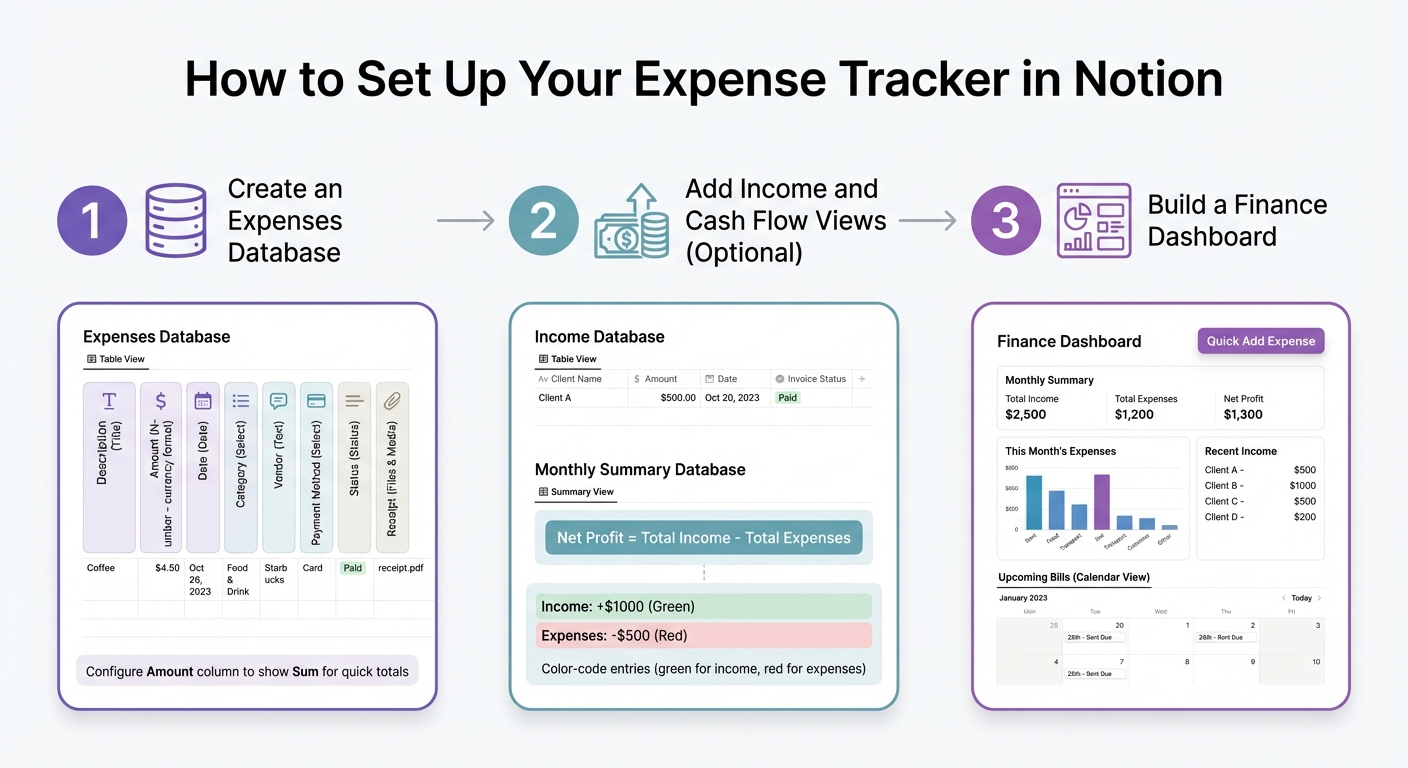
3-Step Guide to Setting Up Notion Expense Tracker
Creating a Notion-based finance tracker is a simple yet effective way to manage your money. By building a central Expenses database and optionally linking it to an Income database, you can consolidate your financial data into a single, easy-to-review Finance Dashboard. Here’s how to set up each part step by step.
Step 1: Create an Expenses Database
Start by setting up a database in Notion and naming it "Expenses" or "Transactions." Add the following properties to organize your financial details:
- Description (Title): Provide a brief description of each transaction, such as "Spotify Subscription" or "Team Dinner – March 20."
- Amount (Number): Enter the transaction amount in U.S. Dollars, formatted as currency (e.g., $75.00).
- Date (Date): Record the date of the expense to easily filter by time periods like months or quarters.
- Category (Select): Assign a category such as Travel, Marketing, or Software. Using the Select property ensures consistency across entries.
- Vendor (Text): Identify who you paid, whether it’s a company like Amazon or an individual freelancer.
- Payment Method (Select): Note which account or card was used - options might include PayPal, Business Checking, or a Credit Card.
- Status (Status): Track the payment stage (e.g., Upcoming, In Progress, or Paid) to manage cash flow effectively.
- Receipt (Files & Media): Attach receipts or invoices as PDFs or photos for better organization and tax purposes.
Once the database is set up, configure the Amount column to display a "Sum" at the bottom for quick totals. You can also create additional views, such as a Board view grouped by Category or a Table view filtered by specific dates, to make your data more accessible.
"While spreadsheets are the traditional choice for budgeting, Notion offers a unique combination of features... You can link databases together, create custom views, and use formulas to automate calculations."
This structure serves as the backbone of your financial tracking system.
Step 2: Add Income and Cash Flow Views (Optional)
To get a full picture of your finances, consider creating a second database for tracking income. Name it "Income" and include properties like Client Name, Amount, Date, and Invoice Status (e.g., Unpaid, Pending, Paid). If you manage billable work, you can even link this database to a Projects database for seamless tracking using a Notion Creator Starter Kit.
Next, set up a Monthly Summary database to track overall cash flow. Create entries for each month (e.g., "March 2026", "April 2026") and link them to both your Expenses and Income databases using Relation and Rollup properties. Use these connections to calculate your Net Profit with a formula like:
prop("Total Income") - prop("Total Expenses").
For added clarity, you can color-code entries - green for income and red for expenses - making it easier to scan and interpret your data at a glance. These linked databases provide automated insights into your monthly cash flow.
Step 3: Build a Finance Dashboard
Once your income and expense databases are ready, bring everything together in a centralized Finance Dashboard. Create a new Notion page titled "Finance Dashboard" and use the /linked view command to embed filtered views from your databases. Arrange these views in a way that makes sense for your workflow. For example:
- Place "This Month's Expenses" on the left.
- Add "Recent Income" on the right.
- Display a gallery of Monthly Summary entries at the top to highlight the current month's Net Profit.
To make planning even easier, include a Calendar view of your Expenses database, filtered to show only upcoming bills. This helps you stay on top of subscription renewals and other recurring payments.
For quick data entry, take advantage of Notion’s button feature. Create a "Quick Add Expense" button that opens a pre-filled template, so you can log transactions instantly without navigating away from your dashboard.
This unified dashboard gives you a clear view of your finances, making it easier to stay organized and informed.
Standalone Finance Template vs Business OS Dashboard: Which Do You Need?
Once you've set up a basic expense tracker, the next step is deciding whether to keep it as a standalone tool or connect it to a broader system for managing your business. The right choice depends on whether your financial data operates independently or needs to integrate with other workflows.
When a Standalone Finance Template Works Best
Standalone finance templates are perfect for freelancers or small businesses in the early stages, where the primary focus is tracking transactions and monthly spending. If your main goal is to monitor spending patterns and cut unnecessary expenses, a simple tracker is all you need. These templates make data entry straightforward: open the database, add the date, amount, category, and vendor, and you're done. The setup is quick - just a few minutes - and you'll be ready to focus on managing your money.
"Moving your budget out of scattered spreadsheets and into a centralized Notion workspace can transform how you track, understand, and manage your money."
Many creators offer free finance trackers, making it easy to test the workflow before upgrading to a premium Notion templates bundle. If you're mainly interested in tracking where your money goes - whether it's subscriptions, travel, or recurring expenses - a standalone template will cover your needs. Plus, Notion allows you to link your Expenses database to a larger system later, so there's no need to switch platforms if your needs grow.
When to Opt for a Business OS or Finance OS Dashboard
A Business OS dashboard is the better choice when your finances are tied closely to other business operations. If you're frequently switching between tools to check project profitability or manually cross-referencing invoices with expenses, it's time to upgrade. Business OS dashboards are tailored for startups, agencies, and growing small businesses that need an all-in-one system for managing projects, clients, and finances.
The key difference lies in Notion's Relations and Rollups features, which let you connect your Expenses database to Projects. This enables real-time tracking of profit margins and other critical metrics.
"Your budget doesn't exist in a vacuum. In Notion, you can link financial entries directly to project pages, client contracts, or team goals."
For instance, templates like the Small Business OS Template Kit and Freelance Business OS System combine finance tracking with CRM and project management databases. These systems let you tie every expense to a specific client or deliverable, helping you identify your most profitable clients and spot areas to reduce costs. If your work involves billable hours, SaaS subscriptions, or contractor payments across multiple projects, a Business OS dashboard turns your expense tracker into a powerful tool for strategic decision-making. Explore more options in the Business OS dashboards category or the Finance & CRM OS category on OS Dashboard HQ.
Ultimately, the choice depends on your workflow. OS Dashboard HQ offers both standalone finance templates and integrated Business OS dashboards, ensuring you can find the right solution for your business size and needs.
How OS Dashboard HQ Can Help You Find the Right Dashboard
OS Dashboard HQ is your go-to resource for discovering Notion OS dashboards tailored to your business and financial management needs. Instead of spending hours - or even months - creating systems from scratch, or even learning how to sell Notion templates, you can explore ready-to-use templates designed for specific users like freelancers, founders, agencies, or students. These templates are also organized by purpose, such as finance tracking, CRM, or project management. By categorizing dashboards into finance-specific tools and comprehensive Business OS setups, the platform makes it easy to find a system that fits your workflow and the scale of your operations. Whether you're upgrading from a basic Notion expense tracker or need a more integrated solution, OS Dashboard HQ connects you to dashboards that simplify and streamline financial management.
Below, you’ll find options for both finance-specific tools and all-in-one Business OS dashboards.
Finance-Specific Dashboards
If you’re focused on managing transactions, tracking spending, and staying within budget, finance-specific dashboards are a great fit. For example, the Expense Tracker for Personal Finance provides a centralized view of your finances by organizing transactions, accounts, and categories into easy-to-navigate databases. Need something more advanced? The Finance Tracker with Monthly Summaries adds automated reporting with rollups to calculate monthly totals, net savings, and cash flow. Both templates are designed for convenience, featuring "Quick Add" buttons and mobile-friendly layouts to help you log expenses on the go. They also include built-in Notion charts - like pie, bar, and line graphs - so you can visualize spending patterns and cash flow trends effortlessly.
Business OS Dashboards with Finance Tracking
For businesses where finances are tied to client invoices, project budgets, or contractor payments, a Business OS dashboard offers a more integrated solution. These dashboards combine financial tracking with tools for CRM and project management, giving you a complete system. The Small Business OS Template Kit and Freelance Business OS System are standout examples. They allow you to link every expense to a specific client or project using Notion’s "Relation" and "Rollup" properties, which also calculate profit/loss summaries, net savings, and monthly totals. Additional features like "Files & Media" fields make it easy to upload receipts or invoices directly into your workflow. To explore more options, check out the Business OS dashboards category or the Finance & CRM OS category for templates that align with your business size and needs.
Next Steps: Start Tracking Business Expenses in Notion
If you're looking to track business expenses in Notion, the easiest way to get started is by using a pre-built Notion finance template. These templates save you the hassle of setting up databases, relations, and rollups from scratch. Most professional templates include ready-made databases for expenses, income, and even automated monthly reports. Once you've duplicated a template, you can tweak it to fit your needs - like adding fields for receipt uploads, vendor details, or payment methods.
Want to dive in? Here’s how to get started: Visit OS Dashboard HQ, find a template that suits your needs, and click "Duplicate" in the top right corner. This will add the entire system to your Notion workspace. To build the habit of consistent tracking, try it out for a month. Use features like Quick Add buttons or pre-built templates to log transactions as they happen, ensuring your records stay accurate and up-to-date.
Rames Quinerie, an author at Templates4Notion, shares this insight:
"Notion is a great choice for tracking your finances because it's highly customizable. You can create your own finance tracker that's tailored to your specific needs and preferences."
Gabriel from Notion Resource Hub also highlights the benefits:
"The power of this Notion expense template lies in its simplicity. By combining a straightforward database with visual charts, the template provides flexible customization to match your evolving needs."
With these expert tips in mind, you can start exploring templates like the Expense Tracker for Personal Finance, Finance Tracker with Monthly Summaries, or the Small Business OS Template Kit. Notion offers free plans for individuals and small businesses, and many robust finance tracker templates are available at no cost.
FAQs
What’s the simplest Notion finance template setup for my business?
The easiest way to get started is with a basic expense tracker built around an expenses database. Include essential details like the date, amount, category, vendor, and payment method. To make tracking easier, set up views such as monthly summaries or breakdowns of expenses by category. If you want to save time, start with a pre-built template that you can tweak to fit your needs. This setup is perfect for small or early-stage businesses looking for a simple way to monitor spending without diving into complicated dashboards.
How do I track recurring bills and subscriptions in Notion?
To keep tabs on recurring bills in Notion, start with an expense tracker template that includes key properties like Amount, Date, Category, Vendor, and a field to mark Recurring (either a checkbox or a select option for yes/no). Enhance it by adding fields like Next Charge Date or Frequency (e.g., monthly, quarterly) to track payment intervals. Use filtered views to focus specifically on recurring expenses, and set up a calendar view to see upcoming charges at a glance, helping you stay on top of your finances.
Can I connect expenses to clients or projects to see profitability?
Yes, it’s possible to connect expenses to clients or projects in Notion, enabling you to track profitability effectively. This approach works particularly well with advanced setups or Business OS dashboards that combine expense tracking with data on clients and projects. These systems allow you to analyze how your costs compare to revenue, giving you a clearer picture of overall profitability.