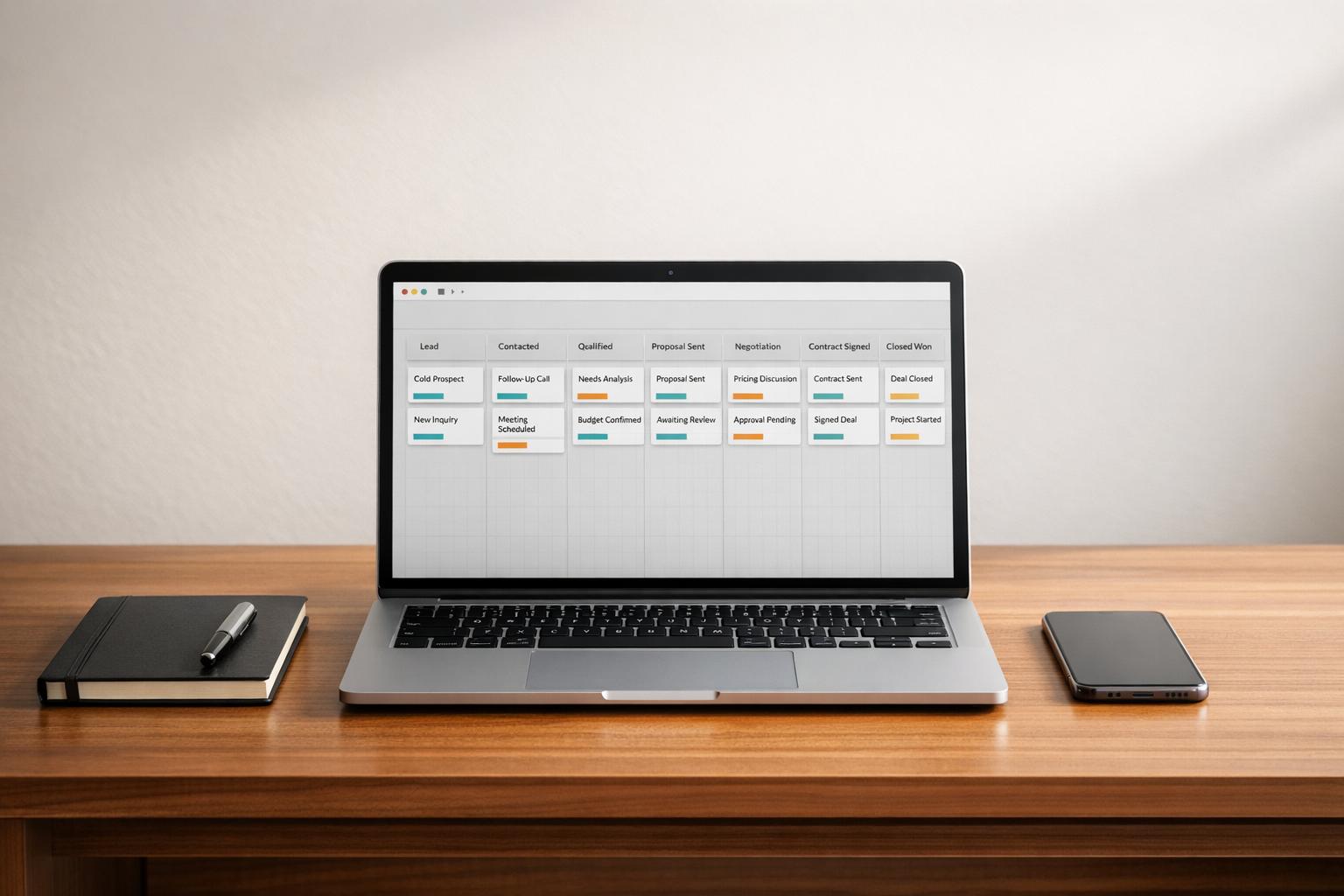
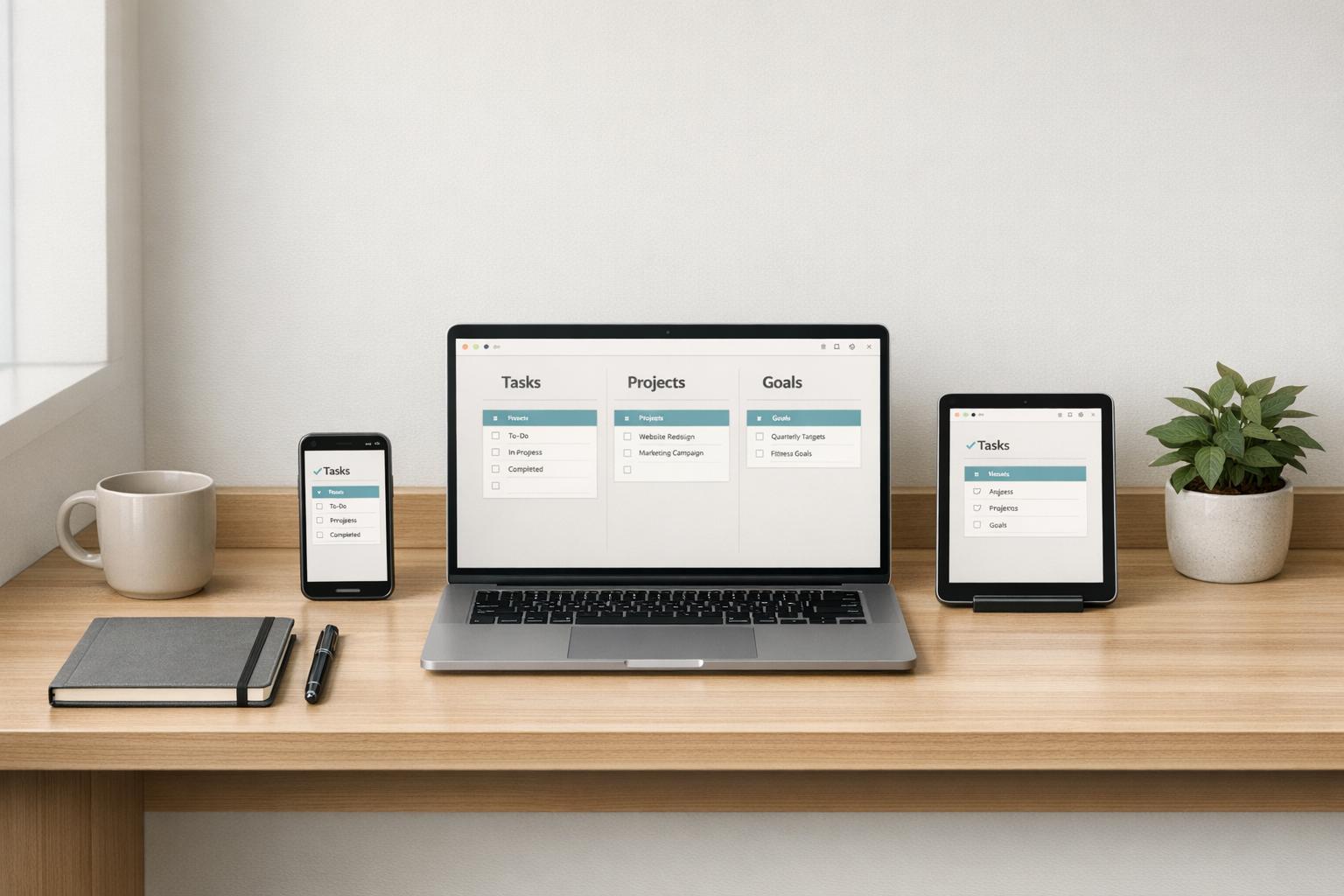
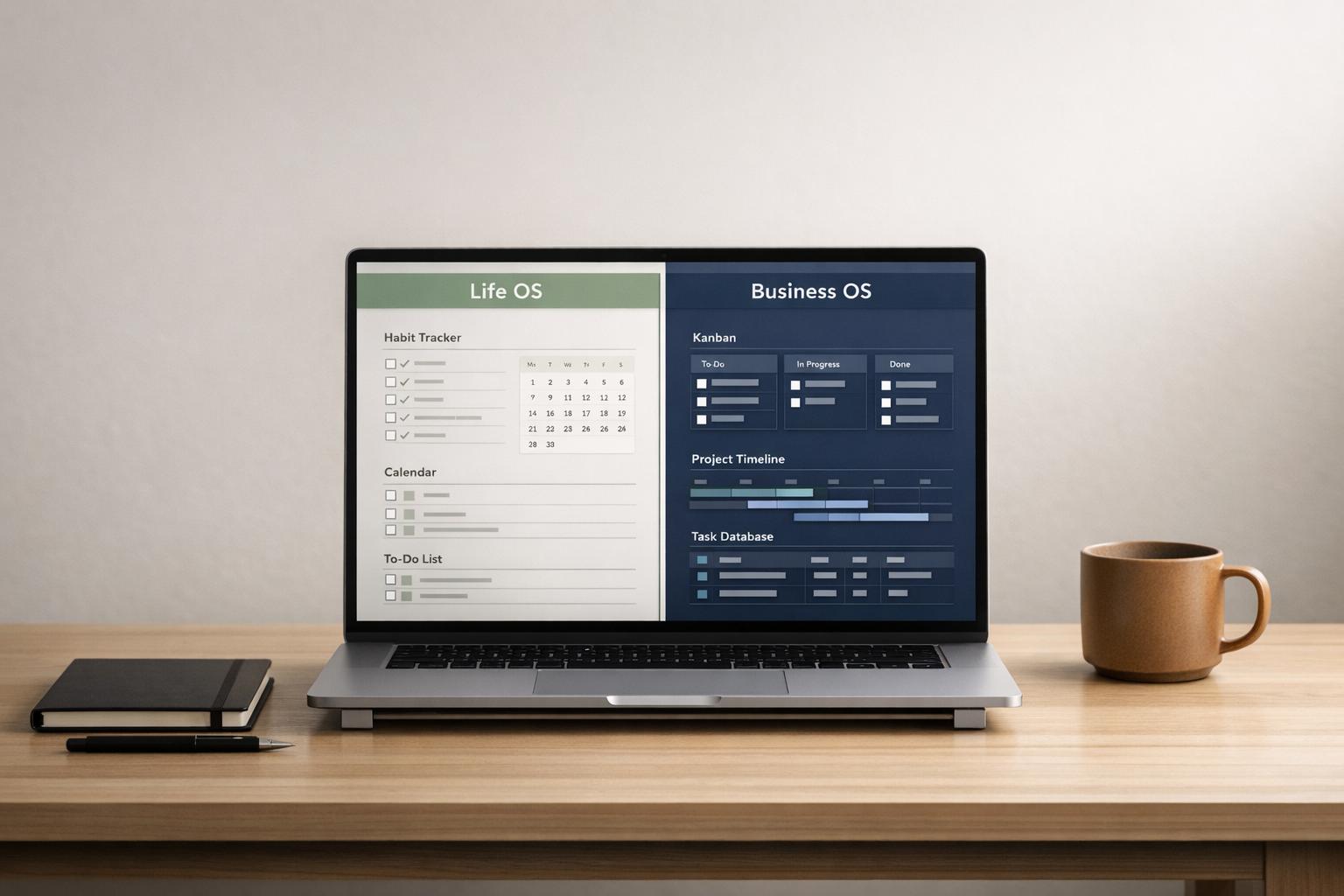
If you’re tired of juggling scattered notes, unfinished courses, and forgotten study goals, here’s the solution: a Notion learning tracker template. It’s not just another template - it’s a connected system that organizes your courses, assignments, and resources into one clear workspace. Whether you’re a student managing deadlines or a professional building new skills, these trackers make it easier to stay on top of your learning.
OS Dashboard HQ offers curated templates like Student OS dashboards for academic life and Life OS dashboards for self-paced learning. These systems go beyond basic organization, with features like progress bars, spaced repetition schedules, and integrated dashboards to align your studies with your daily tasks and long-term goals.
Here’s what you’ll find in this guide:
- Why learning trackers outperform loose notes
- Key databases every learning tracker needs
- Features to look for in templates
- How to pick the right tracker for formal or self-directed learning
Let’s explore how a Notion learning tracker can simplify your study process and help you make progress faster.
My Notion system for teaching myself anything I want + free template
sbb-itb-ced67d6
What a Notion Learning Tracker Actually Does
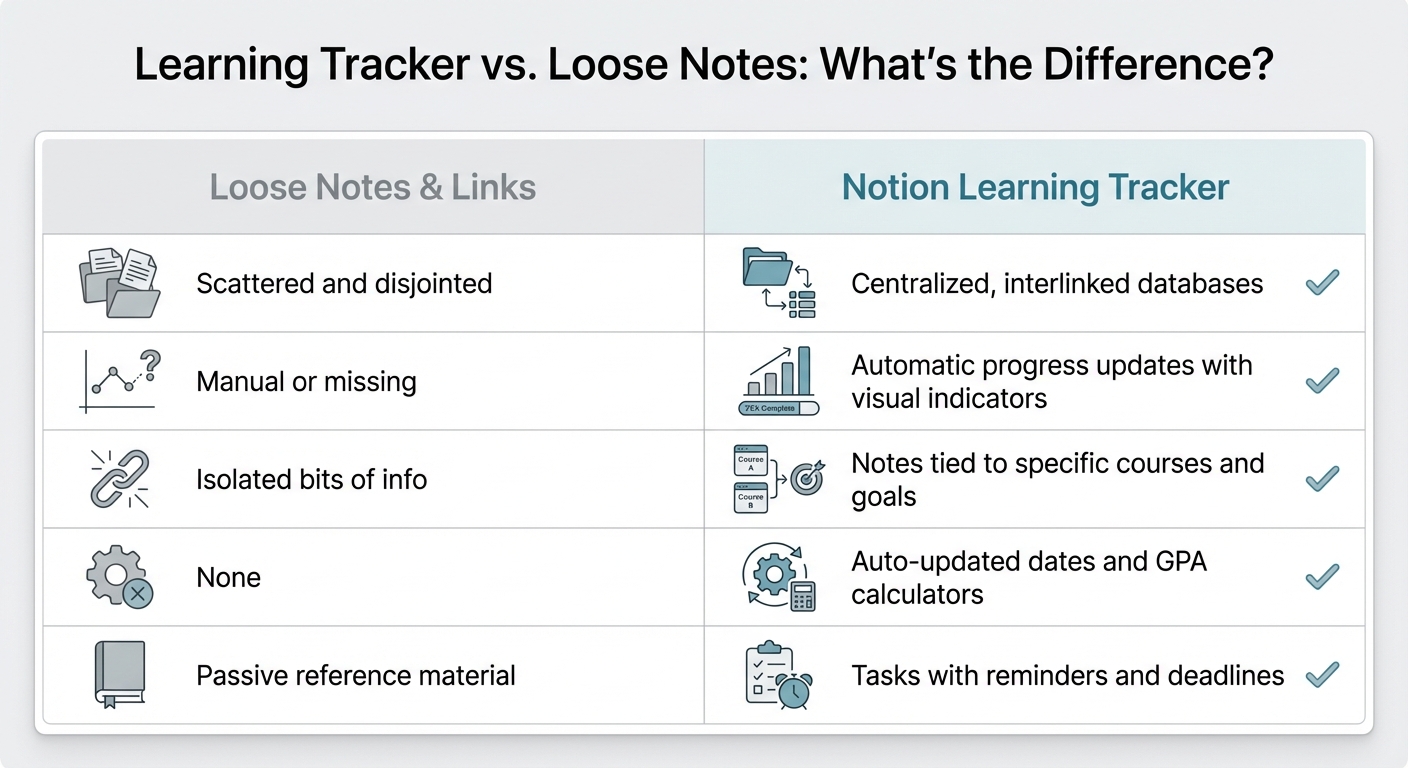
Notion Learning Tracker vs Loose Notes Comparison
What Is a Learning Tracker?
A Notion learning tracker is like a digital command center for your studies. Instead of juggling scattered notes, random bookmarks, and forgotten to-dos, it organizes everything - courses, assignments, readings, and goals - into a single, interconnected system. Databases for courses, lessons, resources, and notes are linked together, automatically updating with metadata like due dates, progress bars, and status tags. For instance, when you mark a lesson as complete, your course progress adjusts instantly, turning Notion from a basic note app into a learning operating system.
This setup not only keeps your materials in order but also helps you stay on top of your learning goals. Here's why it works so well.
Why Learning Trackers Work Better Than Loose Notes
Loose notes and saved links often lack context. You might bookmark a tutorial or download a PDF, but without connecting it to a course or adding a due date, it just becomes part of the clutter. A learning tracker solves this by linking each piece of information to a specific goal or project. This creates what many productivity experts call a "Second Brain" - a system that organizes and remembers for you.
Here’s a quick look at how a Notion learning tracker compares to unstructured notes:
| Feature | Loose Notes & Links | Notion Learning Tracker |
|---|---|---|
| Organization | Scattered and disjointed | Centralized, interlinked databases |
| Progress Tracking | Manual or missing | Automatic progress updates with visual indicators |
| Context | Isolated bits of info | Notes tied to specific courses and goals |
| Automation | None | Features like auto-updated dates and GPA calculators |
| Actionability | Passive reference material | Tasks with reminders and deadlines |
Advanced trackers take it further with tools like spaced repetition, which schedules review sessions to help you retain knowledge faster - up to twice as fast as passive review. Some even gamify learning by adding features like experience points (EXP), levels, and rewards to keep you motivated.
Let’s see how this plays out in a real-life scenario.
Example: How a Learning Tracker Works in Practice
Picture this: you’re a professional preparing for a certification exam while also enrolled in two online courses. Using a learning tracker template, you consolidate everything into one dashboard.
When you open your "Today's Learning" view, you immediately see which lessons are due, which flashcards need reviewing, and what resources you’ve flagged for later. After completing a module, you mark it as "Done" in the Lessons database. The tracker automatically updates your course progress bar and calculates your next review session using spaced repetition.
One user shared how they enhance this system by adding detailed notes directly into database entries:
"I wanted to add extensive notes to each of my learning entries. So I went into the side-peak of each database entry and added a page at the bottom. Here I can make notes in rich text and keep it as a useful repository." – Hemanth Babu
This kind of system integrates seamlessly with broader setups like Student OS dashboards or Life OS dashboards. By using structured templates from OS Dashboard HQ, you can align your learning goals with your daily tasks and personal projects, all within the same workspace.
Core Databases Every Learning Tracker Needs
A well-designed learning tracker relies on a few key databases that work together to keep everything organized. By connecting these databases with Notion’s relation properties, you can create a system where updates flow seamlessly across your workspace. This setup lets you track progress from big-picture goals down to individual study sessions. Below, we’ll break down the essential databases that form the backbone of a Notion learning tracker.
Courses or Learning Projects Database
The Courses database is where your learning starts. Each entry represents a full learning project - whether it’s a university course, an online certification, or a self-paced skill-building plan. Add properties like Status (Not Started, In Progress, Completed), Platform, Duration, and a Progress Bar that updates automatically. This setup gives you a clear overview of all your active and upcoming learning projects.
Once your courses are set, you can dive into the details with the Lessons database.
Lessons or Modules Database
The Lessons database organizes each course into smaller, more manageable pieces like lessons, chapters, or modules. Each entry should include a Due Date, a Completion Checkbox, and a relation linking it to its parent course. Marking a lesson as complete will automatically update the course’s progress bar. This granular tracking helps you stay on top of large learning projects, breaking them into clear, actionable steps.
From here, the Resources database keeps all your study materials in one place.
Resources Database
The Resources database is your go-to hub for all study materials, including videos, PDFs, articles, and textbooks. Instead of juggling bookmarks or scattered files, store everything here with properties like URL, Type (Video, Article, Book), and Files & Media uploads. By linking resources to specific lessons, you ensure that all materials stay relevant and easy to access.
To deepen your learning, pair this with the Notes and Highlights database.
Notes and Highlights Database
The Notes and Highlights database is where active learning happens. Use it to jot down reflections, key takeaways, and insights. Each note should link back to a specific lesson or resource and include properties like Created Time and Topic Tags. This turns your tracker into more than just a task list - it becomes a searchable knowledge base where you can revisit and build on what you’ve learned.
For even more functionality, consider adding Skills and Spaced Reviews databases.
Optional: Skills and Spaced Reviews Databases
If you want to take your tracker to the next level, a Skills database can help you monitor progress in specific areas, such as Data Analysis or Graphic Design, that span multiple courses. This gives you a broader view of your personal development. Additionally, a Spaced Reviews database can schedule review sessions using date formulas, surfacing notes or flashcards at intervals like 1 day, 7 days, or 30 days. This method reinforces memory and combats the forgetting curve, making it especially useful for exams or long-term retention.
Many of these database setups are already built into tools like the Student Planner and Study Hub, which links courses, lessons, and resources right out of the box. For those balancing both formal education and personal growth, Life OS dashboards often integrate learning trackers with habit and goal management, creating an all-in-one system tailored to your needs.
Features to Look For in Learning Tracker Templates
Picking the right learning tracker template can make a huge difference in how smoothly you manage your studies. The best templates don’t just organize your lessons - they simplify your workflow, track progress automatically, and adapt as your learning goals expand. Here’s what to look for when choosing one.
Progress Tracking and Visual Indicators
Templates with progress bars and completion percentages make it easy to see how far you’ve come and what’s left to tackle. Ideally, these indicators should update automatically as you mark lessons or modules complete. For example, the Student Planner and Study Hub links lessons to courses, updating your progress in real time when you finish a task. This kind of instant feedback keeps you motivated and eliminates the hassle of manual tracking.
Status, Due Dates, and Tags
A solid learning tracker includes fields for Status (like Not Started, In Progress, or Completed), Due Dates, and Tags. These tools help you organize and prioritize your studies. Tags are especially handy for grouping related content across different courses. For instance, if you're studying Python through multiple platforms, a "Python" tag can pull all the relevant lessons into one view. This is particularly useful for exam preparation or certification, where you need to review everything on a specific topic, regardless of its source. Templates with well-thought-out tagging and status systems allow you to create clear, focused dashboards showing what’s urgent or still in progress.
Pre-Built Dashboards
The best templates come with ready-made dashboards like Today's Learning, In-Progress Courses, and Next Up. These views streamline your workspace by showing only what’s immediately relevant. For example, a "Today's Learning" dashboard could display tasks due today, spaced repetition reviews, and upcoming assignments - all in one place. This setup minimizes distractions and helps you stay focused on your priorities without jumping between pages or lists.
Customization and Scalability
As your learning projects grow, your tracker needs to grow with them. Look for templates designed to scale from a single course to multiple projects, complete with interlinked databases that update automatically across views. This reduces duplication and keeps everything organized as your workload expands. Customization is another key feature: you should be able to tweak settings like spaced repetition intervals, add detailed notes to entries, and create new filtered views without disrupting the template’s structure. If you're juggling formal education with self-directed learning, consider templates that integrate into broader Life OS dashboards. These setups combine your learning tracker with tools for habits, goals, and daily routines, making it easier to stay organized across all areas of your life.
Learning Trackers for Formal Study vs. Self-Directed Learning
Learning trackers come in all shapes and sizes - some are designed for the structure of academic semesters, while others cater to the freedom of self-paced study. By understanding these differences, you can pick a Notion template that fits how you learn. Let’s break down how each type works so you can find the right match for your study habits.
Trackers for Formal Study
If you're juggling academic courses, you need a system that handles semester schedules and assignment deadlines like a pro. The top Student OS dashboards focus on essentials like grade tracking (with GPA and cGPA calculators), tools for exam prep, and even features to manage internship applications. Templates such as the Student Planner with Course Trackers often include Google Calendar sync, which lets you see class times and assignment due dates at a glance. Plus, "Deep-Dive" course workspaces help keep everything - syllabi, lecture notes, and readings - organized in one spot.
Daniel Smith, a student at UC Berkeley, shared:
The Light Academia Dashboard and Google Calendar sync have been game-changers for my semester planning.
Trackers for Self-Directed Learning
For lifelong learners or professionals preparing for certifications, flexibility is key. These trackers are less about deadlines and grades and more about mastering skills and tracking progress. Often part of Life OS dashboards, they use "Skill Systems" (sometimes gamified with EXP points or levels) to keep motivation high without the pressure of fixed timelines. Resource libraries take center stage, organizing articles, videos, and books by topic rather than tying them to a course. For example, a "Python" tag might pull together YouTube tutorials, online courses, and technical documentation into one view. This setup is perfect for project-based learning, where you're focused on building practical skills instead of studying for exams.
Hybrid Scenarios
If your learning style blends academic deadlines with self-paced skill-building, a hybrid template might be your best bet. Many learners juggle formal coursework alongside independent projects. A hybrid approach uses tools like category tags and centralized resource databases to separate academic tasks from personal learning goals. Templates that integrate into Life OS setups shine here, offering a unified view of coursework, skill trackers, and even habit logs - all in one place. This flexibility shows how Notion learning trackers can adapt to both Student OS and Life OS setups, keeping your learning streamlined and organized.
Here’s a quick comparison of how these approaches stack up:
| Context | Primary Focus | Key Features | Best Template Type |
|---|---|---|---|
| Formal Study | Grades, deadlines, exams | GPA calculators, assignment trackers, class schedules | Student OS dashboards |
| Self-Directed Learning | Skill mastery, flexible progress | Skill databases, resource libraries, gamified EXP systems | Life OS dashboards with learning modules |
| Hybrid (Formal + Self-Paced) | Balancing deadlines and milestones | Unified task views, category tags, centralized resource database | Life OS or Student OS with customizable filtering |
How Learning Trackers Fit Inside Student OS and Life OS Dashboards
Learning trackers shine when they’re part of a larger Notion operating system. Instead of juggling courses in one workspace, tasks in another, and goals elsewhere, a Notion OS ties everything together into a single, streamlined view. Let’s break down how Student OS and Life OS dashboards elevate learning trackers into tools that drive productivity.
Learning Trackers in Student OS
In a Student OS dashboard, learning trackers become the backbone of academic life, connecting directly to assignment trackers, exam schedules, and GPA calculators. For example, templates like the Student Planner with Course Trackers use linked databases to automatically update your daily planner when new lessons or assignments are added. This means you can manage your class schedule, upcoming exams, and study sessions all in one place.
Advanced systems like Academia OS take it a step further with features like spaced repetition formulas, which help you schedule reviews automatically. The creator of Academia OS explains:
Each notes and flashcards template come equipped with spaced repetition so you'll automatically figure out when to review your notes and flashcards.
This kind of integration transforms a simple learning tracker into an active study tool, ensuring you stay on top of your academic goals.
Learning Trackers in Life OS
For professionals and lifelong learners, learning trackers in a Life OS dashboard go beyond academics, integrating skill development into broader personal goals and routines. These dashboards don’t isolate learning; instead, they blend it with habit tracking, financial planning, and vision boards.
Some templates even reimagine learning trackers as "Skills Systems", adding gamified elements to encourage consistent progress. For instance, a Python course can link directly to a career goal, showing how each completed lesson contributes to larger ambitions. Dashboards like the Ultimate Life Productivity Planner (priced at $39) organize resources, web clippings, and notes into a "Second Brain", creating a centralized knowledge hub.
Why Integration Matters
When learning trackers are integrated into your Notion OS, the result is a smoother, more connected experience. A single database infrastructure means that adding a lesson updates your weekly planner, and completing a module adjusts your progress tracker. This kind of synergy ties every learning effort to your bigger picture goals.
Whether you’re managing academic deadlines in a Student OS or pursuing skill-building alongside personal and career aspirations in a Life OS, embedding learning trackers into these dashboards ensures your study process aligns seamlessly with your daily tasks and long-term plans. It’s not just about tracking progress - it’s about making learning a natural part of everything you do.
How to Choose a Notion Learning Tracker Template
Finding the right learning tracker template in Notion starts with understanding your specific needs. A college student juggling multiple courses will have different requirements than a professional studying for an AWS certification or a hobbyist learning a new language. Fortunately, Notion templates are categorized by audience and purpose, helping you quickly narrow down the options.
Understand Your Learning Context
The first step is identifying whether you fall under Student OS (structured academic study) or Learn Notion OS/Life OS (self-paced learning). Student OS dashboards are tailored for academic environments, with tools for managing assignments, exams, GPA calculations, and class schedules. If you're enrolled in a university or taking courses with strict deadlines, templates like the Student Planner with Course Trackers align with the rhythm of a semester.
For professionals or hobbyists, Learn Notion OS templates are better suited. These focus on tracking progress, organizing resources, and building habits for skills or certifications. Examples include the UI UX Design Learning Roadmap or the Korean Learning Planner, which emphasize flexibility and self-paced workflows over grades and deadlines. Choosing the right category ensures the template aligns with your goals and study style.
Pinpoint Your Tracking Priorities
Next, clarify what you need to track. Are you managing detailed course schedules and lecture notes, or are you organizing a skill library with milestones? If you're a student, look for templates that include features like assignment deadline reminders, GPA trackers, and exam schedules to stay on top of academic requirements.
Self-directed learners, on the other hand, may benefit from templates that focus on resource libraries (like a "Second Brain" for saving articles, videos, and web clips), habit trackers, and progress metrics. Some templates even integrate spaced repetition systems, which are invaluable for retaining vocabulary or preparing for exams. Defining your priorities will help you select a template that complements your workflow.
Check Template Features and Ease of Use
A great template should include linked databases that automatically sync across views, ensuring that updates - like adding a new lesson - reflect everywhere. Look for pre-built dashboards such as "Today's Learning" or "In-Progress Courses" for quick overviews without unnecessary navigation. If you thrive on motivation, consider templates with gamified elements like experience points (EXP) and levels, though these can sometimes be more distracting than helpful.
For students, features like Pomodoro timers and Google Calendar sync can simplify time management and deadlines. One popular Learning Tracker template on the Notion Marketplace boasts a 4.95/5 rating from 28 reviews, with 93% of users awarding it five stars. This highlights the importance of intuitive design and features like rich-text note repositories that users value.
Try Before You Commit
Before fully integrating a template into your setup, duplicate it into a test workspace. Add a few sample courses or lessons to see how the database handles your workflow. Check how it performs across devices and explore any walkthroughs provided to ensure it’s easy to navigate. Most advanced templates are compatible with Notion's free plan, so you can experiment without spending money. If something feels off, you can always tweak the views, properties, or layout to better suit your needs.
Next Steps: Start Tracking One Learning Goal in Notion
To get started, focus on tracking just one learning project. Whether it’s an online certification, a language course, or preparation for a professional exam, starting small keeps things manageable and helps you build confidence as you learn the ropes of using Notion for this purpose.
Start with a Single Course or Skill
Choose one course or skill that you’re actively working on - something you’re already committed to. For example, if you’re taking a semester-long class, use that. If you’re diving into Python or gearing up for the PMP exam, pick that instead. By focusing on one project, you can test your system in action, tweak it as needed, and avoid feeling overwhelmed. Adding detailed notes for each entry can also turn your tracker into a personalized learning hub.
Create a Minimal Setup
Begin with three core databases: Courses (to house your main project), Lessons (to break down modules or chapters), and Notes (to capture key takeaways). Link the Lessons database to your Course entry so updates sync automatically. Then, design a simple dashboard at the top of your workspace with views like "Active Lessons" and "Upcoming Deadlines." This streamlined setup keeps your focus clear. To save time, you can find free templates in the Notion Marketplace that are easy to adapt. Once your system feels solid, you can start adding more features step by step.
Iterate and Expand Gradually
After a week of consistent use, begin refining your setup. For instance, you might include a progress bar in your Course database to track completion visually or add a Spaced Repetition property in your Notes database to schedule review sessions. Filtered views like "In Progress" or "Completed Skills" can help you stay organized as your tracker grows. Over time, consider integrating it into a larger Student OS or Life OS dashboard. These systems connect your learning tracker with broader goals, habits, and routines, creating a more cohesive workflow. The idea is to let your setup evolve naturally, adapting to your needs rather than locking yourself into a rigid structure from the start. This gradual approach reflects how learning trackers often fit seamlessly into comprehensive dashboards available on OS Dashboard HQ.
FAQs
What’s the smallest learning tracker setup I can start with in Notion?
If you're looking for a straightforward way to keep tabs on your learning, start with a basic Notion database. Create a table where you can list each course or skill you're working on. Add a status column to track progress (e.g., "In Progress", "Completed") and include due dates or next steps to stay on track.
This simple setup is easy to manage and gets the job done. Plus, you can always expand it later by adding sections for resources, notes, or tags to make it even more useful.
How do I connect courses, lessons, resources, and notes so progress updates automatically?
A Notion learning tracker brings together courses, lessons, resources, and notes through relational databases. By linking these elements, updates happen automatically - progress, due dates, and statuses adjust as you add information or finish tasks.
The setup involves creating separate databases for each component and establishing connections, like linking lessons to their respective courses. With filtered views and dashboards, everything stays organized, and changes seamlessly sync across all related areas.
Should I use a Student OS, Learn Notion OS, or Life OS dashboard for my learning?
The best option depends on what you’re looking to achieve and how you prefer to structure your learning. Student OS is tailored for academics, helping you stay on top of courses, assignments, and exams. Learn Notion OS works well for self-learners aiming to master new skills or earn certifications. If you’re after a more holistic approach, Life OS blends learning with life management, tying in habits, goals, and productivity. Your choice should align with your priorities and how much integration you want.