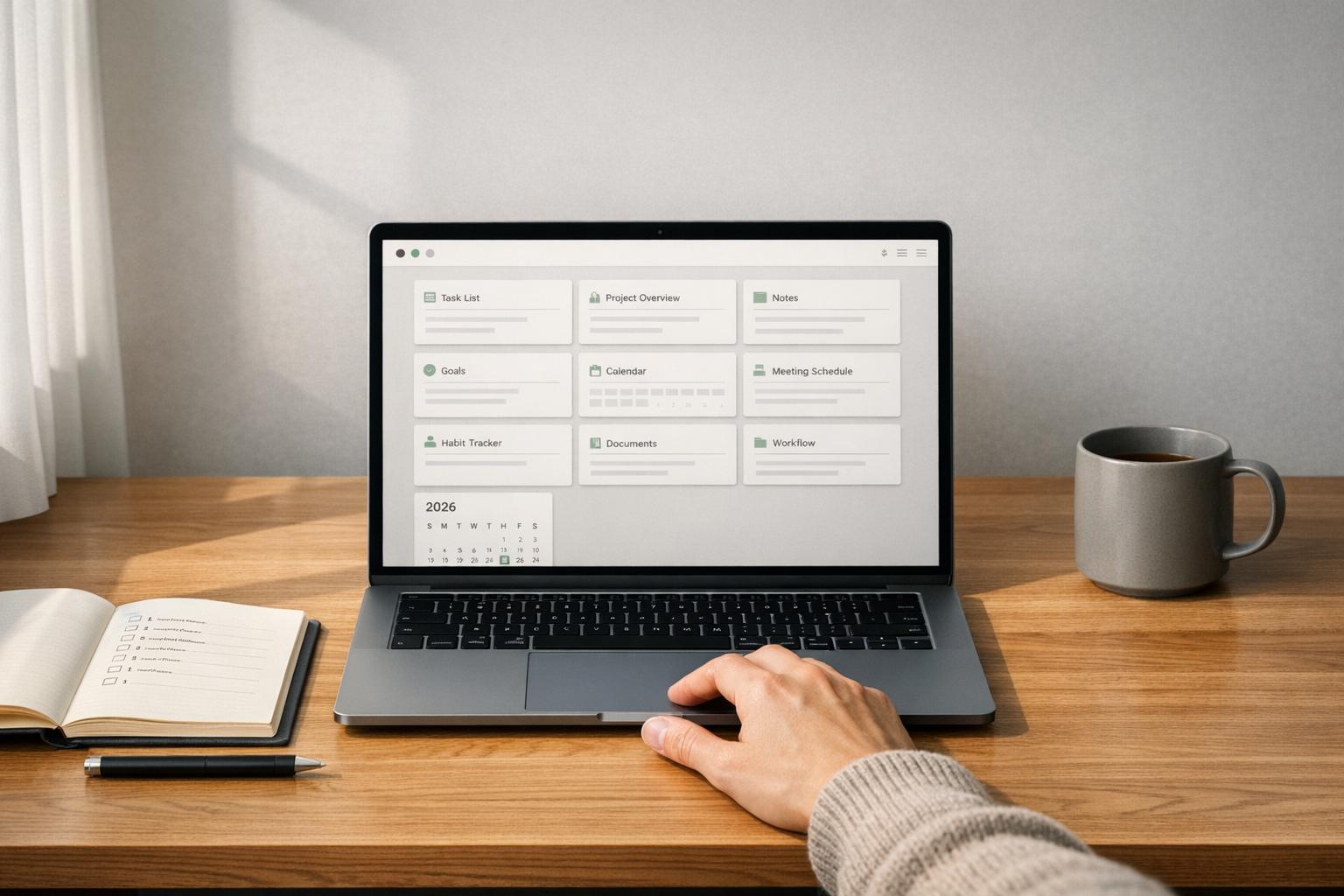
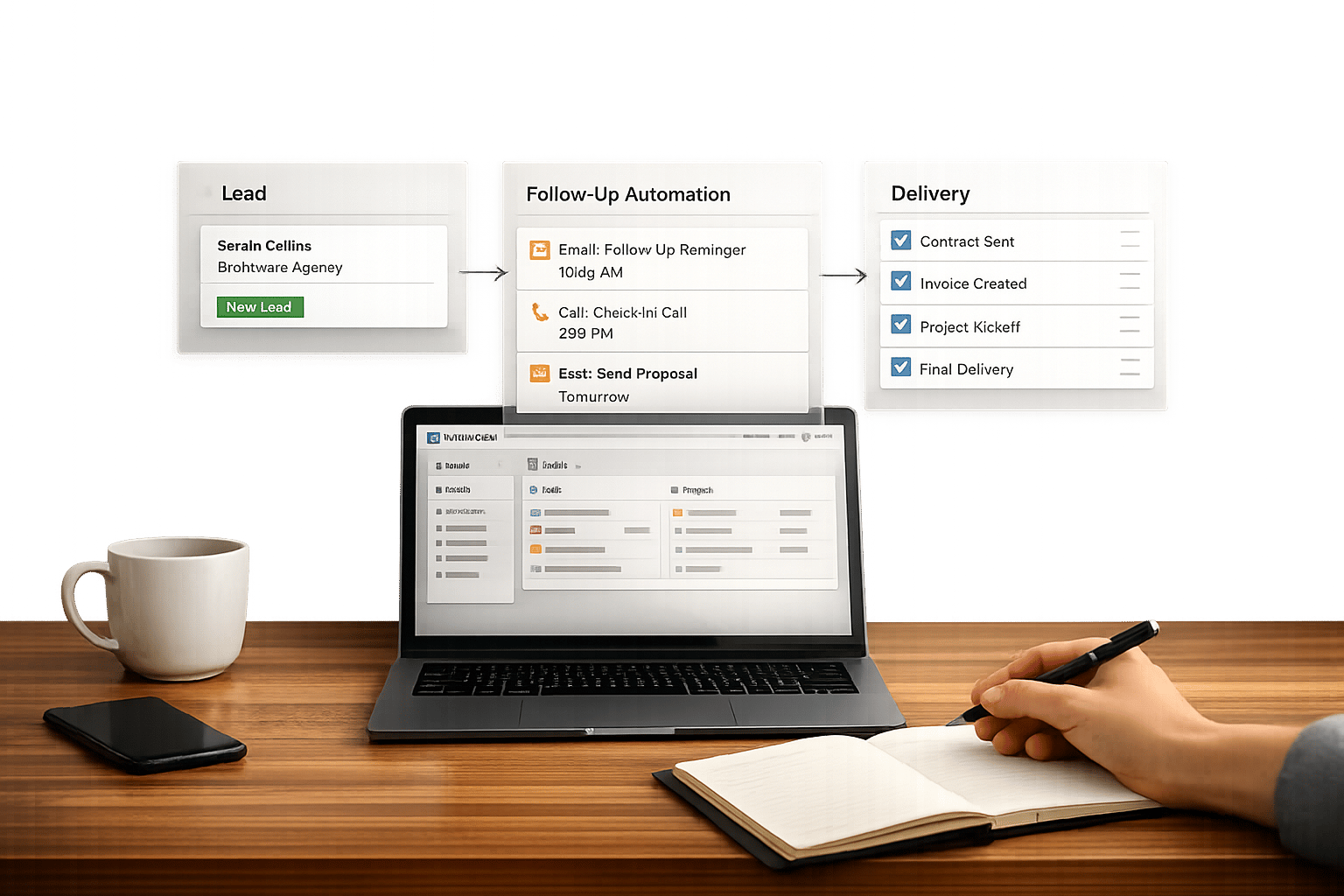
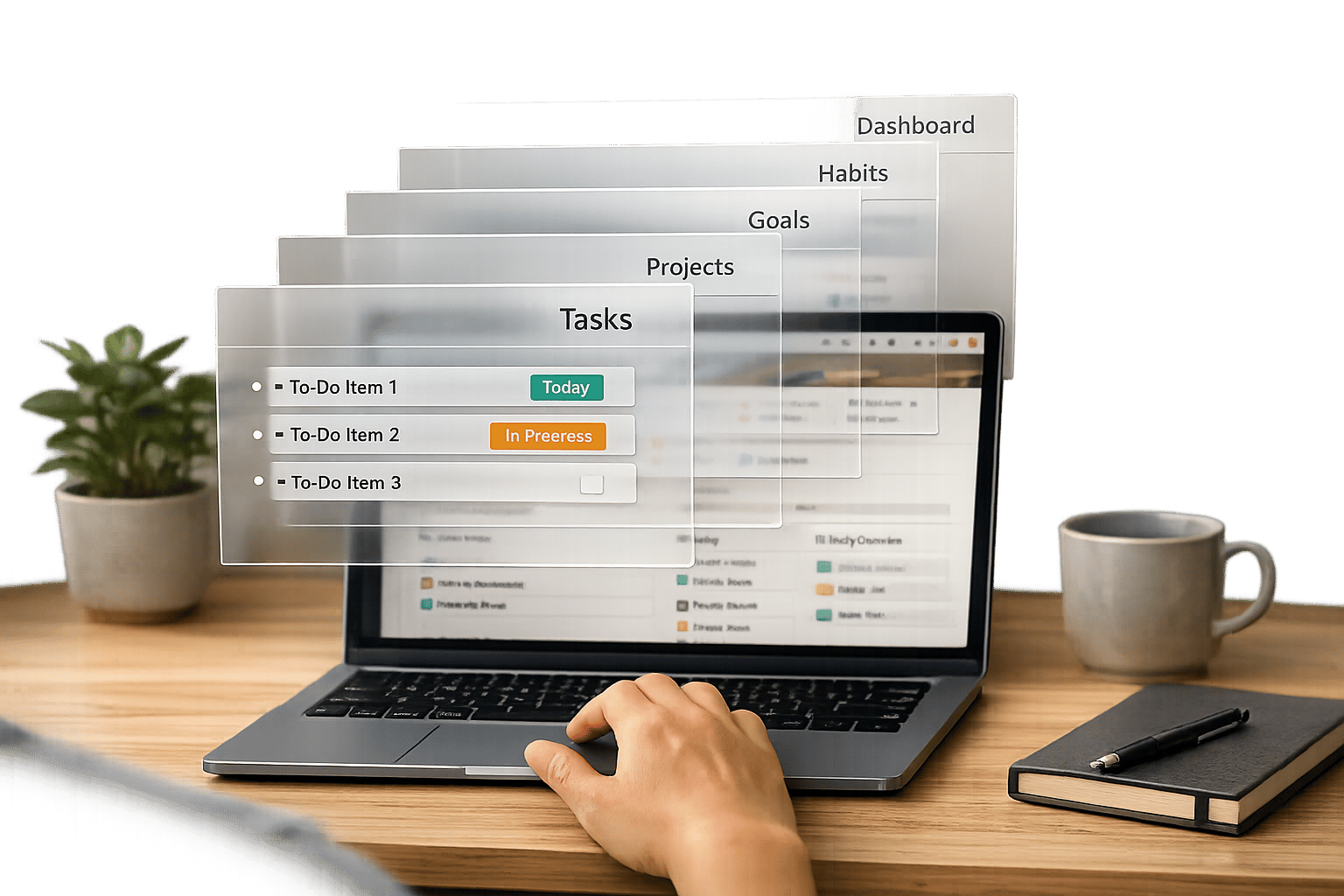
If your Notion setup feels scattered, you’re not alone. Many users struggle with disconnected pages and databases that make organizing life or work harder than it should be. Enter the Notion Operating System (OS) - a complete, connected workspace where tasks, projects, notes, and goals all stay in sync. Unlike standalone templates or dashboards, a Notion OS works as your central hub, eliminating the chaos of juggling multiple tools.
OS Dashboard HQ simplifies the process by offering a curated directory of pre-built Notion OS dashboards tailored to your needs - whether you’re managing personal routines, running a business, or creating content. Instead of wasting hours building systems from scratch, you can plug into ready-made setups designed to streamline your workflow.
Here’s what this article covers:
- What a Notion OS is and how it works.
- How it differs from templates and dashboards.
- Common types of Notion OS dashboards, like Life OS, Business OS, and Creator OS.
- When you need a Notion OS (and when you don’t).
Let’s break down how a Notion OS can transform your workspace and help you focus on what matters most.
How To Use Notion To Organize Your Entire Life (Life OS Tour)
sbb-itb-ced67d6
What Is a Notion Operating System?
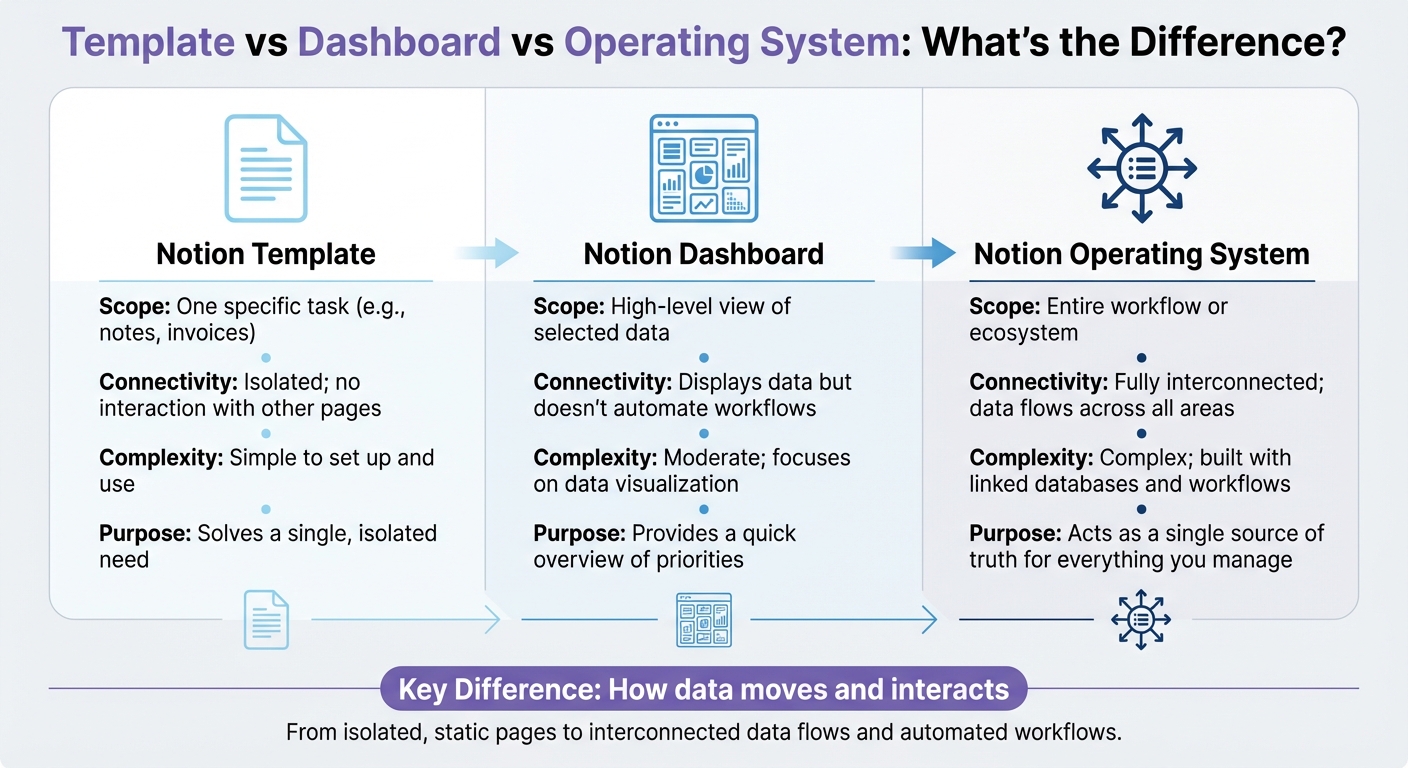
Notion Template vs Dashboard vs Operating System Comparison
Simple Definition of a Notion OS
A Notion operating system (OS) is like having a central hub that connects every part of your workflow into a unified system. Instead of juggling scattered pages or manually updating different tools, a Notion OS brings everything together. It uses linked databases to create a seamless flow of information across projects, tasks, and goals.
For instance, imagine a client database that connects to a projects database, which then links to a tasks database - all of it tying back to a goals dashboard. This setup ensures you don’t have to waste time updating the same information in multiple places. As Gerrard from Landmark Labs puts it:
Think of it as your business's digital headquarters - a single source of truth unifying projects, communications, and resources.
Now, let’s explore what makes a Notion OS stand apart from simple templates or dashboards.
Notion OS vs Template vs Dashboard
It’s easy to mix up templates, dashboards, and operating systems in Notion, but they’re designed for very different purposes. Here’s how they differ:
- A template is a standalone tool for one specific task, like taking meeting notes or generating an invoice. It’s simple to use but isn’t connected to other parts of your workspace.
- A dashboard gives you a high-level overview by pulling information from one or more databases. It’s a great way to stay focused on daily priorities but doesn’t integrate deeply with workflows.
- A Notion OS, on the other hand, is the full package. It’s a connected system where databases, workflows, and dashboards work together to manage everything - whether it’s your personal life or your business.
Here’s a quick comparison to break it down further:
| Feature | Notion Template | Notion Dashboard | Notion Operating System |
|---|---|---|---|
| Scope | One specific task (e.g., notes, invoices) | High-level view of selected data | Entire workflow or ecosystem |
| Connectivity | Isolated; no interaction with other pages | Displays data but doesn’t automate workflows | Fully interconnected; data flows across all areas |
| Complexity | Simple to set up and use | Moderate; focuses on data visualization | Complex; built with linked databases and workflows |
| Purpose | Solves a single, isolated need | Provides a quick overview of priorities | Acts as a single source of truth for everything you manage |
The key takeaway? It’s all about how data moves and interacts. A template keeps information locked to one page. A dashboard shows you data but doesn’t actively process it. A Notion OS, however, ties everything together - updating a project status might automatically adjust your task list, shift deadlines, and even update your progress toward long-term goals.
Core Ingredients of a Notion OS
Databases: Tasks, Projects, Notes, and More
The backbone of any Notion OS lies in its interconnected databases. These serve as the central hub for all your workflow data, ensuring everything stays organized and accessible. A well-built Notion OS typically includes five essential databases:
- Projects: Tracks workflows, milestones, and overall progress.
- Tasks: Houses individual actions needed to complete projects.
- Notes or Meeting Notes: Documents key decisions, ideas, and discussions.
- Wiki: Stores standard operating procedures and company knowledge.
- Goals: Keeps objectives and key results (OKRs) front and center.
By tagging entries with properties like Owner, Status, Priority, or Last Edited Time, you can filter and sort data across the entire system. For example, a Projects database might list client work, while the Tasks database breaks those projects into actionable steps. Linking these databases means you can instantly view all tasks tied to a specific project without duplicating or manually updating information.
Rollups take this a step further by automating data aggregation. These allow one database to pull information from another and even perform calculations. For instance, a Projects database can display a progress bar that updates automatically based on the completion status of related tasks. This ensures your system reflects real-time progress without extra manual input.
Dashboards: Your Daily Views
Databases store the data, but dashboards are where the magic happens. A dashboard is essentially a workspace that pulls filtered views from your databases to help you focus on what matters most at any given moment.
Most Notion OS setups include three core dashboards:
- Daily Command Center: Highlights tasks due today, active projects, and top priorities.
- Weekly Planning Dashboard: Uses board or calendar views to map out upcoming deadlines and balance your workload for the week.
- Long-term Vision Dashboard: Aligns immediate tasks with larger goals, like quarterly milestones or yearly objectives.
Dashboards rely on linked views to dynamically update as you work. For instance, a "My Tasks for Today" view will automatically adjust as you complete tasks or add new ones. This flexibility lets you shift perspectives seamlessly, whether you're planning your day, week, or year. These linked views are made possible by the relationships between databases, which we'll dive into next.
Relationships: How Everything Connects
The real power of a Notion OS lies in its ability to connect databases, creating a seamless flow of information. Unlike scattered pages, these relationships ensure that updates in one area ripple across the entire system.
Notion's relational properties make this possible. For example, linking a Tasks database to a Projects database allows each task to be tied directly to a specific project. Similarly, connecting a Projects database to a Clients database lets you quickly view all active work for a particular client without digging through folders.
As Landmark Labs explains:
A Notion Business OS solves this fragmentation by centralizing your entire operation in one powerful workspace.
Filters further enhance this system by keeping dashboards clean and focused. Even if your master Tasks database contains hundreds of entries, your Today dashboard can be set to show only tasks due today and assigned to you. This approach keeps the master database comprehensive while ensuring your views remain streamlined and actionable. Together, linked databases, rollups, and smart filters transform Notion into a fully functional operating system for managing both work and life.
Common Types of Notion Operating Systems
Now that we’ve covered the basics of a Notion OS, let’s dive into the most common types. Whether you’re managing personal routines, running a business, or producing content, there’s a system tailored to your needs.
Life OS
A Life OS turns Notion into your personal command center for habits, goals, and daily routines. It’s perfect for anyone who feels overwhelmed juggling multiple apps and wants a single hub for everything - fitness logs, meal plans, personal finance, and more. As David Allen, author of Getting Things Done, wisely said:
Your Brain is for having ideas not for holding them.
These dashboards often include habit trackers, journals, goal-setting frameworks (like the 12 Week Year or PARA method), and daily planners that highlight your top priorities. For instance, the Life OS dashboards for everyday systems and Life OS habit dashboard are standout examples. The habit dashboard alone boasts a 4.9/5 star rating from over 3,000 users.
A typical Life OS starts with a morning review that pulls in due tasks, active habits, and journal prompts, followed by a weekly review to recalibrate your goals and plans.
If you’re managing clients or team projects instead, a Business OS might be the better fit.
Business / Agency OS
A Business OS centralizes operations, client management, projects, and team workflows into one cohesive workspace. It’s ideal for solo entrepreneurs, startups, and agencies looking to escape the chaos of juggling multiple tools. As Ayk Martirosyan, founder of Maray.ai, aptly puts it:
Most small businesses aren't businesses. They're a disjointed collection of tasks dependent on constant manual effort.
At the heart of a Business OS, you’ll typically find a CRM for managing clients, a Projects database for active work, a Team Wiki for procedures, and financial tracking for invoices and budgets. Tools like the Productive CEO operating system and Small business OS template kit help eliminate silos, ensuring everything from client details to project updates is interconnected. Research shows that knowledge workers lose nearly 60% of their day on "work about work" - tasks like searching for information or coordinating efforts.
A typical Business OS workflow kicks off each Monday with a planning dashboard showing active projects, deadlines, and client updates. Throughout the week, team members update progress in a shared database, which feeds into project dashboards. For e-commerce businesses, the Ecommerce business OS workspace adds tools for tracking inventory and managing orders. You can find even more options in the Business OS dashboards category.
For creators, there’s an OS designed specifically for content production.
Creator / Content OS
A Creator OS simplifies content production, taking you from brainstorming to publication. It’s built for YouTubers, bloggers, podcasters, and social media creators who need to manage content calendars, sponsor relationships, and media assets all in one place. By linking your idea bank to your production schedule, a Creator OS ensures every piece of content flows through a clear process.
These dashboards often include a Content Calendar database (tracking stages like Idea → Scripting → Editing → Published), a Sponsors database for managing partnerships, and an Assets library for storing visuals and files. The Multi-channel content planner helps creators manage content across YouTube, Instagram, TikTok, and newsletters, while the Blogging OS with AI and SEO offers tools for keyword tracking and AI-assisted drafting. For more specialized needs, the Twitter growth mastery system focuses on thread planning and engagement tracking.
A typical Creator OS workflow starts with a weekly content planning session where ideas are moved from backlog to production. As the week progresses, you update the status of each project - whether scripting, filming, or editing - until it’s published. Afterward, you log analytics and manage sponsor deliverables, keeping everything streamlined. Explore more options in the Creator / content OS dashboards category.
When You Actually Need a Notion OS (and When You Don't)
A Notion OS isn't a one-size-fits-all solution. Before diving into a full operating system, it's important to assess whether your workflow truly benefits from a connected, relational system - or if a simple template can handle your needs just as well.
Signs You're Ready for a Notion OS
A Notion OS becomes essential when your current setup feels more like a roadblock than a tool. One of the biggest red flags is information scattered everywhere - client details buried in emails, project plans split across apps, and ideas lost on sticky notes. With companies using an average of 275 apps, the constant switching between tools can drain your focus and make it hard to see the bigger picture.
Another telltale sign is a disconnect between your goals and daily actions. You might start the year with ambitious plans, but as tasks pile up, there’s no clear link between what you’re doing today and the goals you set months ago. Without a system that ties tasks to projects and projects to your larger vision, those goals risk becoming forgotten rather than guiding your actions.
Complexity that’s outgrown basic tools is another indicator. If you’re juggling multiple clients, content schedules, dependencies, and timelines, simple checklists can’t keep up. A Notion OS acts as a central hub, where updates in one area - like a project spec - automatically sync with other parts of your workflow, such as your calendar or task list.
If these challenges sound familiar, a Notion OS could help you streamline and regain control of your workflow. Otherwise, a simpler setup might be all you need.
When a Simple Template Is Enough
Not every situation demands the full power of a Notion OS. If your tasks are straightforward - like checking off items on a grocery list or tracking workouts - a basic template or blocks will do the trick. These kinds of workflows don’t require complex filtering or relational databases; they just need a simple way to mark things as done.
In fact, when your focus is on speed and simplicity, a basic checklist can often outperform a more elaborate system. As the Notion Help Center puts it:
The value your system delivers should always be greater than the work it takes to upkeep the system.
If you’re spending more time tweaking your setup than actually completing tasks, your system might be overcomplicated. A good rule of thumb is the 30-second rule: if updating any piece of information takes longer than 30 seconds, your system is likely too complex. Similarly, daily planning should take no more than five minutes. A simple template that lets you quickly jot down tasks and move on is often more effective than a sophisticated OS you rarely use.
Start small with basic blocks. You can always upgrade to a database-driven system when you need features like filtering by priority, due date, or status. A simple setup you use daily is far better than an intricate system that sits untouched.
For those ready to take the next step, the curated directory of Notion OS dashboards provides pre-built systems designed to grow with your needs - saving you the hassle of starting from scratch.
How OS Dashboard HQ Curates Notion OS Dashboards
Creating a Notion operating system from scratch can be a time-consuming process filled with trial and error. OS Dashboard HQ simplifies this by offering a curated directory of pre-built Notion OS dashboards. These dashboards are categorized by role, use case, and OS type, making it easy to find a setup that fits your needs. Instead of struggling with free templates or manually building complex databases, you can dive straight into systems that are ready to use. Here’s how these curated dashboards remove the hassle of starting from zero.
Skip Rebuilding Systems from Scratch
Studies show that a lot of time is wasted on non-essential tasks like hunting for information, jumping between apps, and organizing workflows. Building a custom Notion OS can add to this inefficiency, especially if you end up overcomplicating your setup with databases that are hard to manage.
Curated dashboards solve this by offering pre-tested systems with built-in frameworks. For instance, the Life OS dashboards for everyday systems combine 47 productivity frameworks into one streamlined interface. Meanwhile, the Productive CEO operating system consolidates client management, project tracking, and financial oversight into a single hub for founders. These dashboards provide scalable solutions, whether for personal growth or business expansion, without requiring you to master Notion’s database tools.
How Dashboards Are Organized
To make finding the right system easy, OS Dashboard HQ uses a three-tier tagging system based on role, use case, and OS type. This categorization allows you to quickly filter options that match your specific workflow, avoiding the overwhelm of sifting through generic templates.
- Role-based tags: Tailored for groups like Startup Founders, Students, Freelancers, Agency Owners, and Solopreneurs.
- Use case tags: Cover categories such as Client Relationship Management, Academic Management, Finance and Budgeting, Habit Tracking, and Knowledge Management (Second Brain).
- OS type tags: Organize dashboards by scope, such as Life OS dashboards for personal management, Business OS dashboards for company operations, Creator / content OS dashboards for managing publishing pipelines, and Student OS dashboards for academic tracking.
This structured tagging system ensures you can quickly identify a dashboard that fits seamlessly into your workflow. It’s a straightforward approach to finding the ideal Notion OS dashboard for your needs.
Choosing Your First Notion OS Dashboard
When you're dealing with scattered workflows, it's tempting to fix everything at once. But your first Notion OS dashboard should focus on solving your biggest challenge. If your personal life feels out of control - missed goals, neglected habits, and no system for tracking health or finances - start with a Life OS. On the other hand, if client work is slipping through the cracks or you're wasting time searching through emails, spreadsheets, and notes, a Business OS might be the answer. For content creators juggling multiple platforms, sponsorships, and publishing calendars, a Creator OS can centralize your entire workflow.
Life-First vs Work-First vs Creator-First
The choice boils down to where you feel the most strain. If you're losing time or energy in your personal life, Life OS dashboards - like the Life OS dashboards for everyday systems - are ideal. They help connect daily habits to long-term goals, track health metrics, and manage personal finances all in one place.
For work-related chaos, Business OS dashboards such as the Productive CEO operating system are designed to organize CRM, project management, and company wikis. Ayk Martirosyan, Founder of Maray, puts it bluntly:
Most small businesses aren't businesses. They're a chaotic collection of tasks, held together by one person's willpower.
If you're a creator, Creator OS dashboards - like the Creator / content OS dashboards - are built to streamline content calendars, asset libraries, and publishing workflows for YouTubers, bloggers, and influencers.
| OS Type | Best For | Primary Focus | Example Dashboard |
|---|---|---|---|
| Life OS | Individuals and students | Habit tracking, health logs, personal finances, knowledge management | Life OS habit dashboard |
| Business OS | Startups, agencies, freelancers | CRM, project management, SOP wikis, client portals | Small business OS template kit |
| Creator OS | YouTubers, bloggers, influencers | Content calendars, asset libraries, sponsorship trackers, publishing pipelines | Multi-channel content planner |
Once you've identified the dashboard that matches your needs, the next step is weaving it into your daily routine.
Tips for Getting Started
Start small: pick one OS and commit to using it for a full week before deciding if it works for you. As Notion's Help Center highlights:
The value your system delivers should always be greater than the work it takes to upkeep the system.
Avoid the trap of overloading your setup with unnecessary widgets or databases. Practicality matters more than aesthetics - an OS you use daily is far better than one that's visually impressive but sits idle. Begin with a pre-built template and strip away anything you don't need. To make the most of your new system, pair it with a weekly review habit: spend 20–30 minutes every Sunday clearing your inbox, planning the week ahead, and assigning tasks to specific days. This simple routine can help ease Monday morning stress.
Next Steps: Turn Notion Into Your HQ
Now that you understand the key elements of a Notion OS, it’s time to put it into action. Start by visiting the curated directory of Notion OS dashboards and selecting one that tackles your most pressing challenge - whether it’s bringing order to personal goals, managing client work effectively, or streamlining a chaotic content pipeline. Give it a trial run for a week to see how it fits into your workflow.
Once you’ve installed your chosen OS, make a habit of conducting a weekly review. Set aside 20 minutes every Sunday evening to tidy up your inbox, assign tasks to specific days, and map out the week ahead. Roman Likhachev, Founder of Grizzly Templates, highlights the value of this practice:
This single ritual [weekly planning] has done more for my productivity than any app or technique I've tried. The week feels manageable when you've already decided what goes where.
Resist the urge to customize your OS during that first week. By sticking to the default setup, you’ll get a clearer picture of what works and what doesn’t in your daily routine. Remember, the success of your Notion OS depends on the habits you build around it. Without regular check-ins, even the best dashboard can turn into a digital junk drawer. Commit to your weekly review as a non-negotiable part of your schedule, and you’ll transform Notion into the central hub that keeps your life and work on track. This consistent practice ensures the seamless workflow that makes a Notion OS so effective.
FAQs
How do I migrate my current Notion pages into a Notion OS?
To transition your Notion pages into a Notion OS, start by gathering your scattered pages and organizing them into connected databases for tasks, projects, notes, and resources. Use relations and rollups to link these databases, ensuring everything stays in sync.
Next, create dashboards to act as central hubs for planning and reviews. Focus on one area at a time - like life or work - to streamline the process and avoid feeling overwhelmed. Once that area feels solid, you can gradually expand your system to cover other aspects, building a more integrated setup step by step.
What databases should I build first in a Notion OS?
Start with the essentials: tasks, projects, and goals. These core databases act as the backbone of your Notion OS, helping you stay organized in both your work and personal life. By linking and syncing these key elements, you create a system that keeps your priorities aligned and tracks your progress seamlessly.
How do I keep a Notion OS from getting too complex?
Simplicity is key when building a Notion OS. Start by focusing on clarity: limit the number of interconnected databases and dashboards to avoid overcomplicating your system. Stick to the essentials - only include the databases, views, and properties you truly need.
Make it a habit to regularly review your setup. Remove outdated or redundant elements to keep things streamlined and functional. If you're not sure where to begin, starting with a curated, well-designed OS dashboard can save you time and prevent the temptation to over-customize, which often leads to clutter.