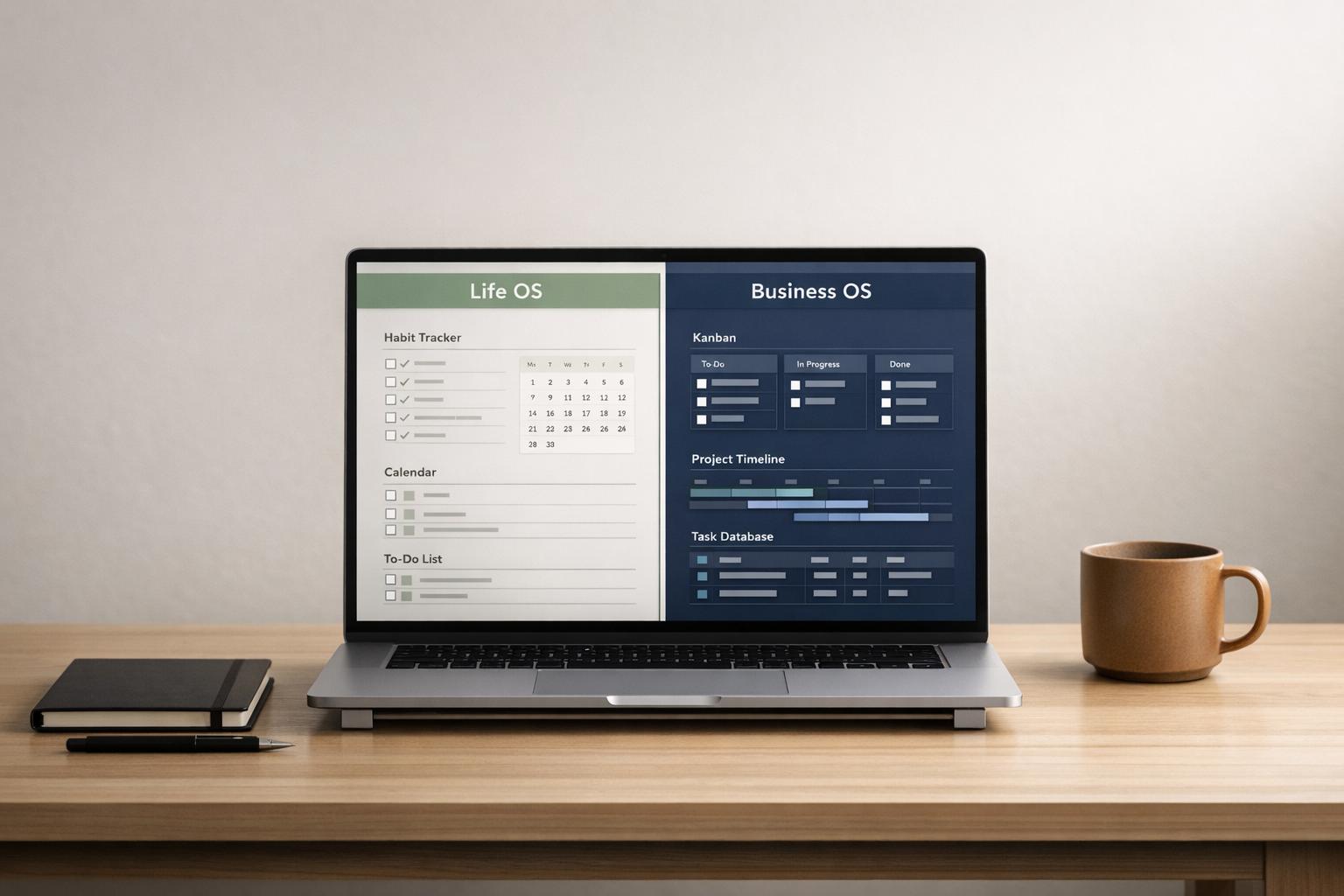
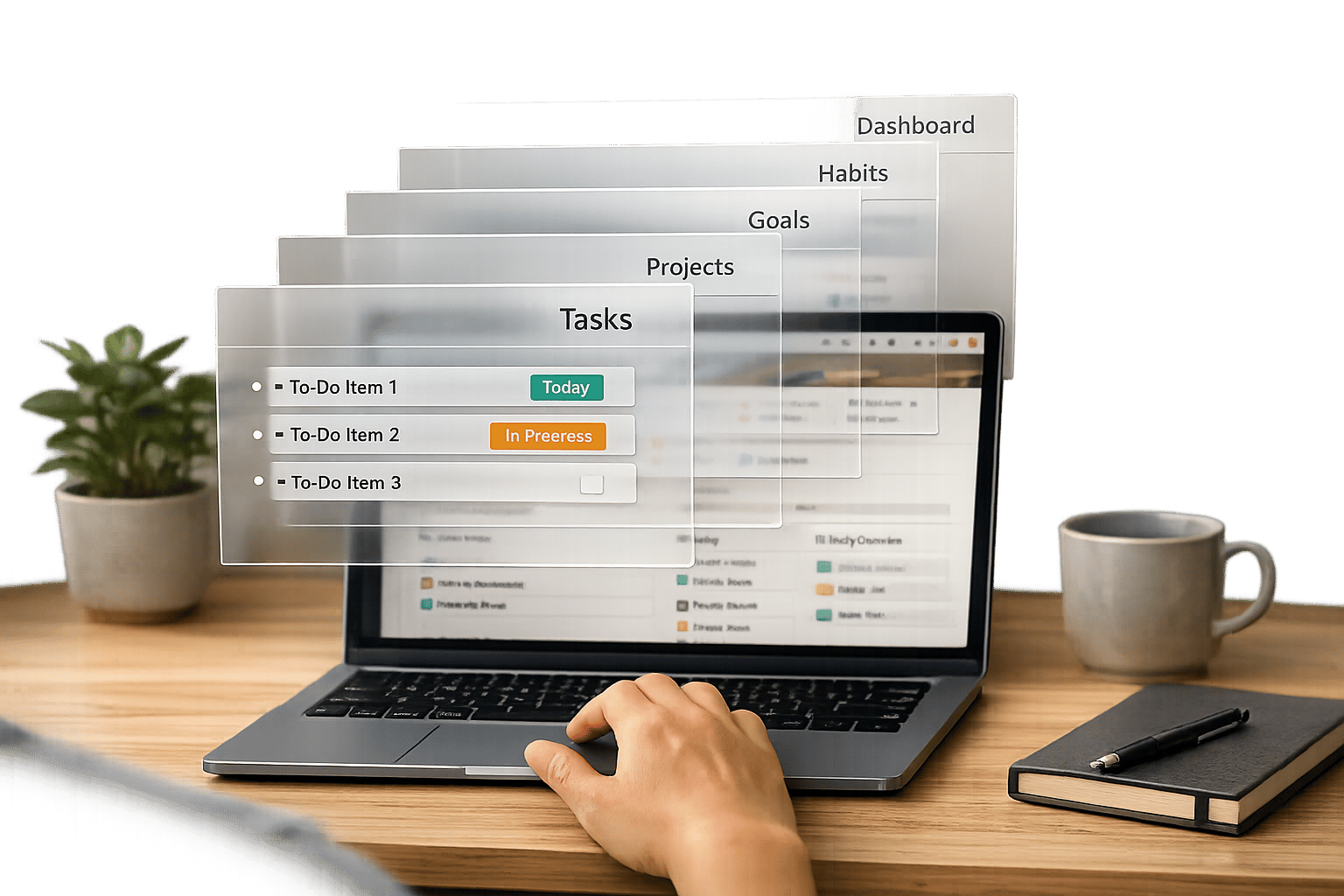
If your Notion workspace feels sluggish, especially in Life OS or Business OS dashboards, you’re not alone. Overloaded views, complex formulas, and old data can slow things down. The good news? You don’t need to rebuild your system. By simplifying views, archiving outdated entries, and cleaning up unnecessary properties, you can make your Notion dashboards faster and more efficient.
This guide breaks down practical steps to identify problem areas, optimize database performance, and maintain speed over time. Whether you’re managing tasks, projects, or routines, or using a [Notion Creator Starter Kit], these tips will help you keep your Notion OS running smoothly without starting from scratch.
Let’s dive into the details.
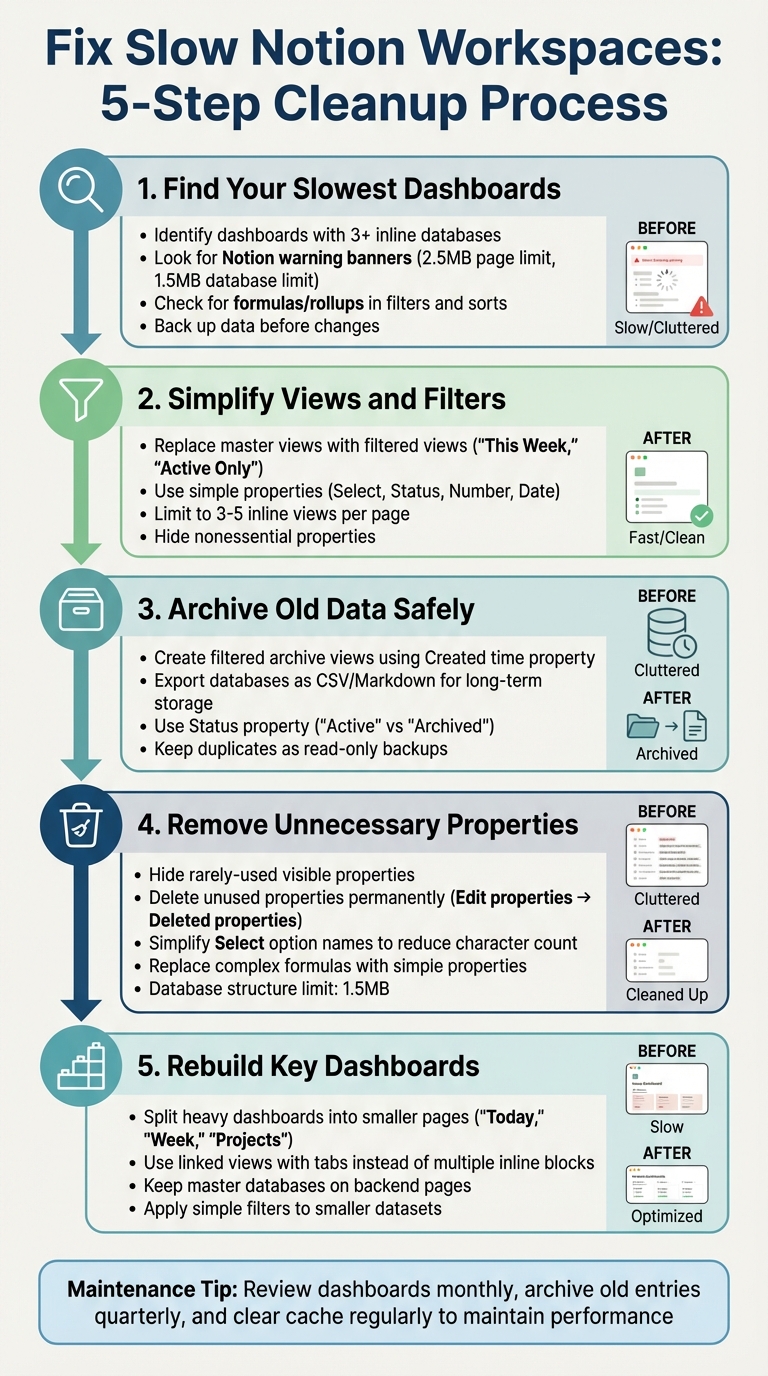
5-Step Process to Optimize Slow Notion OS Dashboards
3 Tricks to Make Notion Run Faster #notion #notiontips
sbb-itb-ced67d6
Why Notion OS Dashboards Get Slow
Notion OS dashboards bring everything - tasks, goals, projects - into one place. But as you build them out with more pages, properties, and formulas, all that extra data starts to take its toll. The result? Slower load times and a workspace that feels sluggish. Let’s break down the main reasons behind these performance issues.
What Causes Notion OS Performance Problems
The biggest issue is dashboard overload. Most Notion OS setups rely on a central hub - a main dashboard - where multiple inline databases are displayed at once. Each of these databases has its own filters, sorts, and calculations running in the background. As Notion creator Osama (Ols) puts it:
Each view = new filters, new sorts, and new background calculations. If you've got 8+ views on a single dashboard, that's 8 mini-databases running in the background.
When you load a dashboard packed with multiple views, all those filters and calculations kick in at the same time, putting a heavy strain on your workspace.
Another factor is complex logic chains. Formulas that depend on other formulas create a chain reaction of calculations, which slows down page rendering. Sorting or filtering by properties like formulas or rollups takes longer than using simpler fields like "Select" or "Status".
Then there’s old content and property bloat. Historical data piles up over time, and if your views aren’t filtered, Notion ends up processing every single page. Unused properties and overly long select-option names also add unnecessary weight, pushing your setup closer to Notion’s 1.5MB limit.
Lastly, property visibility matters more than you might think. The more properties you have visible, the more data Notion has to load whenever you interact with your workspace. Keeping only essential properties visible can make a noticeable difference.
Common Performance Problems in Notion OS Setups
Building on the earlier discussion, here are some of the most common bottlenecks that can slow down Notion OS setups.
Large Databases with Heavy Views
Unfiltered master views on dashboards are a frequent culprit. When a database with thousands of entries is displayed without filters, Notion processes every single record and its visible properties. For example, showing 5,000 completed tasks forces Notion to render thousands of rows and tens of thousands of data points. The solution? Use filtered views that show only the most relevant data - like tasks from the past 30 days or those marked "In Progress." This way, Notion only processes what’s necessary.
Complex Formulas and Rollups
Formulas that are overly complex can significantly slow down calculations, especially when they interact with rollups. Every time a dashboard loads, Notion recalculates these formulas, which becomes even more taxing if they are used in sorting or filtering. Filtering by simpler properties, such as "Select", "Status", "Number", or "Date", is much faster and avoids this extra strain. Dashboards that rely on interconnected formulas - like those tallying published posts or engagement rates - can experience noticeable slowdowns due to this cumulative effect.
Old Pages and Unused Blocks
Digital clutter, such as outdated pages, test entries, and unused blocks, can drag down your workspace’s performance. Each page, even archived ones, adds to the overall load. As Osama (Ols) from Ols Notion notes:
Every page, even archived ones, adds to your workspace's load. Test pages, duplicate templates, old projects - they all contribute to performance degradation.
Additionally, databases have a 1.5MB cap for property structures, which includes names, options, and formula lengths. Accumulating unused properties pushes you closer to this limit. To address this, delete or archive old content and permanently remove unused properties. Simply deleting a property isn’t enough - you’ll need to go to "Edit properties" → "Deleted properties" and select "Permanently delete all" to fully clear the structural overhead .
Step 1: Find Your Slowest Dashboards
How to Identify Slow-Loading Dashboards
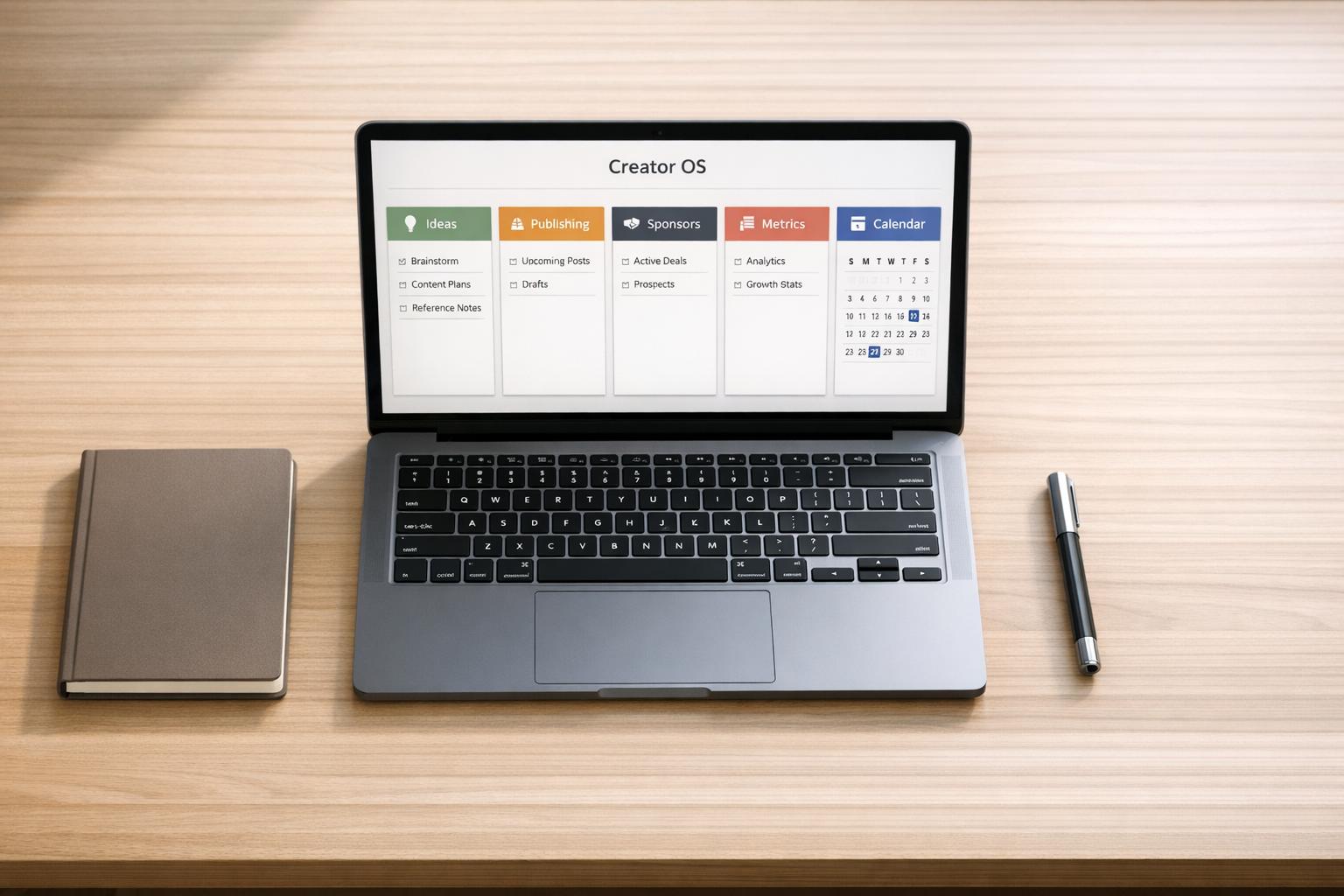
Start by pinpointing dashboards that take the longest to load. Pages like your "Today" view, "Week" overview, or key Life OS dashboards are common culprits, especially if they include multiple inline databases that update all at once. If you notice delays in your core Business OS dashboards or Creator OS dashboards, make a note to optimize them.
Pay attention to any warning banners on database pages. Notion automatically flags pages that exceed size limits - like the 2.5MB cap for property data on a single page or the 1.5MB limit for the database structure itself. These alerts are clear signs that a database needs immediate attention.
Examine your dashboards closely: if you see three or more inline databases with numerous columns - especially those containing formulas or rollups - or if filters and sorts rely on complex properties, those are likely slowing things down. Simple properties like Select, Status, Number, or Date are easier for Notion to process, while formulas and rollups require more resources and can bog down performance.
Once you’ve identified the dashboards causing delays, make sure to back up your data before making any changes. It's always better to be safe than sorry.
Back Up Before Making Changes
Before diving into cleanup, take steps to protect your data. Duplicate your key databases or use Notion starter templates or export them as CSV files. While Notion does allow you to recover deleted properties through the "Deleted properties" menu (found under the slider icon → Edit properties), permanently deleted data cannot be restored. Plus, Notion limits the trash for deleted properties to 1.5MB - once you hit that limit, you’ll need to delete items permanently to free up space.
Creating a duplicate of your database before making changes gives you a safety net. For larger overhauls, exporting your data to CSV or PDF can provide a long-term backup outside of Notion. This ensures that even if you accidentally delete a critical property, you’ll have a reliable source to recover from.
Step 2: Simplify Views and Filters
Replace Master Views with Filtered Views
Instead of relying on a massive "All Tasks" view, create focused, filtered views that highlight only what’s relevant. For example, use filters like "This Week", "Active Only", or "Overdue" to streamline your data. Stick to simple properties such as Select, Status, Number, or Date, and add a Created time filter to exclude outdated entries. This not only keeps your workspace clean but also reduces the processing burden on Notion.
Notion processes basic properties much faster than formulas or rollups. So, if you’re using tools like the Life OS Habit Dashboard or the GTD Productivity Dashboard, these time-based filters can help you zero in on current habits and tasks without dragging along unnecessary historical data.
Avoid overcomplicating things with filters or sorts based on formulas or rollups, as these require more processing and can slow things down. Instead, stick to straightforward filters like "Status is In Progress" or "Due date is within the next 7 days" to keep your dashboards snappy and responsive.
Limit Inline Views per Page
Once your filters are optimized, take a look at how your dashboards are laid out. Too many inline database views on a single page can cause a noticeable slowdown because they all load at once. A smarter approach is to consolidate these views using the /linked command to create a single linked database block with tabs. This way, Notion only loads the active tab, reducing strain on performance.
For example, if your Personal Home Dashboard Template includes separate inline databases for Tasks, Projects, and Calendar, replace them with one linked database block featuring tabs for each view. The original databases can remain on their own pages, while the linked views on your main dashboard handle high-traffic needs without fetching unnecessary data all at once.
Another quick win? Hide nonessential properties. Even if you’ve already applied filters, unnecessary columns can still slow things down. Go through each view and ask yourself, "Do I actually need this property here?" If the answer is no, hide it.
These tweaks work hand-in-hand with earlier steps to improve the performance of your Notion OS dashboard, making it faster and more efficient to use.
Step 3: Archive Old Data Safely
Use Filtered Archive Views
Instead of deleting old pages outright, filter them out to keep your database manageable. For instance, you can use the Created time property to exclude entries older than a specific date - say, anything created more than six months ago. This approach reduces the processing load and improves performance in larger databases.
If you're using a Life OS Dashboard for Everyday Systems with a large Tasks database, consider creating a new view called "Archive." Set the filter to display only tasks created before a specific date, such as January 1, 2026. This keeps your main "Active Tasks" view streamlined while retaining access to archived tasks for future reference.
Alternatively, you can use a "Status" property to manage old data. Add a "Status" column with options like "Active" and "Archived", and filter your primary dashboards to display only "Active" entries. This method allows you to control what gets archived without altering the structure of your database. Stick to straightforward properties such as Date, Status, or Select, as these are processed faster by Notion compared to more complex formulas or rollups.
Once you've isolated archived data, you can focus on reducing database size by exporting and cleaning up unnecessary entries.
Export and Archive Databases
If filtering isn't enough and your database is approaching Notion's size limits - 2.5MB of property data per page and 1.5MB for the total database structure - it's time to export and archive your data. Start by duplicating the database, then delete older entries from your main workspace while keeping the duplicate as a read-only archive. Alternatively, export the database as a CSV or Markdown file and store it outside Notion for long-term access.
As mentioned in Step 1, make sure you've backed up essential databases before proceeding. For users of systems like the Clarity Focus and Time Management OS, this step ensures your workflow remains intact while you declutter.
After archiving, permanently delete unnecessary properties to free up space. Use the Edit Properties menu to remove obsolete items, keeping your workspace efficient and ensuring faster updates in the future.
Step 4: Remove Unnecessary Properties, Formulas, and Rollups
Review database properties
Streamlining your Notion databases can make a noticeable difference in how quickly your dashboards load. Start by opening your largest databases and hiding any visible properties that aren’t frequently used. For instance, if you’re using a Business OS dashboard with a Projects database, identify properties that are rarely referenced and hide them to improve performance.
Next, check for outdated or deleted properties. Navigate to Edit properties → Deleted properties to see what’s taking up space. Notion allows up to 1.5MB of deleted properties before requiring permanent removal, so click the trash icon (🗑️) next to anything you’re sure you won’t need again. Be cautious, though - permanent deletions are irreversible.
Pay close attention to Select and Multi-select properties as well. Simplify option names and reduce the number of choices to stay within Notion’s 1.5MB database structure limit. For example, change a long option like "In Progress – Waiting on Client" to something shorter like "Waiting", or condense "Complete – Archived" to just "Done." This small tweak reduces the overall character count and helps keep your database lean.
Once you’ve optimized your database properties, it’s time to tackle formulas and rollups.
Simplify formulas and rollups
After trimming down visible properties, focus on simplifying your formulas and rollups. These elements can significantly slow down your dashboard, especially when they’re complex or heavily used in filters and sorts. Multi-step formulas, in particular, force Notion to process several calculations every time the page loads. Simplify these by replacing them with straightforward logic or plain properties like Status or Number.
Here’s why this matters: Notion recalculates formula and rollup values for every page in a view, which can drastically increase load times. For example, if your Tasks database is sorted by a rollup that counts related projects, try switching to a simple "Priority" Select property instead. Similarly, if you’re filtering by a formula that checks due dates and status, replace it with a combination of a "Due Date" filter and a "Status" filter. Dashboards like the GTD Productivity Dashboard are built with these principles, prioritizing simple properties for core filters and sorts.
For formulas that are essential but rarely change, consider replacing them with manual entries. For example, instead of using a formula to calculate "Days Since Last Contact", create a Number property that you update weekly during your review. This approach keeps your dashboard functional while significantly improving its performance.
Step 5: Rebuild Key OS Dashboards
Split heavy dashboards into smaller pages
Once you've simplified your views and removed unnecessary elements, it's time to reorganize your main dashboards for better performance. Large, consolidated dashboards can slow down Notion because they require the platform to process multiple inline databases simultaneously. To avoid this, break these dashboards into smaller, more focused pages. For example, create separate pages for "Today", "Week", or "Projects." This modular approach ensures your dashboards only load the data you need at any given moment.
Another way to improve performance is by keeping your master databases on backend pages instead of embedding them directly into your main dashboards. Use linked views on your key dashboards to pull in only the relevant data. For instance, instead of embedding separate inline blocks for Tasks, Projects, and Notes, use a single linked database block with tabs. This setup processes only the active tab, reducing the load on your workspace significantly.
Smaller, modular pages also make it easier to apply simple filters to smaller datasets. For instance, a "Today" dashboard with filters like "Date is Today" and "Status is Not Done" will process much faster than a complex formula applied to an entire master database. Dashboards such as the Life OS Dashboard for Everyday Systems and Clarity Focus and Time Management OS follow this principle by emphasizing focused views over sprawling, overloaded pages. These changes are safe to implement and fully reversible, so you can refine your structure without worrying about losing data.
Examples of performance-focused dashboards
By applying these strategies, you can create dashboards that are faster and more responsive. If you're revamping your core OS dashboards, consider templates that prioritize speed and modularity. For example, the Life OS Habit Dashboard is designed to track routines efficiently without bogging down the page. Similarly, the GTD Productivity Dashboard keeps task views quick and responsive by using simple Status and Date filters instead of heavy formulas.
For a streamlined starting point, check out the Personal Home Dashboard Template. This template organizes daily and weekly views using linked databases with minimal inline blocks, ensuring faster load times. Additionally, it hides non-essential properties in views, which keeps the interface clean and responsive. If you're looking for more options, explore Life OS dashboards, Personal Productivity OS, and Starter OS dashboards to find a setup that matches your workflow while maintaining optimal performance.
How to Keep Your Notion OS Fast Over Time
Quick Cleanup Checklist
Keeping your Notion workspace running smoothly requires regular maintenance. Start by reviewing your most-used dashboards and hiding any properties that don’t add value to the views you use. This not only improves responsiveness but also keeps your interface streamlined.
Every few months, take time to audit your database properties. Remove unused options, and consider shortening lengthy labels (e.g., simplify "In Progress" to "Doing") to avoid hitting Notion's 1.5 MB structural limit. You can also navigate to Edit properties → Deleted properties and select Permanently delete all to clear out the trash buffer, freeing up space. Additionally, filter and archive outdated entries to keep your active databases lean. If performance slows, use the Clear cache and reload option in the desktop app’s Troubleshooting menu to clear out temporary files.
| Maintenance Task | Frequency | Action |
|---|---|---|
| Image Compression | At upload | Compress images to under 2 MB (preferably in WebP format) |
| Database Cleanup | Quarterly | Archive old pages and delete unused properties |
| View Audit | Monthly | Limit views to 3–5 per page and hide non-essential fields |
| Cache Clearing | Monthly | Clear the cache via the app’s settings |
| Workspace Backup | Monthly | Use the "Export all workspace content" option in Settings |
With these steps in place, you’ll keep your workspace efficient and responsive. For even better results, consider switching to dashboards that are designed with performance in mind.
Switch to Optimized Notion OS Dashboards
Routine maintenance is crucial, but switching to optimized dashboard templates can make a big difference in maintaining speed over time. Templates like Second Brain 6.0 and Creator Brain 4.0 are built with efficient functions such as let(), map(), and filter(), which reduce computational load and improve load times. These systems avoid circular dependencies and heavy reference chains, minimizing unnecessary recalculations.
Explore curated templates in categories like Life OS dashboards, Business OS dashboards, and Creator OS dashboards. These dashboards are designed with focused views, simple filters, and modular layouts, letting you integrate them seamlessly into your workflow while keeping performance high. Instead of starting from scratch, you can plug into a complete, fast workspace tailored to your needs.
FAQs
How can I speed up Notion without rebuilding my OS?
If your Notion setup feels sluggish, you don’t need to start from scratch. Instead, focus on making simple, reversible adjustments that can speed things up without disrupting your workflow.
Start by auditing your dashboards to pinpoint what’s causing delays. Slow-loading pages are often the result of large databases or overly complex views. Simplify things by replacing massive master views with more focused, filtered ones.
Other quick wins include archiving data you no longer use and trimming down unnecessary properties or formulas in your databases. If a dashboard is particularly important, consider rebuilding it with performance in mind - keeping layouts clean and views efficient.
Always remember to back up your databases before making changes. This ensures your data stays safe, even if something doesn’t go as planned. Small tweaks like these can make a big difference in how smoothly your Notion OS runs.
What’s the safest way to archive old tasks and projects?
The best way to keep your Notion workspace organized is by moving or duplicating old tasks and projects into an archive database or a filtered archive view. This method keeps your main workspace clean and focused, while still giving you access to past records when needed.
Before making any big changes, it’s smart to back up your databases. You can do this by either duplicating them within Notion or exporting them to an external file. This simple step ensures your data stays safe and gives you the flexibility to reverse changes if necessary.
Which Notion properties slow dashboards down the most?
The factors that often cause dashboards to lag include complex formulas, extensive rollup chains, and an overload of visible properties. These elements demand more processing power, leading to slower calculation and rendering times - particularly in large databases. To boost performance, try simplifying formulas, minimizing rollups, and hiding properties that aren't essential.