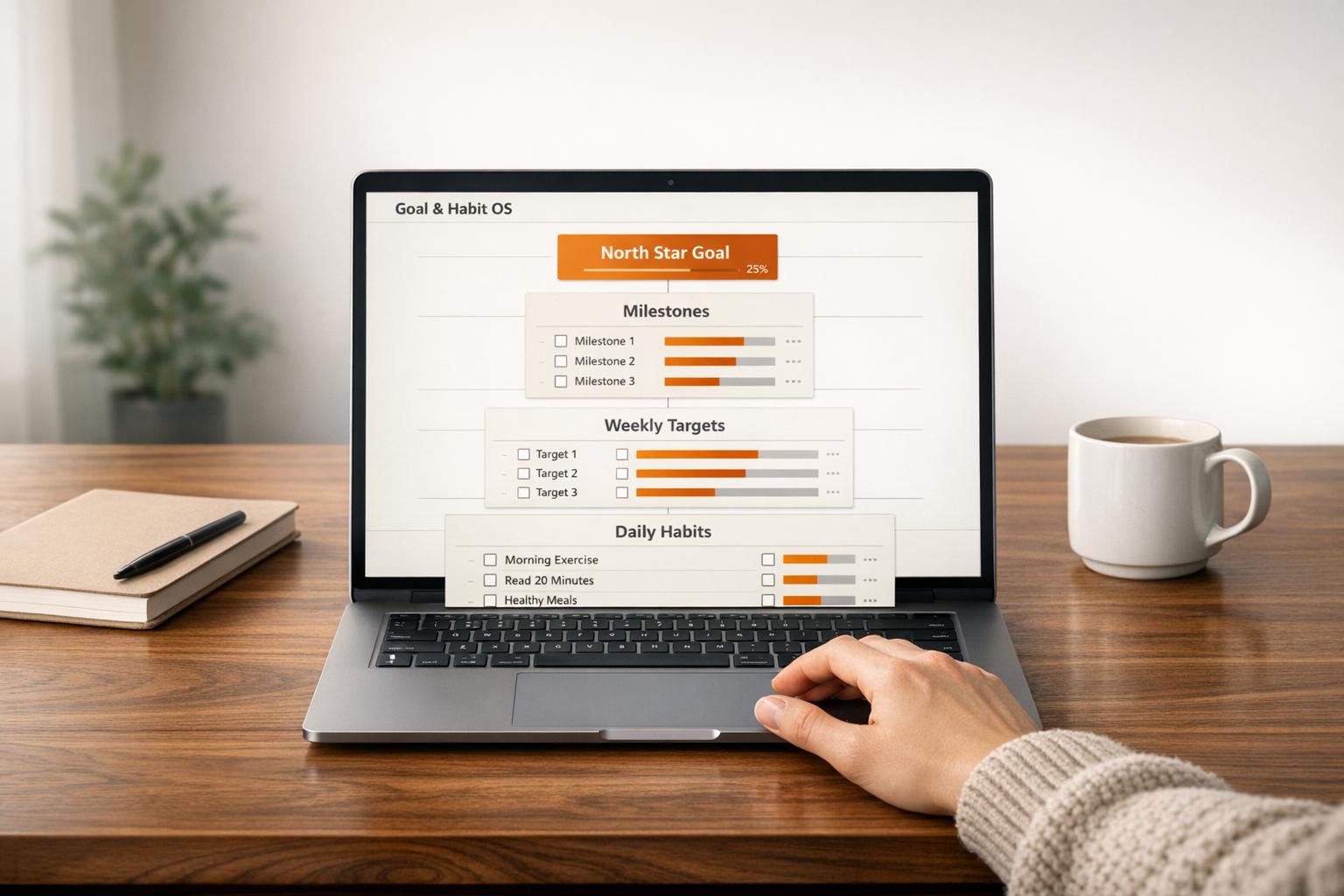
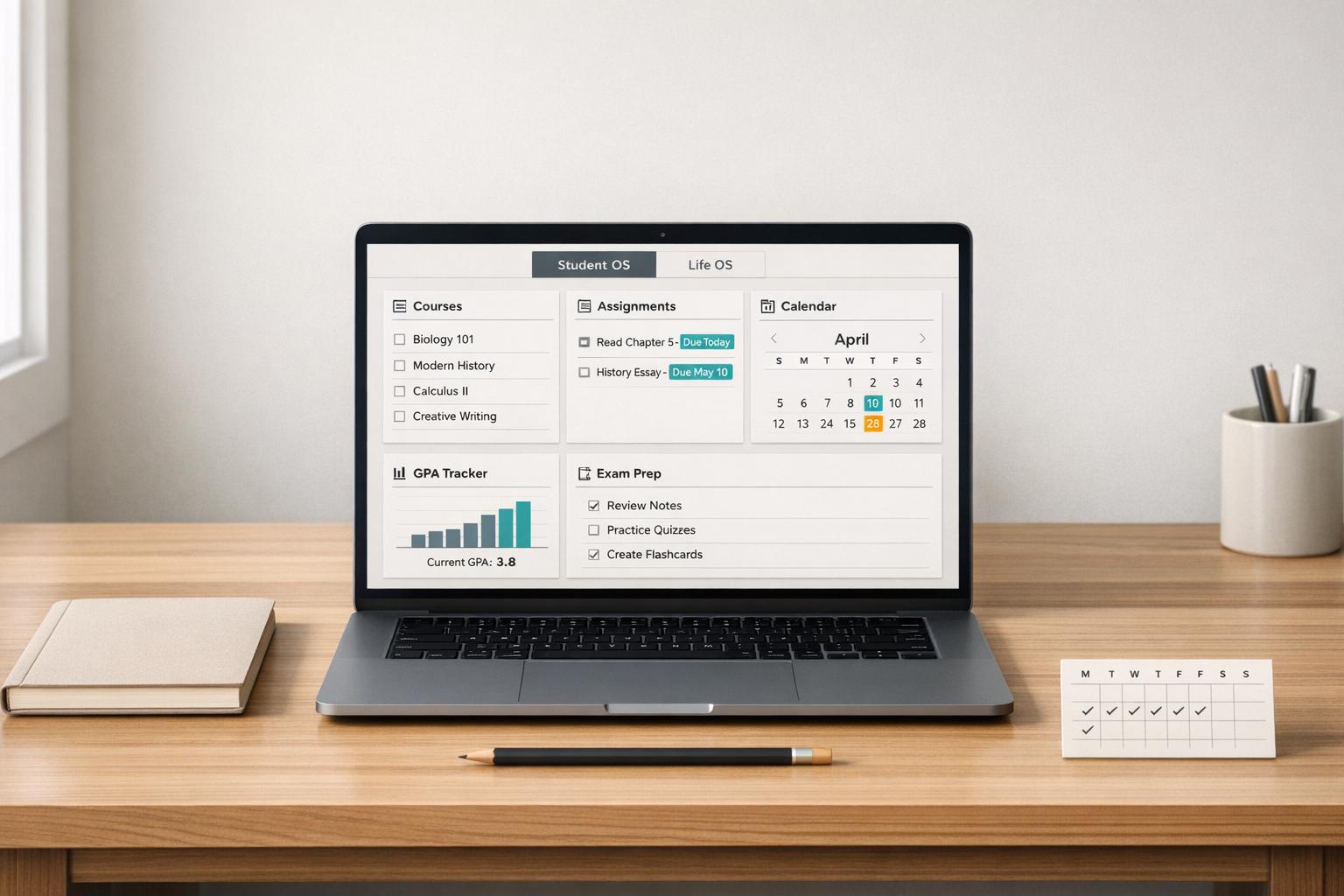
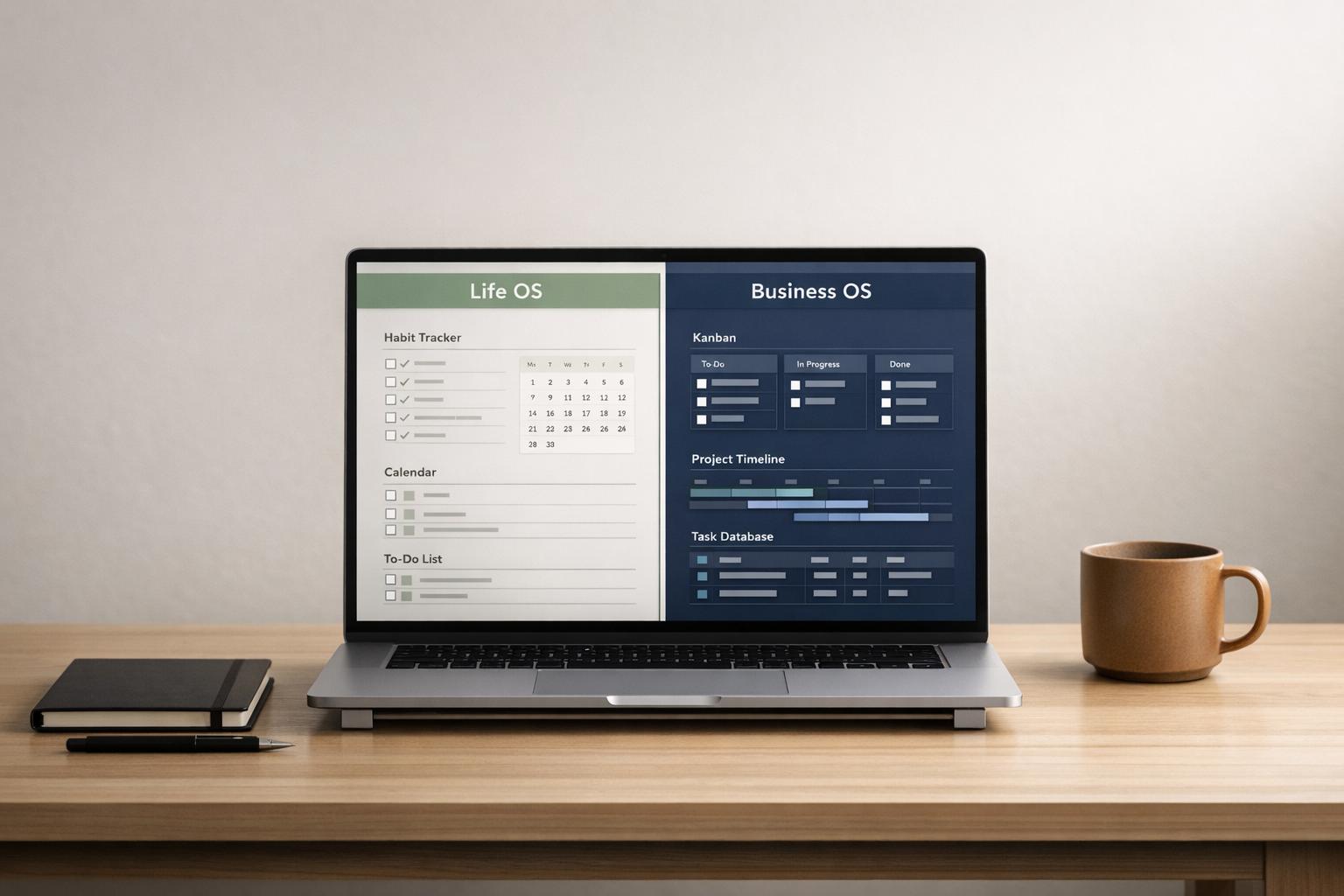
If you’ve ever set up a Notion dashboard that looked great but quickly fell apart, you’re not alone. Many setups fail because they focus on aesthetics over function. The result? A system you stop using after a few months.
This guide flips the script. It’s about building a Notion OS dashboard that stays functional long-term, blending simplicity with powerful features like relational databases. Whether you’re starting fresh or refining an existing setup, the goal is clear: create a dashboard that links tasks to projects, projects to goals, and keeps everything actionable in under 10 seconds.
Here’s what we’ll cover:
- Core databases: Tasks and Projects (and whether you need Goals or Areas).
- Design principles: Clean layouts, focused views, and minimal clutter.
- Practical tips: How to simplify your current dashboard without breaking connections.
Let’s dive into how to create a Notion dashboard that works like an operating system for your life or work.
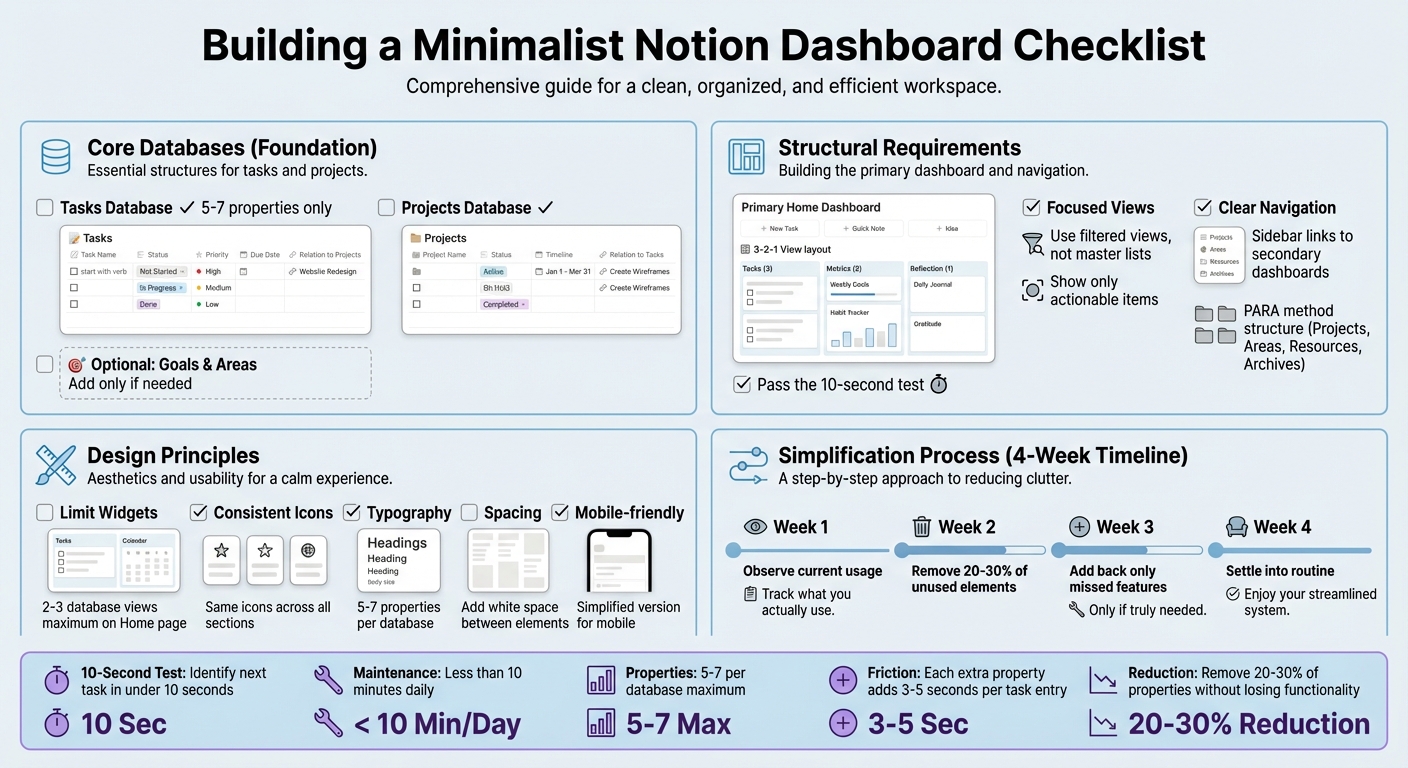
Minimalist Notion Dashboard Setup Checklist
A Minimalist Notion Life Planner That's Easy To Use | Todos, Projects & Goals
sbb-itb-ced67d6
What 'Minimalist' Means for Notion Dashboards
At its core, minimalism in Notion dashboards is about purpose-driven design. Every element you include should serve a clear function, creating a workspace that's both visually clean and highly effective.
Visual Simplicity with Functionality
A minimalist Notion dashboard keeps things simple on the surface without sacrificing depth. Imagine a layout with just three to five key sections - like today's tasks, this week's projects, and a few quick navigation links. While it looks straightforward, the magic happens behind the scenes with well-structured databases that tie your daily actions to broader goals.
The goal? Pass the "10-second test": you should know your next step almost instantly. This clarity isn't about limiting your system's capabilities; it's about showing only what's essential at any given moment. Take, for example, the Personal Home Dashboard Template. It might feature plenty of white space and minimal views, but it's designed to surface the right tasks at the right time through filters and database connections. This balance between simplicity and functionality reduces mental strain while ensuring you never lose sight of important details.
Databases as the Backbone
Databases are the engine that powers a minimalist dashboard's functionality. Instead of crowding your home page with overwhelming master lists, you use filtered views to display only what’s relevant - like tasks due today, projects with upcoming deadlines, or active goals. Roman Likhachev, the founder of Grizzly Templates, advises keeping databases streamlined with just 5–7 properties each. For instance, a well-designed Tasks database might include fields like Task Name, Status, Priority, Due Date, Project, and Area - nothing extra. Why? Because every unnecessary property adds seconds to data entry, and those seconds add up quickly when managing multiple tasks daily.
This philosophy aligns with how successful Life OS and Business OS templates operate. They rely on a "single source of truth" for each type of information (like one Tasks database or one Projects database) and use filters to display only the most relevant data in context. The result is a dashboard that looks simple and focused but functions like a complete Notion operating system - where every task connects to a project, and every project ties back to a goal.
The key takeaway is this: minimalism in Notion is about controlling what you show, not limiting what you build. A robust database structure - covering tasks, projects, and even optional areas like goals - is essential. However, only the most actionable pieces are displayed upfront, while everything else stays tucked away in secondary dashboards, ready when you need it but out of sight when you don't.
Core Databases Behind a Minimalist OS Dashboard
A minimalist Notion OS dashboard doesn’t need to overwhelm you with countless databases - it just needs the right ones. The idea is to create a single source of truth for your work while keeping things simple. Most effective minimalist systems work with just two core databases: Tasks and Projects. These two alone can form a complete system when set up thoughtfully. Additional elements like Goals or Areas can be added later, but only if they’re truly necessary. The simplicity of these core databases is what makes a minimalist dashboard functional and easy to maintain.
Tasks Database
The Tasks database is the engine of your dashboard, managing everything you need to act on daily. Whether it’s writing an email or following up with a client, every task gets tracked here. To keep things streamlined, stick to 5–7 essential properties. A minimalist setup could include:
- Task Name: Always start with a verb for clarity.
- Status: Options like Not Started, In Progress, or Done.
- Priority: High, Medium, Low - no more than three levels.
- Due Date: To stay on top of deadlines.
- Relation to Projects: To connect tasks to bigger goals.
Why limit the number of properties? Because every extra field adds 3–5 seconds of friction to each task entry. If you’re not actively filtering or sorting by a property at least once a week, it’s just clutter. For instance, if you never use “energy level” or “Eisenhower quadrant” to organize tasks, those fields are unnecessary and can make the system feel like a chore to update.
Projects Database
The Projects database is where multi-step efforts get organized. This is where you track broader initiatives like launching a product or planning an event. Key properties include:
- Project Name: The title of your project.
- Status: To track progress (Active, On Hold, Completed).
- Timeline: Start and End dates for scheduling.
- Relation to Tasks: To connect tasks and monitor progress.
This database is what gives your dashboard its "operating system" feel. For example, completing a task can automatically update a project’s progress bar or mark milestones as finished. Dashboards like the GTD Productivity Dashboard and Clarity Focus and Time Management OS use this structure to help users focus on execution while keeping their bigger goals in sight. To keep things simple, surface only active projects on your main dashboard - archive the rest or move them to secondary views.
Optional: Goals and Areas Databases
Once your Tasks and Projects databases are working smoothly, you can consider adding Goals or Areas databases if they truly enhance your workflow. These are optional additions, not essentials. Many minimalist systems skip them entirely to stay focused on execution (tasks) and deliverables (projects).
Gabe, founder of LearnChangeDo, sums it up well: "The fancier and more sophisticated a system is (at the start), the less likely it is that people will actually use it over time".
If you do need to manage long-term objectives or organize your work into broader categories, these databases can be helpful. For example:
- A Goals database might include fields like Goal Name, Quarter/Year, Progress (calculated via linked projects), and Status.
- An Areas database (inspired by the PARA method) could categorize your work into domains like Work, Health, Finance, or Personal.
Before adding these, ask yourself: Can I achieve the same result with a simple Select property in my Tasks or Projects database? If the answer is yes, skip the extra database.
Roman Likhachev advises: "Start with one database (tasks). Add the second only when you feel a genuine gap".
The Life OS Dashboard for Everyday Systems uses Areas to organize routines and goals, but only because it’s designed for users who want that level of detail. The key is to prioritize simplicity - only add these elements if they genuinely improve your workflow without adding unnecessary complexity.
Structural Checklist: What Your Dashboard Must Include
A minimalist Notion OS dashboard isn’t about stripping things down to the bare minimum - it’s about keeping only the minimalistic Notion templates you’ll use daily. Think of it as passing Roman Likhachev’s "10-second test": when you open Notion, it should take no more than 10 seconds to know exactly what needs your attention. The structure should bring the right information to the surface at the right time, sparing you from endless scrolling through unfiltered lists.
Primary 'Home' Dashboard
Your Home dashboard is the page you start with every morning, designed to spotlight your top priorities at a glance. A 3-2-1 View works well here: three zones for immediate tasks, two areas for tracking key metrics, and one space for reflection. This layout keeps things streamlined yet comprehensive. For instance, the Personal Home Dashboard Template uses this approach, showing active tasks and projects while tucking away less pressing items until they’re needed.
To make your dashboard even more practical, include Quick Capture buttons at the top. These let you jot down a task or note instantly without navigating away. And remember, the views on your Home dashboard should focus on what’s actionable right now - no sprawling data dumps to clutter your workflow.
Focused Views Over Master Views
Skip the temptation to display every task or project in one overwhelming list. Unfiltered master views can quickly bog you down and make your system harder to manage. Instead, rely on filtered database views that show only the tasks or projects relevant to the moment. For example, you might filter tasks by due date or priority, ensuring your dashboard stays action-oriented.
If you’re not actively filtering or sorting your data at least once a week, it’s probably just adding to the clutter. Keep things clean, and make sure navigation to additional details is straightforward and intuitive.
Clear Navigation to Secondary Dashboards
Your Home dashboard should act as your command center, not a dumping ground for every detail. Use clear sidebar links to access secondary dashboards like Projects, Goals, or a Reference Vault. This keeps your main view tidy but still allows quick access to more in-depth systems.
For example, the Life OS Dashboard for Everyday Systems includes a navigation hub linking to routines, goals, and archived projects - without cluttering the main page. If you follow the PARA method (Projects, Areas, Resources, Archives), structure your sidebar to reflect that hierarchy so it feels natural to navigate. Each link should help you take action quickly, without adding unnecessary complexity.
Design Checklist: Keep It Clean Without Losing Functionality
While structure ensures your dashboard works, design choices determine how easily you can use it. A clean, focused design keeps your workspace efficient without sacrificing usability. Roman Likhachev, founder of Grizzly Templates, sums it up well: "If a template only works when you are motivated on a Monday morning, it is decoration, not a tool". The following design tips will help you create a dashboard that stays functional for the long haul, while maintaining essential database connections.
Limit Widgets and Embeds
Too many widgets or embeds can slow down your dashboard and clutter your view. Aim for 2–3 database views on your Home page to prioritize clarity. Anything beyond that can lead to unnecessary scrolling and overwhelm. Instead of embedding entire databases, use Quick Capture buttons to add tasks or notes directly from the dashboard without navigating away. For instance, a single Quick Capture button can simplify task input while keeping the interface tidy.
Once you've minimized clutter, focus on making your dashboard visually consistent.
Consistent Iconography and Headings
Consistency in icons and headings helps you navigate your dashboard effortlessly. Use the same icons across all sections to create visual cues for different databases or areas of your life. Stick to a standard naming convention - for example, call your task list "Actions" consistently, rather than switching between "Tasks" and "To-dos." A clear hierarchy, like the 3-2-1 View structure, further supports this approach. Templates such as the Aesthetic Life Hub Dashboard illustrate how consistent design choices can enhance both aesthetics and usability.
Finally, fine-tune typography and spacing to polish your dashboard.
Typography and Spacing for Focus
Keep database properties concise - 5–7 properties per database is ideal. Roman Likhachev reduced his task database from 12 to 6 properties to make it easier to manage and visually cleaner. Overloading your databases with too many properties can create unnecessary complexity.
Spacing is equally important. Add more space between elements to improve focus, especially when multiple databases are displayed on one page. For mobile users, create a simplified version of your dashboard with larger, touch-friendly buttons and fewer elements. Overly complex widgets can slow down performance on mobile devices. The Clarity Focus and Time Management OS showcases how thoughtful spacing and simple typography can direct attention to what matters most, whether you're on a desktop or a phone.
How to Simplify an Existing Notion OS Dashboard Without Breaking It
If your Notion OS dashboard feels overwhelming, you can simplify it without starting over. The goal is to reduce visual clutter while keeping the essential database connections intact. Many users find they can eliminate 20–30% of properties and views without sacrificing functionality. A streamlined dashboard should still offer a balance between simplicity and the connectivity that powers your workflow.
Remove Non-Essential Elements
Start by identifying parts of your dashboard that don’t directly support your daily tasks. For instance, Roman Likhachev, founder of Grizzly Templates, reduced his task database properties from 12 to 6 by cutting fields like energy level and Eisenhower quadrants, which he rarely used. A good rule of thumb is the 10-Second Test: if you can’t identify your next task within 10 seconds of opening your dashboard, it’s too cluttered. As you simplify, consider hiding or removing decorative elements like icons, gradient covers, and custom formatting that require upkeep but don’t add real value.
Maintain Database Connections
While simplifying, it’s critical not to disrupt the links between your databases. Tasks should still connect to Projects, and Projects to Goals or Areas, so you retain features like automatic progress tracking and rollups. Instead of deleting properties outright, use the "Properties" menu to hide them from specific views. This keeps your system functional behind the scenes while cleaning up the interface. Dashboards like the Life OS Dashboard for Everyday Systems and GTD Productivity Dashboard show how minimal design can coexist with fully connected databases.
Adjust Views and Layouts
Once you’ve trimmed unnecessary elements and safeguarded database connections, focus on optimizing your views and layouts. Highlight only the most relevant information, like tasks due today, active projects, or minimalist habit tracking, by using filtered, linked views on your Home dashboard. If your template includes eight or more pre-built views, narrow it down to the two or three you use most often.
For added flexibility, consider creating a Module Manager - a dedicated page where you can toggle entire sections, such as finance or habit tracking, on and off without deleting their structure. You can also design a simplified version of your dashboard for mobile use, with fewer elements and touch-friendly buttons, all powered by the same master databases.
Next Steps: Apply the Checklist to Your Current Home Dashboard
Take a moment to apply this checklist to your current setup. A well-designed minimalist Notion dashboard doesn’t just look tidy - it acts as the backbone of your daily workflow. The goal is to streamline your dashboard without breaking its database connections. As Roman Likhachev, founder of Grizzly Templates, aptly says, "The best Notion productivity template is not the prettiest one. It is the one you still open on a random Tuesday three months later".
Evaluate Existing Setup
Start with the 10-Second Test. Open your dashboard and ask yourself: can you immediately spot what requires your attention within 10 seconds? If you find yourself scrolling through multiple sections just to locate today’s tasks, your layout might be too complicated. Likewise, if maintaining your dashboard eats up more than 10 minutes daily - whether it’s updating properties, tweaking views, or resetting sections - your setup might be working against you rather than for you.
Next, audit your core databases, such as Tasks, Projects, and Goals. Limit each database to 5–7 properties, as previously suggested. Examine whether you use each property to filter or sort at least once a week. If not, it’s probably unnecessary. Once this evaluation is complete, you’ll be ready to make adjustments that simplify your dashboard while keeping it functional.
Apply Minimalist Adjustments
Use a phased approach to refine your dashboard:
- Week One: Stick with your current setup and observe how you use it.
- Week Two: Remove unused elements. Most templates can shed 20–30% of their properties or views without affecting functionality.
- Week Three: Add back only the features you truly missed or found necessary.
- Week Four: Settle into a routine that supports your daily productivity.
To avoid accidentally breaking connections, hide non-essential fields using the "Properties" menu instead of deleting them outright. For structure, consider the 3-2-1 layout: three zones for immediate priorities (like today’s tasks, current projects, and deadlines), two zones for tracking progress (habit streaks, metrics), and one zone for reflection. Adding Quick Capture buttons at the top can also streamline task or project creation without disrupting your workflow.
If you’re working with OS Dashboard HQ templates, such as the Personal Home Dashboard Template or the Clarity Focus and Time Management OS, use this checklist to ensure that essential database connections remain intact. The result? A dashboard that’s clean, responsive, and something you’ll still enjoy using months from now.
FAQs
What’s the minimum database setup for a minimalist Notion OS?
To create a streamlined Notion OS, the bare essentials are tasks and projects databases. For those looking to expand slightly, adding databases for goals and areas can be helpful. The key is to keep these databases connected and use tailored views and filters to ensure everything stays organized without overcomplicating the system.
How do I keep my Home dashboard simple without losing connections?
To streamline your Home dashboard without losing functionality, aim for a tidy layout that prioritizes essential database links. Incorporate focused views for tasks and projects, steering clear of overwhelming, unfiltered master views. Use database filters to spotlight what matters most - like today’s tasks or high-priority projects. Keep the navigation structure simple and intuitive, ensuring quick access to secondary dashboards while keeping the Home dashboard minimal and well-organized.
What’s the safest way to simplify a template without breaking relations?
To streamline a Notion template without losing functionality, start by hiding or removing elements that aren't essential, but make sure to maintain the relationships between key databases like Tasks, Projects, and Goals. Instead of deleting these connections, focus on simplifying by using filtered views that display only the most relevant content. This approach keeps your dashboard clean while ensuring everything stays connected and operational.