If you’re tired of juggling scattered Notion pages or constantly tweaking templates that never quite work, this guide is for you. A Notion operating system (OS) isn’t just another template - it’s a fully connected workspace where tasks, projects, goals, and reviews stay in sync. But not all Notion OS templates are created equal.
This checklist breaks down exactly what to look for before buying a Notion OS, so you can skip the frustration and find a system that works for your life or business. Whether you’re exploring Life OS dashboards for personal goals or Business OS dashboards for managing clients and projects, here’s how to choose a setup that saves time without adding complexity.
Quick overview:
- Core databases: Tasks, projects, goals, and more - make sure the basics are there.
- Database connections: Look for systems where data flows automatically between tasks, projects, and reviews.
- Dashboards: Prioritize daily and weekly views tailored to your workflow.
- Ease of setup: Clear instructions, consistent naming, and inline guidance are key.
- Low maintenance: Avoid overly complex systems that require constant updates.
Let’s dive into what makes a Notion OS worth your investment and how to avoid common pitfalls when buying one.
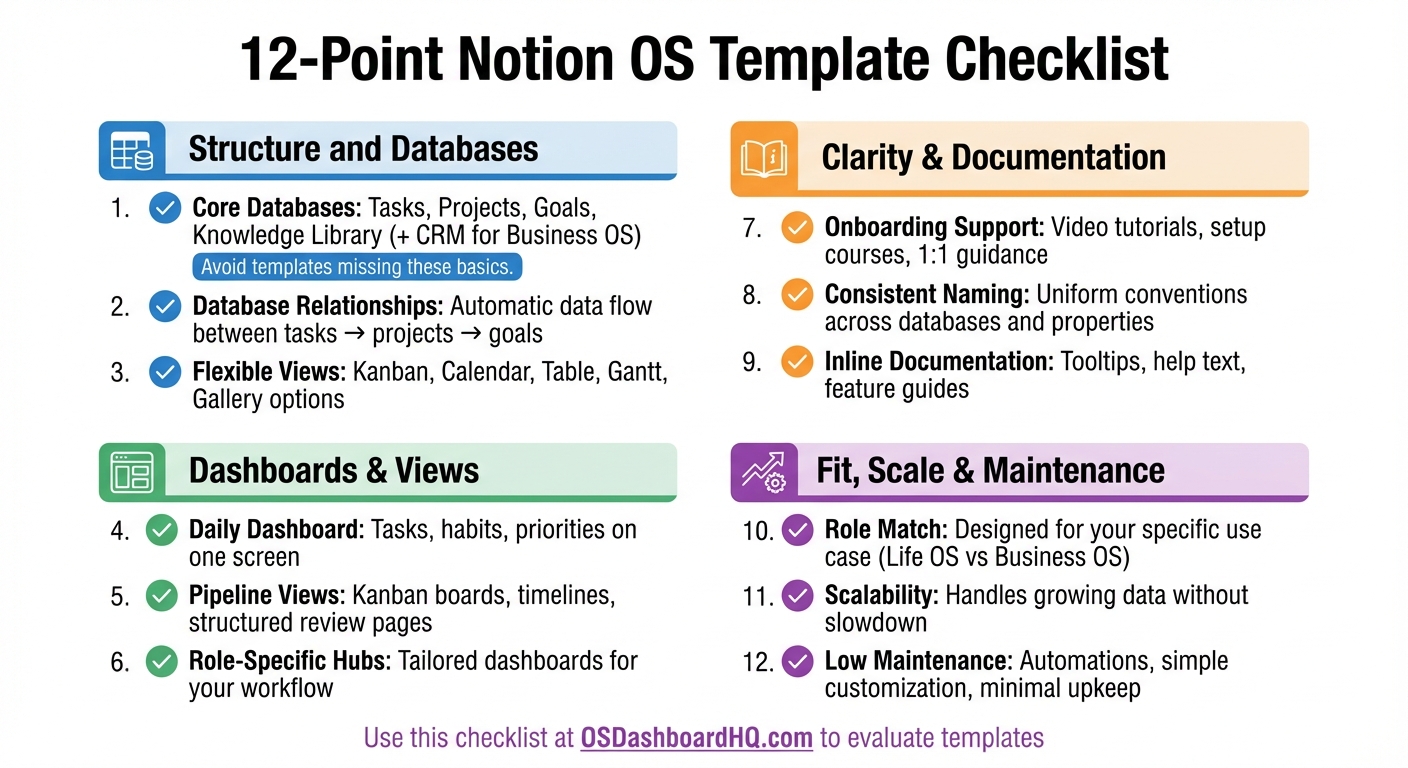
12-Point Checklist for Evaluating Notion OS Templates Before Purchase
Notion Freelance OS: Template Review
sbb-itb-ced67d6
Checklist Items 1–3: Structure and Databases
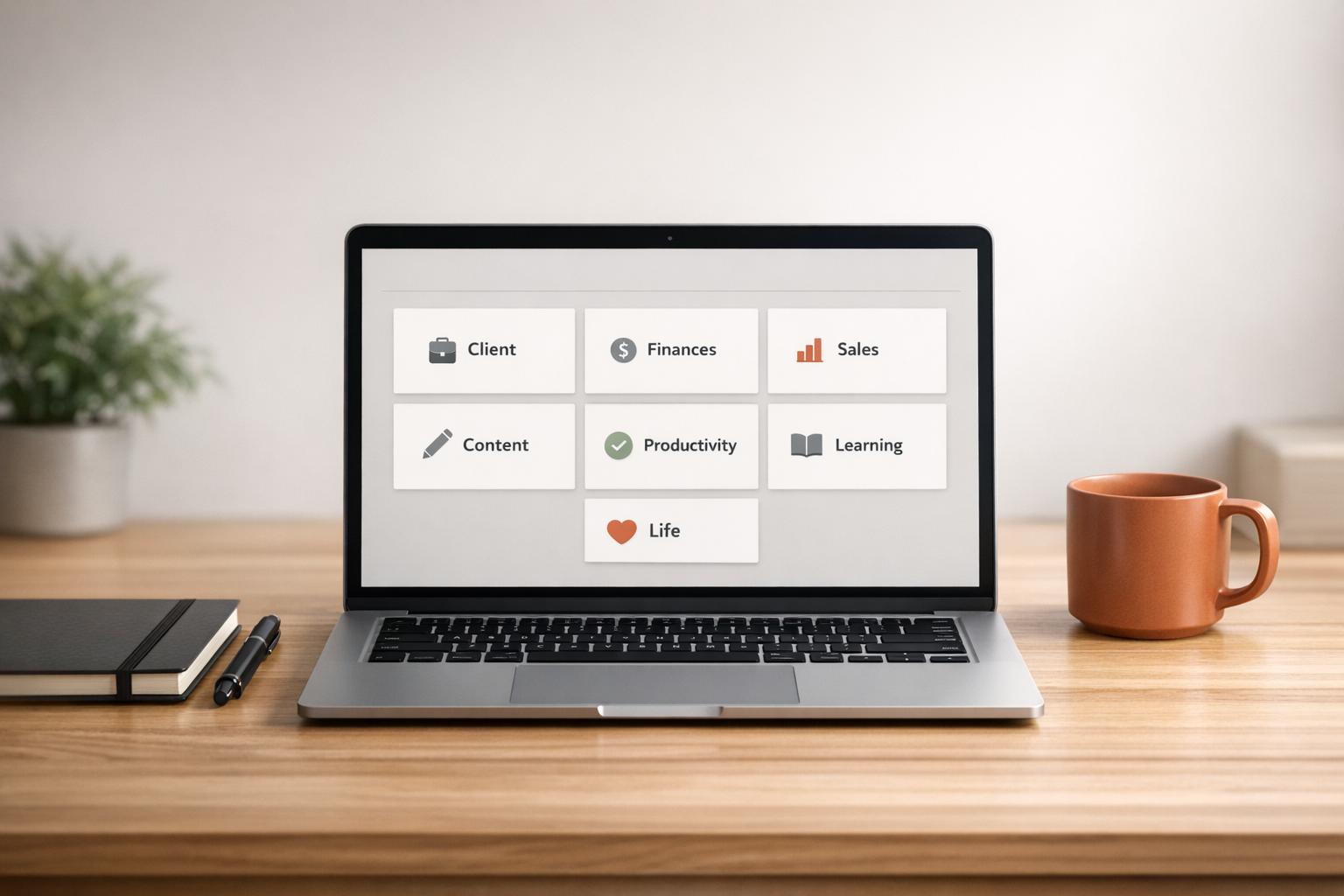
Before spending your money on a Notion OS template, take a moment to explore its preview or demo. Pay close attention to the structure and what it includes. A reliable Notion OS should come with essential databases for tasks, projects, goals, and a knowledge library. For instance, a Life OS often includes databases for tasks, projects, goals, finances, and a second brain-style knowledge library. A Business OS typically goes further, adding a CRM for client management and a reviews database for tracking progress. If these core components are missing, you might find yourself building them later, which defeats the purpose of buying a ready-made system. Use the checklist below to ensure the template aligns with your workflow.
Core Databases You Should Expect
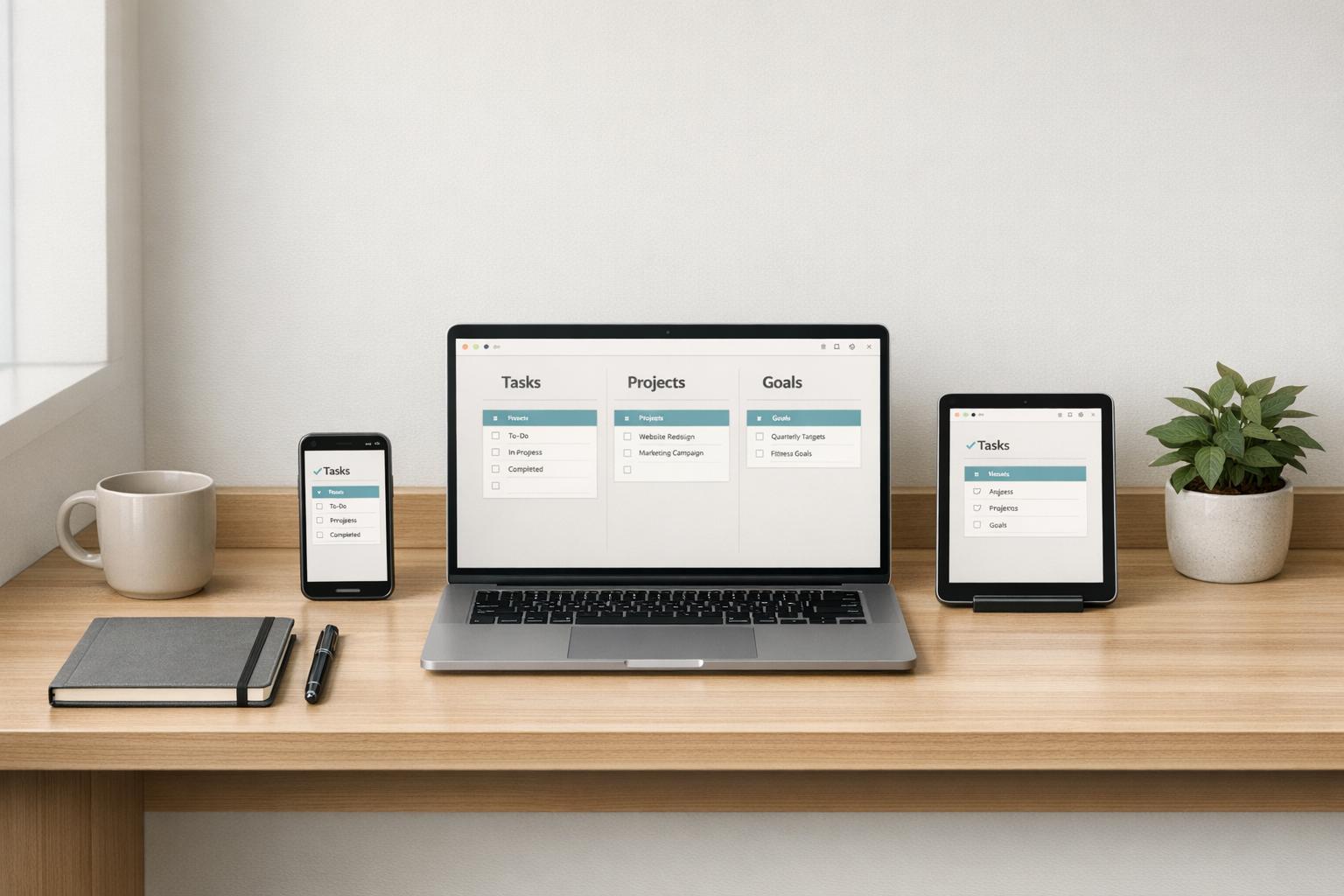
1. Confirm the template includes the databases you'll actually use. At a minimum, look for a Tasks database with essential properties like status, date, and priority. A Projects database should help group related tasks, while a Goals or Vision database keeps your daily actions aligned with long-term plans. If you're exploring a Business OS, check for additional databases like a CRM for managing clients, a Finances database for tracking income and expenses, and a Knowledge Library for organizing notes and resources. Templates missing these basics might look polished, but you'll likely end up doing extra work to fill the gaps, disrupting the seamless workflow the OS is supposed to provide.
Clear Database Relationships Between Key Elements
2. Check that databases are linked so data flows automatically. The strength of a Notion OS lies in how well its databases connect. Tasks should link to projects, projects should tie into goals, and all of this should feed into weekly and monthly reviews without requiring manual updates. For example, completing a task should automatically update the progress bar for its linked project, which in turn updates your goal dashboard. Be cautious of templates with overly complicated relationships that require constant upkeep. Instead, look for systems where the connections solve real problems, like filtering tasks by client or energy level or easily viewing this week’s project priorities. Once you've confirmed the essential databases are present, ensure they’re interconnected in a way that supports your workflow.
Flexible Database Views
3. Ensure databases offer multiple views suited to your workflow. A good Notion OS doesn’t lock you into one way of working. For example, a Tasks database should support different views: a Kanban board for status tracking, a calendar for deadlines, and a filtered table for planning your week. Similarly, the Projects database might offer a Gantt chart for timelines, a list view for active work, and a gallery for visual organization. Templates designed for Personal Productivity OS users often include advanced views like the DRIP Matrix for categorizing tasks by energy and value or ICE scoring for prioritizing projects. If a template only offers a single view per database, it’s a sign you might need to invest extra time customizing it to fit your needs. Flexible views are a critical aspect to consider when evaluating any pre-built system on OS Dashboard HQ.
Checklist Items 4–6: Dashboards and Daily/Weekly Views
Once you’ve set up your databases and established their connections, the next step is creating dashboards that make daily and weekly planning effortless. These dashboards are the heart of your Notion OS, bringing together tasks, projects, and reviews into a single, actionable view. Choosing a template with well-designed dashboards ensures your workflow stays streamlined and effective.
Dedicated Dashboards for Daily and Weekly Planning
4. Look for a "Today" dashboard that shows tasks, habits, and priorities on one screen.
A well-thought-out daily dashboard consolidates everything you need to focus on for the day - tasks, habits, and top priorities - into one place. For example, a Life OS might filter tasks by energy level and include a quick-capture section for ideas that pop up throughout the day. Meanwhile, a Business OS should highlight client deliverables, key project milestones, and metrics like revenue or pipeline updates. The goal is to eliminate the need to jump between different pages, keeping everything you need front and center.
Pipeline Views for Projects and Reviews
5. Confirm the template includes pipeline views and structured review pages.
Templates with pipeline views, like Kanban boards or timelines, help you track projects as they move through stages. These views should integrate seamlessly with review pages designed for regular check-ins. Prioritization frameworks, such as ICE scoring (Impact, Confidence, Ease), are particularly helpful, as they bring high-priority projects to the forefront. For instance, the Life OS Dashboard employs automated execution scores and velocity metrics, enabling users to fine-tune their workflows during reviews. As Emma Wilson, a Product Manager, shared:
The feedback loops help me course-correct instead of starting over. Best investment I've made in my productivity.
Without these structured review processes, it’s easy to lose sight of your progress - or worse, confuse being busy with being productive. Templates that skip this step often look great on the surface but fail to deliver meaningful results.
Role-Specific Dashboard Hubs
6. Ensure the template includes dashboard hubs tailored to your specific workflow.
Generic dashboards are a starting point, but the best systems also adapt to your unique role. For example, content creators benefit from tools like a Notion Creator Starter Kit with content calendars and keyword trackers, while freelancers need client portals and invoice organizers. A startup OS might include personal dashboards that automatically filter tasks assigned to individual team members. One standout example is the Startup OS, which allows teams to create personalized dashboards for new members with just one click, showing only their assigned tasks and projects. If a template claims to cater to your role but lacks these tailored features, you’ll likely spend unnecessary time customizing it - defeating the purpose of using a ready-made system in the first place.
Checklist Items 7–9: Clarity, Documentation, and Setup
Even the most thoughtfully designed Notion OS template can fall short if it takes too long to set up. The best pre-built systems offer clear onboarding, logical naming, and helpful inline guidance, making it easy to get started without unnecessary confusion. This part of the checklist focuses on ensuring your system is ready to use right away, thanks to clear instructions and consistent labeling.
Onboarding Guides and Setup Instructions
7. Look for video tutorials, setup courses, or one-on-one onboarding support to guide your first steps.
Top-tier Notion OS templates often include video walkthroughs or setup courses to minimize frustration. For example, a Life OS Dashboard might come with a video series and personalized onboarding to help you transition from scattered Notion pages to a fully integrated system. Similarly, a Business OS template could feature detailed tutorials, a business systems course, and even Loom-based support for personalized guidance. As Gerrard Lipscombe, Founder of Landmark Labs, puts it:
There's nothing worse than purchasing a Notion template, then finding out you don't know how to use it.
Without clear setup instructions, even a great template can be overwhelming. Just as well-structured databases improve functionality, clear onboarding and consistent naming make it easier to start using the system effectively.
Consistent Naming Conventions
8. Check whether databases, properties, and pages use uniform naming conventions to avoid confusion.
Once you’ve confirmed that onboarding support is solid, take a closer look at how the template handles naming. Consistency in naming conventions reduces mental effort and makes navigation more intuitive. A high-quality template sticks to the same terms across all dashboards - like always calling tasks "Tasks" instead of mixing in terms like "To-dos" or "Actions."
Core properties such as 'Status,' 'Date,' and 'Assignee' should be labeled consistently across databases. Additionally, relation properties should clearly indicate their linked database (e.g., a relation to the "Projects" database should be labeled "Project"). Taking a few moments to audit property names in database settings can save significant time later.
Inline Documentation for Complex Workflows
9. Ensure the template includes inline documentation - such as tooltips, help text, or linked guides - that explains key features.
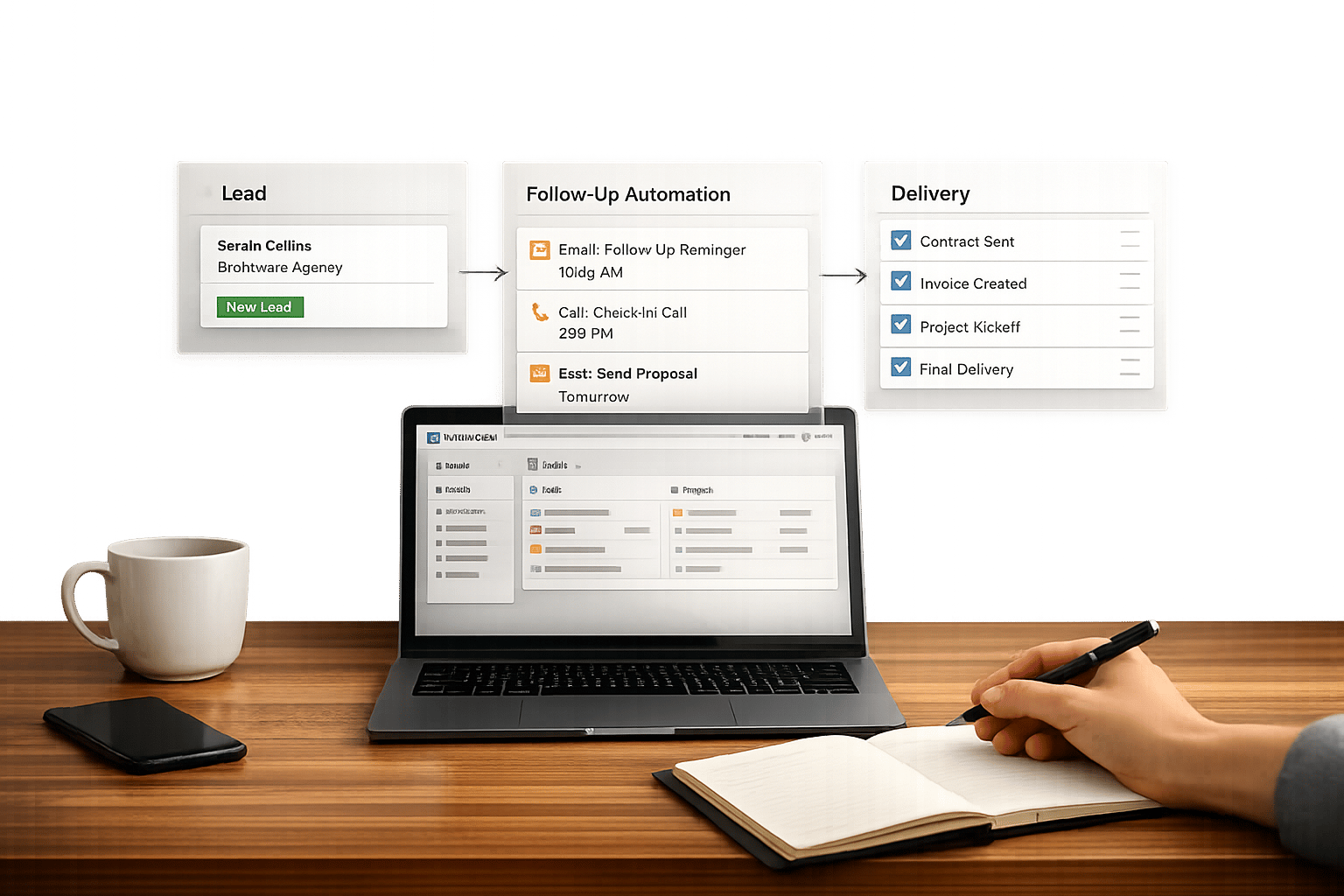
For templates with advanced workflows, inline guidance is essential. Look for systems that explain complex features like CRM pipelines, funnel analysis, or financial tracking through walkthroughs or "Feature Deep Dives." Beyond basic setup instructions, Business OS templates might include built-in SOP libraries or wikis that serve as a central hub for documenting specific processes.
When a template includes clear documentation and inline help, it not only simplifies the learning curve but also ensures the system can adapt and scale to meet your needs over time.
Checklist Items 10–12: Fit, Scale, and Maintenance
Even the most thoughtfully designed template can fall short if it doesn't align with your workflow or becomes a hassle to maintain. These final checklist items focus on ensuring the system suits your role, adapts as your data grows, and stays simple to manage over time. As productivity expert Suzaan Sayed explains:
The best Notion template isn't the most complete one. It's the one you'll still be using six months from now without thinking about it.
This checklist will help you choose a Notion OS template that remains practical as your needs evolve.
Fit for Your Role and Use Case
10. Make sure the template matches your workflow.
If you're tracking personal habits, explore Life OS dashboards. For managing clients and projects, go with Business OS dashboards. The key is to pick a system designed for your specific needs, rather than a catch-all solution. One user shared their experience of downloading 47 different Notion templates but only sticking with 3 over time. This highlights the importance of starting with a focused option that directly addresses your challenges.
While checking for fit, also consider whether the template can handle future growth.
Ability to Grow with Your Data
11. Verify that the template can handle increasing data without slowing down.
A scalable template often uses modular designs that consolidate daily inputs into broader summaries. For example, interconnected databases might link tasks to projects and projects to overarching goals, creating a seamless flow of information. However, be cautious about overly complex setups with a dozen or more linked databases - they can become maintenance-heavy. Also, check if the template includes lifetime updates to stay compatible with Notion's latest features.
Low-Maintenance Design
12. Look for templates with automations and simple customization options.
Prioritize templates that include features like AI agents, auto-rolling metrics, and self-referential filters that automatically organize new entries into the right databases. Before committing, test whether the system works efficiently with minimal properties - such as just Task, Status, and Date. This ensures usability without unnecessary complexity. After all:
Completeness requires maintenance. Every database needs updating. Every property needs filling. Every relation needs checking.
Research shows that the average knowledge worker spends nearly 60% of their day on "work about work", like organizing and searching for information. A low-maintenance design can prevent your system from becoming part of that inefficiency. Use these criteria when browsing dashboards on OS Dashboard HQ to find systems that truly work in everyday scenarios.
How OS Dashboard HQ Helps You Apply This Checklist
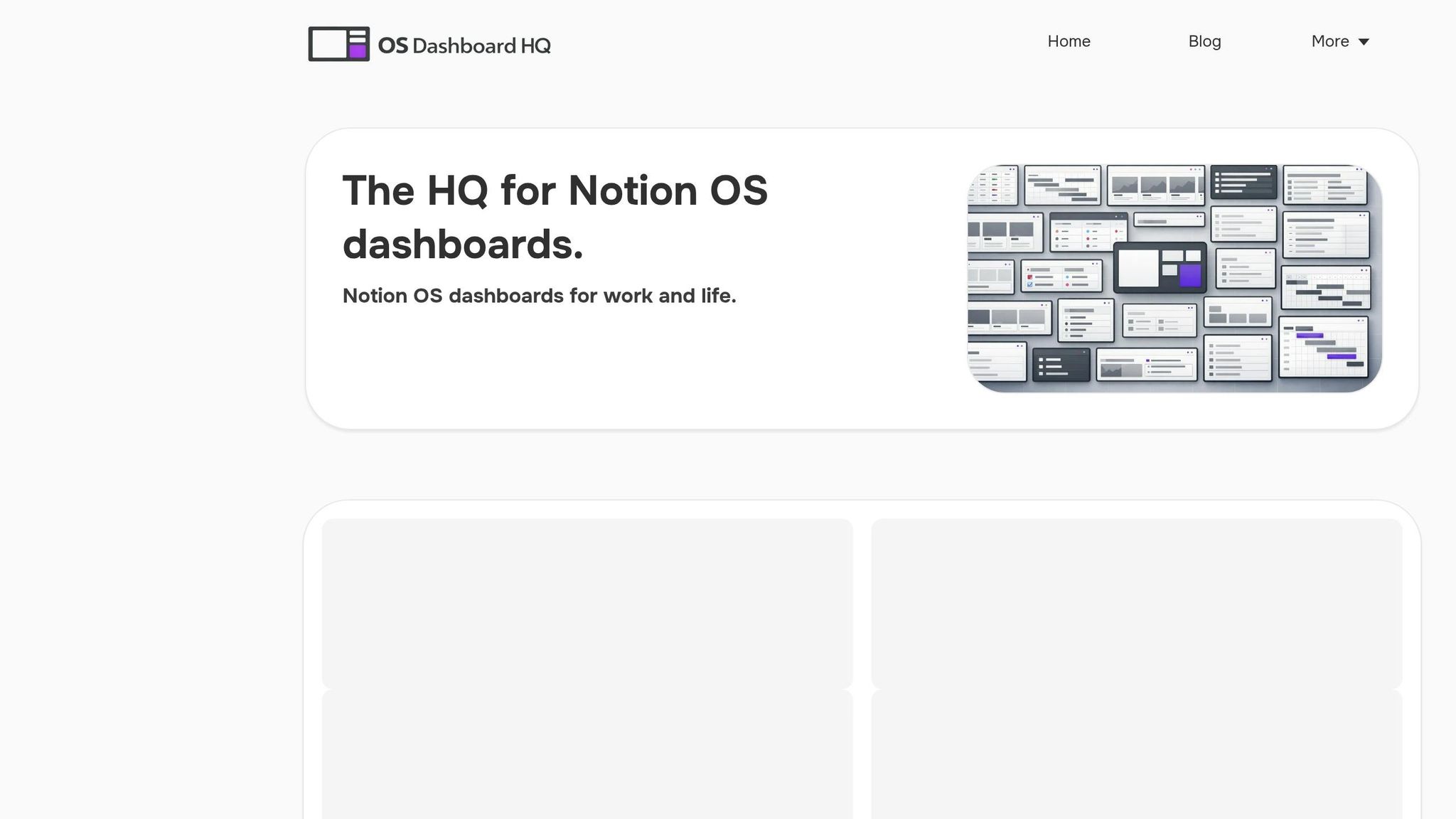
Once you’ve got your checklist in hand, it’s time to find templates that match your criteria. That’s where OS Dashboard HQ comes in. It’s designed to organize Notion operating systems (OS) and dashboards in a way that makes evaluating them straightforward. You’ll find all the structural details you need to make an informed decision before purchasing.
Categories and Use Cases in OS Dashboard HQ
At OS Dashboard HQ, templates are grouped based on user roles and specific use cases. This means you can skip the guesswork and head straight to dashboards tailored to your needs. For example:
- If you’re working on personal habits and goals, check out Life OS dashboards.
- For managing client work or project pipelines, explore Business OS dashboards or Agency OS dashboards.
- Students can find academic planners, while solo creators can focus on tools for content and productivity in the Personal Productivity OS section.
This role-based approach prevents you from wasting time on one-size-fits-all systems that don’t align with your workflow. As Gerrard Lipscombe, founder of Landmark Labs, explains:
Notion is a serious tool for business, and it needs serious resources and libraries to help businesses use it.
The same logic applies to personal systems. Starting with the right category ensures you’re not stuck trying to adapt a template designed for someone else’s priorities. These categories make it easier to zero in on options that meet the structure, clarity, and maintenance standards outlined in your checklist.
Detailed Descriptions for Quick Evaluation
Each listing on OS Dashboard HQ is packed with detailed descriptions to help you evaluate templates against your checklist. You’ll find information on core databases, dashboard views, and onboarding resources - all essential for determining if a system aligns with your needs.
For example, some templates use specific frameworks like the GPS Goal Framework or ICE Scoring for Projects, which you can match directly to your checklist’s database structure requirements. Listings also highlight dashboard views and onboarding tools, such as video tutorials, 1:1 setup calls, or access to dedicated communities. This level of detail ensures you can assess clarity and documentation before making a choice.
When browsing options like the GTD Productivity Dashboard or Freelance Business OS System, you can compare the descriptions with your checklist. Look for features like daily/weekly views, intuitive naming conventions, and low-maintenance designs to confirm they meet your criteria. This transparency makes it easier to commit to a system that works for you.
Next Steps: Evaluate and Choose the Right Notion OS Dashboard
Now that you’ve got your checklist, it’s time to put it to work. The goal? Find a Notion OS dashboard that enhances your workflow, rather than one that simply looks impressive in a demo.
Revisit OS Dashboard HQ with Your Checklist
Head back to OS Dashboard HQ and use your checklist to assess each option. Focus on practical features like structure, clarity, and ease of maintenance. While aesthetics might catch your eye, prioritize the elements that matter most: core databases, logical connections between elements, daily/weekly views, onboarding resources, and minimal upkeep.
For personal goals and habits, check out the Life OS dashboards. Look for systems that integrate popular frameworks like Atomic Habits or the PARA method. If you’re managing clients or project pipelines, explore the Business OS dashboards or Agency OS dashboards. These categories often include CRM features and pipeline views. Students can dive into academic planners, while creators might find their perfect fit in the Personal Productivity OS section, which focuses on content planning and productivity.
Use the detailed descriptions in each listing to compare against your checklist. Pay attention to specifics like scoring systems, onboarding materials, and how well the OS aligns with your needs. This step ensures you’re not just picking a template that looks good but one that truly supports your workflow.
Make an Informed Purchase
Once you’ve narrowed down your options, use your checklist insights to make a confident choice. Keep in mind what productivity writer Suzaan Sayed advises:
The best Notion template isn't the most complete one. It's the one you'll still be using six months from now without thinking about it. If you find yourself constantly tweaking systems instead of using them, you might even consider learning how to build your own Notion templates to match your exact workflow.
The key is to choose a system that solves a specific problem, fits your role, and doesn’t require constant maintenance. Many templates offer money-back guarantees - often within 14 or 30 days - so you can test them risk-free.
Identify one main challenge, like struggling to track weekly tasks or missing project deadlines, and evaluate whether the OS directly addresses it. A system that tackles a single, real issue today will always be more useful than an overly complex one that tries to do it all but ends up unused after a month.
FAQs
What makes a Notion OS different from a regular template?
A Notion OS goes beyond the simplicity of regular templates by providing a structured, interconnected system that supports seamless workflows. Instead of being just a visually appealing page, it functions as a complete operating system, specifically crafted for managing distinct roles or areas of life. This setup allows for scalable and practical management, ensuring everything works together efficiently.
How can I tell if a Notion OS is too complex to maintain long-term?
To determine if a Notion OS might be too complicated for long-term use, focus on its structure. A good system should feel straightforward and easy to navigate, avoiding excessive formulas or unnecessary extras that add clutter. Look for setups built with simplicity in mind, favoring tools that support regular use and periodic reviews without needing endless adjustments or overly complex configurations.
What should I check in a demo to confirm databases are truly connected?
To make sure a Notion OS template has genuinely connected databases, here’s what to look for:
- Relational Properties: Check if key databases like tasks, projects, and goals are linked through relational properties, allowing smooth data flow between them.
- Automatic Updates: Confirm that changes made in one database are instantly reflected in related databases.
- Filtering and Sorting: Test filters and sorting options across databases to ensure linked properties are working properly, not just for show.
These steps help guarantee the system supports efficient workflows and can grow with your needs.