If you’re tired of juggling scattered tools and missing steps when wrapping up client projects, it’s time to integrate an offboarding system into your Notion workspace. A well-designed client offboarding process ensures final deliverables are sent, access is revoked, invoices are settled, and feedback is collected - all while keeping your workflows organized and professional.
This guide explores how to create a structured offboarding system using Notion operating systems (OS) and dashboards. From automating task checklists to linking databases for clients, projects, and invoices, you’ll learn to streamline transitions and leave a lasting impression on clients.
Quick overview of what you’ll learn:
- Why offboarding matters for service businesses
- The five core steps of a Notion-powered offboarding process
- How to connect offboarding tasks to your Clients and Projects databases
- Tips for archiving projects and creating polished client handoff packages
- How OS Dashboard HQ templates can simplify setup with pre-built systems
Let’s dive into the steps to build a client offboarding system that works seamlessly within your Notion OS.
What Client Offboarding Looks Like in a Notion Operating System (OS)
5-Step Client Offboarding Process in Notion OS
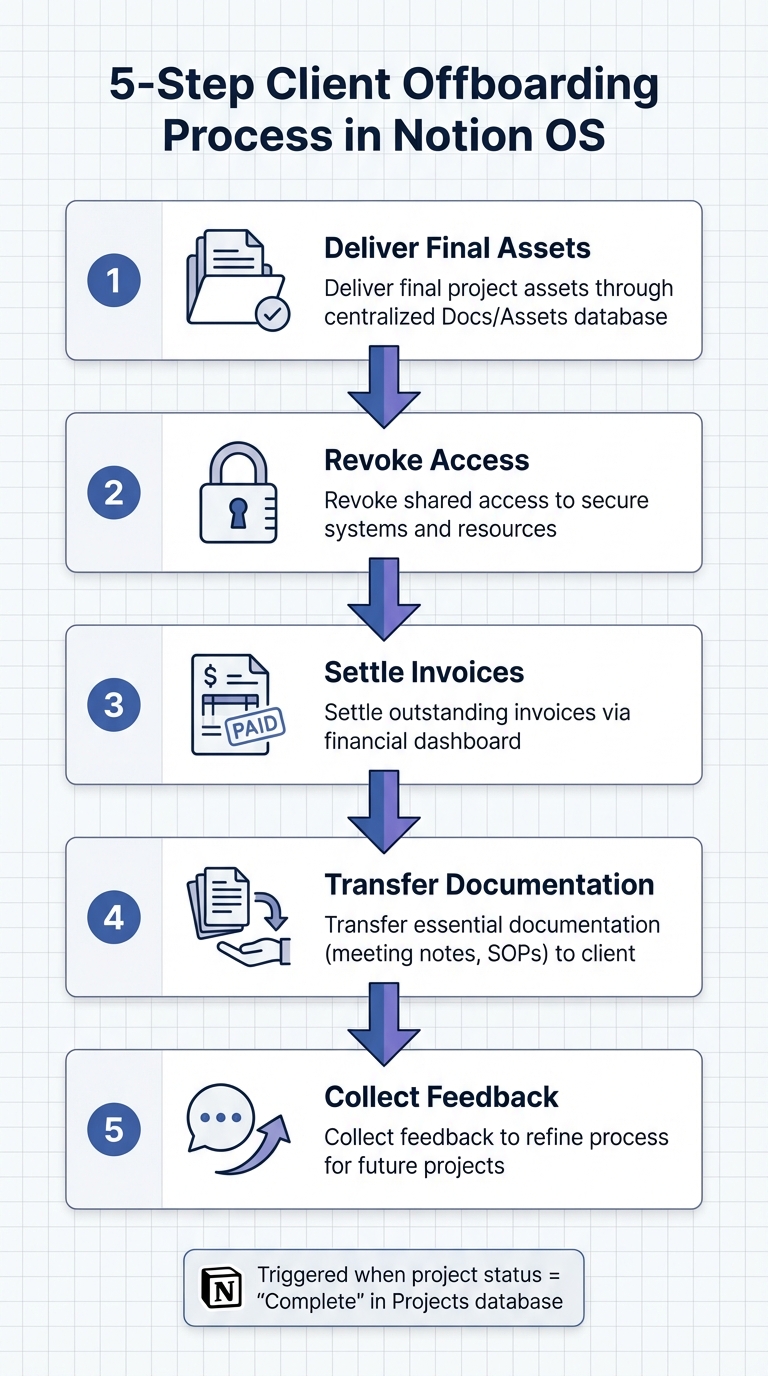
Client offboarding within a Notion operating system isn’t just a basic checklist - it’s a structured workflow that integrates directly into your existing dashboards and databases. When wrapping up a project, your offboarding process should address final deliverables, revoking system access, invoicing, handing off documentation, and gathering feedback. Here’s how a Notion OS can streamline these steps.
Key Steps in a Notion-Powered Offboarding Process
In a Notion OS, offboarding typically involves five core steps:
- Delivering final project assets through a centralized Docs/Assets database.
- Revoking shared access to secure systems and resources.
- Settling any outstanding invoices via a financial dashboard.
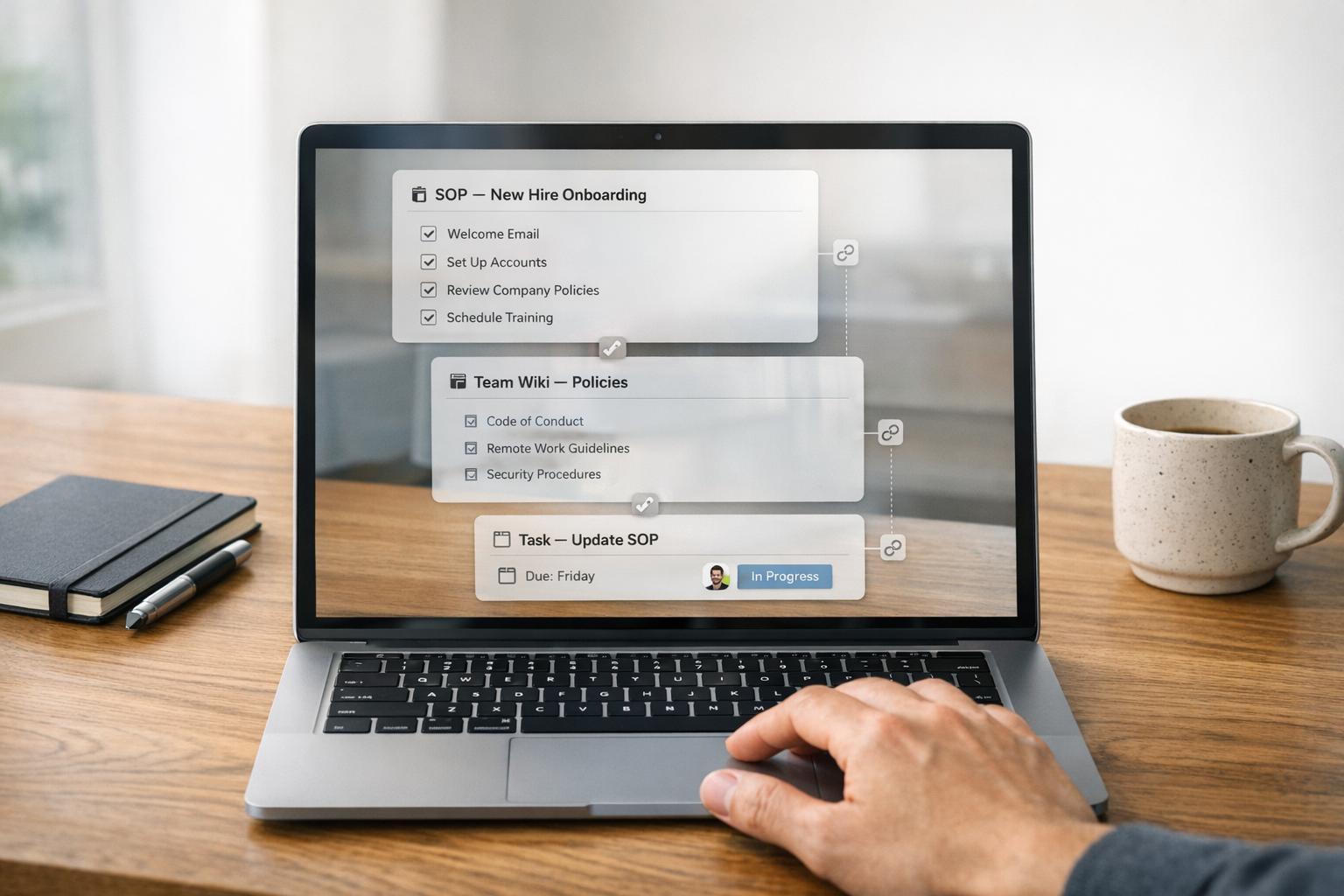
- Transferring essential documentation, such as meeting notes and SOPs, to the client.
- Collecting feedback to refine your process for future projects.
Marking a project as "Complete" in your Projects and CRM database triggers a tailored offboarding checklist. This ensures every task - from closing payroll to reviewing NDAs - is addressed systematically and consistently.
"Effective offboarding ensures that employee transitions happen smoothly... It's about more than simple risk prevention - treat offboarding with the same sensitivity and attention to detail as the initial onboarding process."
- Anabelle Zaluski, Notion Marketing Team
These integrated workflows not only protect your business operations but also highlight the importance of embedding offboarding within your Notion OS.
Why Offboarding Should Connect to Your Notion OS
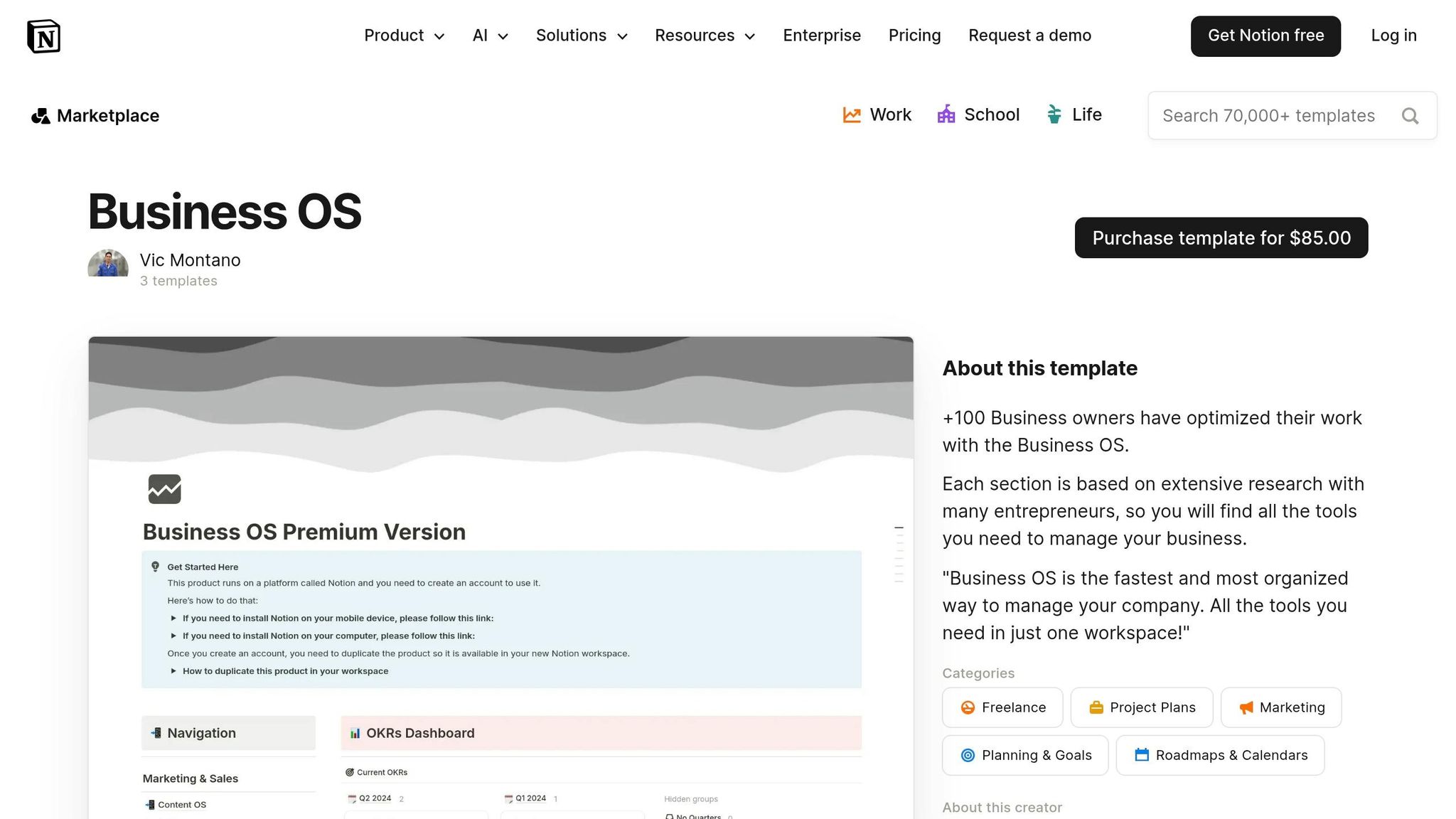
By tying offboarding into your Notion OS, you ensure continuity throughout the client lifecycle. Integrating offboarding into tools like Business OS dashboards or Agency OS dashboards keeps everything - from initial lead management to project completion - organized in one place. This eliminates "loose ends".
When offboarding is part of the same databases used during the project, you retain critical knowledge, such as client-specific details, project history, and internal contacts. This prevents valuable information from being lost after the relationship ends. Additionally, it ensures that final invoices and expenses are accurately reflected in your financial reports and that access revocation is handled systematically, rather than on an ad-hoc basis.
A centralized workspace doesn’t just save time - it also ensures your team can seamlessly adjust after a client departs, avoiding lingering tasks or confusion.
"Agency OS is about as close to a perfect system as I have found. Instantly made my video agency more organized."
- Mike Tucker, Video Agency Founder
sbb-itb-ced67d6
Core Databases You'll Use for Offboarding
A client offboarding system in Notion revolves around five key databases that seamlessly integrate into your existing workflow. Instead of building a separate tool, you’ll rely on the same Clients, Projects, Tasks, Docs/Assets, and Invoices databases that supported the relationship from the start. This approach keeps everything consistent within your overall Notion OS, using Relation properties to connect these databases. The result? A streamlined system that brings all offboarding tasks into view exactly when you need them.
Clients and Projects Databases
The Clients database serves as the central hub for managing relationships. It tracks high-level statuses like Active, Onboarding, or Completed, and links to all other operational databases. Changing a client’s status to "Offboarding" or "Archived" automatically triggers specialized views and checklists tailored to the offboarding process.
Similarly, the Projects database focuses on specific scopes, timelines, and milestones. During offboarding, it becomes a repository for final deliverable reviews and an archive of past work. By linking each project to its corresponding client, you can ensure that marking a project as "Completed" will surface all related offboarding tasks - like revoking access or scheduling a final meeting - in your task views.
Tasks, Docs/Assets, and Invoices Databases
Once client and project details are in place, the Tasks database takes charge of the actual offboarding process. This is where your offboarding checklists live, with tasks linked to specific clients and projects. Filtering for "Offboarding" tasks ensures you see only what’s relevant, such as transferring credentials, scheduling exit interviews, or removing access. This level of detail helps ensure that nothing slips through the cracks.
The Docs/Assets database (or Resources) houses files, guidelines, meeting notes, and deliverables. During offboarding, it plays a vital role in organizing handoff materials and knowledge transfer documents. You can even provide departing clients with a filtered view of this database in a client portal, giving them secure access to everything they need in one place.
Finally, the Invoices database handles financial tracking, including billing, payment statuses, and due dates. It ensures the final invoice is generated, sent, and paid before the project is officially closed. Linking invoices to both client and project records allows you to filter for "Unpaid" invoices tied to offboarding clients, making it easier to follow up on outstanding balances. This keeps the offboarding process professional and efficient, with timely follow-ups and quick access to financial documents.
With these interconnected databases in place, you’re ready to build a reusable client offboarding checklist in Notion.
Step 1: Create a Reusable Client Offboarding Checklist in Notion
Start by building a client offboarding checklist as a database template within your Projects or Tasks database. This setup integrates offboarding tasks directly with project and client records in your Notion OS, streamlining the process and ensuring consistent workflows across all projects. Below are the key areas your checklist should cover for a smooth offboarding experience.
Checklist Items to Include
To make your offboarding process thorough, focus on seven essential categories. Begin with pre-offboarding tasks about 30–60 days before the project ends. This includes reviewing contracts, listing any pending deliverables, and identifying accounts that require access transfers. Next, move to the deliverable handoff phase, where you finalize all assets, secure client approval, and organize files for a secure and logical transfer.
Security is a top priority, so include account and access management. Transfer ownership of credentials, update passwords, and revoke team access to client databases or software. For knowledge transfer, provide clients with documented workflows, user guides, vendor contact lists, and any relevant training session recordings.
Under financial closure, review all billable hours and expenses, send the final invoice with clear terms, and confirm payment before closing the client’s account in your billing system.
Don’t forget feedback and marketing - ask for testimonials and referrals, and conduct an exit interview or survey to gather insights for improving your services. Lastly, handle administrative archiving by updating your Sales Pipeline CRM to reflect the client’s new status (e.g., "Archived"), saving communication logs, and moving project files to long-term storage.
As AgencyPro wisely states, "A clean exit today is a referral tomorrow". This approach is backed by data: 93% of consumers rely on online reviews for purchasing decisions, and referrals contribute to 25–40% of new business for agencies.
Once your checklist is ready, decide where to store it within your business OS for easy team access.
Where to Store the Checklist in Your Business OS
The best place to store your checklist is a Team Operations Hub or SOP Library, where everyone can easily access the most up-to-date version. To create it in your Projects database, click the arrow next to the "New" button and select "+ New template." Name it "Project Offboarding" and use the page body to outline specific tasks like "Revoke Slack access" or "Send final deliverables." This keeps your workspace organized while providing a clear guide for your team.
If you manage multiple clients, consider using the Agency OS templates available on OS Dashboard HQ. These templates come with a built-in Team Operations Hub designed to store checklists like this. Sarah Chen of Chen Design Studio shared her experience:
"Agency OS saved my sanity. I went from 5 different apps to one Notion workspace. Clients actually comment on how professional our process is now".
Centralizing your checklist not only simplifies team workflows but also ensures a standardized and professional offboarding process.
Step 2: Connect Offboarding Tasks to Projects and Clients
With your checklist template ready, the next move is to link offboarding tasks directly to your Clients and Projects databases. This step ensures every task is tied to a specific client or project, creating a seamless, real-time workflow. By integrating offboarding tasks with your existing Business and Agency OS dashboards, you maintain an organized and streamlined process.
Using Relations and Linked Databases
Start by adding Relation properties to your Tasks database. These properties allow you to connect each offboarding task - like "Revoke Software Access" or "Send Final Invoice" - to the appropriate client and project. When you open a client or project page, all the associated offboarding tasks will appear in one place, giving you a centralized view.
To make this even smoother, automate the linking process. Add a linked database view within your Clients (or Projects) template, filtered by the relevant relation. When this template is applied to a new client, any task added in that view will automatically connect to that client. The same method applies to Projects, creating a localized offboarding view that updates dynamically as tasks are added or completed.
Once you've set up these links, refine your workflow with filtered dashboards for better clarity.
Filtered Views for Offboarding Workflows
After linking tasks to clients and projects, focus your views specifically on offboarding tasks. Create a Kanban board grouped by "Status" (e.g., To Do, In Progress, Done) and filter it to display only tasks marked with the "Type" property as "Offboarding." This setup provides a clear visual overview of each task's progress without cluttering your broader project tracker.
You can also fine-tune visibility based on project status. Add a "Status" property to your Projects database with options like "Active", "Offboarding", and "Completed." Then, create a dashboard view that shows offboarding tasks only when a project's status is updated to "Offboarding." By connecting tasks to both clients and projects, your system stays synchronized across all views, ensuring that account managers and team members remain on the same page.
Step 3: Surface Offboarding Work in Your OS Dashboards
After linking offboarding tasks to clients and projects in your Notion OS, the next step is to bring these tasks into your main dashboards. This approach ensures offboarding tasks stay visible and actionable, removing the need for team members to check a separate page. Here’s how you can make this work in two key dashboard setups: daily/weekly views and customized account manager views.
Dashboards for Today/Week Views
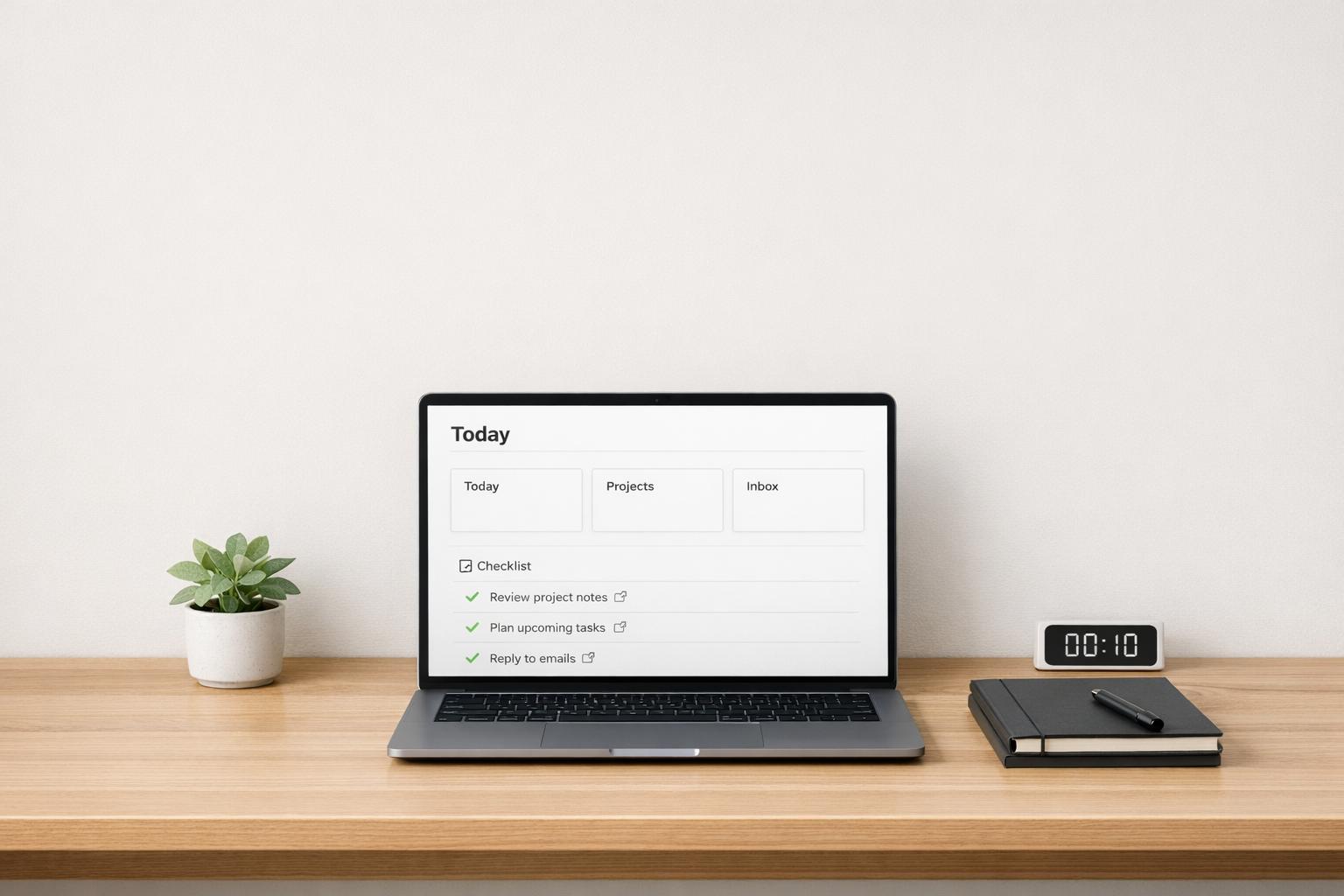
To keep offboarding tasks front and center, add a linked database view to your daily or weekly dashboard. Filter this view to show tasks due today or within the week, specifically labeled as "Offboarding." This way, important steps like sending final invoices or revoking software access appear right alongside your active project tasks.
For team-wide use, a Weekly Planning Dashboard with similar filters can provide everyone with a clear picture of upcoming handoffs during team syncs. To make it even more effective, include visual priority indicators - such as Urgent, High, or Normal - to differentiate critical offboarding tasks from routine ones.
Now let’s look at how account managers can benefit from a more personalized setup.
Custom Views for Account Managers
Account managers need a streamlined way to track their offboarding tasks. Create a filtered view that shows only tasks assigned to them where the Status property is not marked as "Done." Label this view "My Offboarding Tasks" to make it easy for managers to focus on their specific responsibilities.
For an even broader perspective, embed a Client Command Center view in the dashboard. This view can display all clients, projects, and offboarding tasks in one place. Use the Relation property to filter by a specific client’s name, giving account managers quick access to all offboarding-related details, such as outstanding invoices or final documents. This centralized setup minimizes the risk of oversight during the critical offboarding phase.
Step 4: Archive and Handover Inside Your Business OS
Offboarding in your Notion OS should be as seamless as every other phase of your workflow. By integrating archiving and handoff steps into your existing databases and dashboards, you can wrap up projects efficiently while keeping everything organized. Once offboarding tasks are complete, the next step is to archive the project and create a polished handoff package. This ensures your active dashboards remain clutter-free and preserves essential records for future reference.
Archiving Clients and Projects
Start by updating the Status field in your Clients and Projects databases to "Archived" or "Completed." This removes old projects from active views while keeping them accessible within archival filters. To maintain a clear financial history, link final invoices and expense reports to each project. This can be invaluable for evaluating profitability and adjusting pricing strategies down the line.
"I finally know which projects are actually profitable. The financial dashboard has completely changed how I price my services."
- Sarah Chen, Founder of Chen Design Studio
Once everything is archived, you can focus on preparing a professional and comprehensive handoff package.
Final Handoff Documentation
Gather all deliverables, assets, and relevant documentation into a single Client Portal page within Notion. This customized, shareable page acts as a polished handoff package. It should include completed project files, invoices, payment details, and any tailored SOPs or "how-to" guides the client will need to operate the systems you’ve set up. By using Notion’s Relation properties, you can automatically pull together all relevant materials from your Clients, Invoices, Tasks, and Docs databases into one cohesive document.
To further streamline access, store final assets and SOPs in a dedicated "Resources" database. This ensures that everything remains easily retrievable, whether for future client requests or internal team training.
"The client portal alone is worth 10x the price. Our clients feel like they're working with a much bigger agency."
- Priya Sharma, Sharma Digital
How Business and Agency OS Dashboards on OS Dashboard HQ Support Offboarding
OS Dashboard HQ has pre-built templates that seamlessly integrate offboarding workflows into your existing Notion OS dashboards. These advanced systems come with connected databases, workflows, and client portals to help businesses and agencies implement structured offboarding processes without the hassle of starting from scratch. With these templates, you can streamline your workflow and ensure consistency.
Business and Agency OS Dashboards for Offboarding
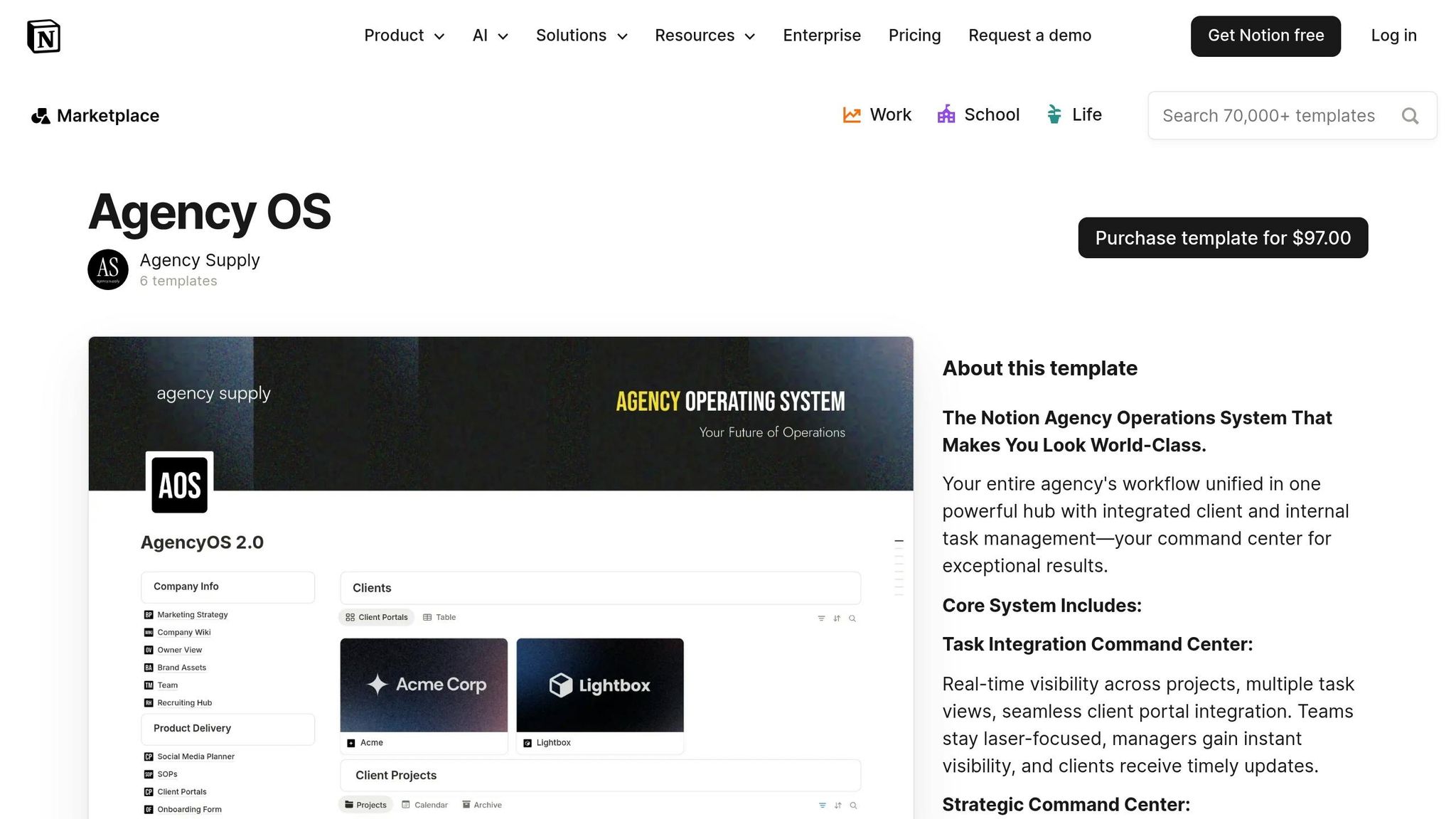
These templates incorporate essential offboarding steps directly into your Notion OS, simplifying every phase of the process. For example, the Small Business OS Template Kit and Freelance Business OS System connect offboarding checklists with project data, making it easier to manage transitions. Agencies handling multiple clients can benefit from templates in the Agency OS dashboards category, which often include a Team Operations Hub. This hub features an SOP library where you can store and duplicate a "Client Offboarding" checklist for each client.
One standout feature of the Agency OS, used by more than 500 agencies across 12 countries to manage over $2 million in revenue, is its shareable Client Portals. These portals consolidate assets, invoices, and client history into one professional space, reducing the need for back-and-forth emails. With a 4.9/5 rating from over 200 reviews, users frequently highlight how quickly their teams adapt to the built-in SOPs, often becoming fully productive within two days.
"Agency OS is about as close to a perfect system as I have found. Instantly made my video agency more organized."
- Mike Tucker, Video Agency Founder
Client-Ready OS Dashboards for Structured Processes
While Business and Agency OS templates focus on internal workflows, client-ready dashboards elevate the handoff experience. These dashboards on OS Dashboard HQ are designed to provide polished, professional transitions that scale with your business. For example, templates in the Finance & CRM OS category integrate financial tracking into offboarding workflows, ensuring all invoices are marked "Paid" before accounts are officially closed.
For teams managing complex client workflows, the Business OS dashboards category offers systems equipped with Kanban-style Task Management Boards. These boards allow you to filter offboarding steps by project or client, ensuring every detail - like revoking access or archiving files - is addressed.
"The client portal alone is worth 10x the price. Our clients feel like they're working with a much bigger agency."
- Priya Sharma, Sharma Digital
Next Steps: Add Offboarding to Your Existing Notion OS Today
With your offboarding framework ready, it’s time to bring it to life.
Start with a Simple Checklist
Instead of starting from zero, duplicate a basic SOP template. If you already use a Business OS dashboard, integrate your checklist into a central Team Operations Hub or SOP Library. Set the exit interview day as the starting point, with a due date 30 days later to keep timelines consistent. Assign a clear "Work Assignee", such as a Client Manager, to ensure accountability.
One agency owner shared that a structured Notion system helped new team members become productive in just two days. Begin with a checklist of five to seven essential tasks and expand it gradually as your business scales.
Once your checklist is in place, you can simplify things even further by using pre-built templates.
Explore OS Dashboard HQ for Ready-to-Use Solutions
If you’d rather skip the setup altogether, explore OS Dashboard HQ for pre-built templates that include offboarding workflows. For instance, the Small Business OS Template Kit ($79) and the Freelance Business OS System connect offboarding checklists directly to project data. Meanwhile, Agency OS dashboards offer shareable Client Portals to make handoffs seamless.
These templates come with video walkthroughs and setup guides, making it easy to get started - even if you’re not a Notion expert.
"Setup took about 2 hours and I was up and running. The video walkthroughs made it so easy even though I'm not a Notion expert."
- Emily Foster, Foster Marketing Co
Start with a simple checklist today, and then explore OS Dashboard HQ to see how top creators design their client-ready systems.
FAQs
What should trigger offboarding in Notion?
When using Notion, offboarding should begin when a project or client is marked with a specific status like 'Ready for offboarding' in your workflows. This status signals that everything is in place - deliverables are finalized, access permissions are updated, final invoices are issued, and documentation is ready to be handed off. By linking this process to your project and client databases, you create a clear, repeatable system for managing offboarding efficiently.
How do I automate an offboarding checklist per project?
Streamlining your client offboarding process in Notion is easier than you might think. Start by creating a reusable template within your Projects or Tasks database. This template should include all the essential steps for offboarding, such as:
- Delivering final work or assets
- Updating or revoking access permissions
- Sending final invoices
- Handing off any necessary documentation
- Collecting client feedback
Next, connect this template to your Project and Client databases using Notion's relation and rollup features. By setting up an automated workflow, you can configure the checklist to trigger as soon as a project status changes to something like “Ready for offboarding.” This ensures every step is accounted for without manual tracking, saving time and reducing the risk of errors.
How can clients access the final handoff in Notion?
Clients can access their final deliverables in Notion through a dedicated Client Handoff page. This page serves as a centralized hub for all project files, documents, and assets. To keep everything streamlined, link this page to your existing Notion databases, such as Projects or Clients, and adjust access permissions to ensure the right people can view it.
The handoff process can be triggered when the project status is updated to Completed or Ready for Offboarding. This approach ensures a smooth and organized transfer of all necessary materials, keeping your workspace tidy while making it easy for clients to find everything they need.